GEO & AI Search
Schema Validation: How to Test Your Markup
Quick Answer
Schema validation ensures your structured data actually works. Use three tools: Google Rich Results Test for Google-specific eligibility, Schema Markup Validator for comprehensive compliance, and Google Search Console for ongoing monitoring. Test immediately after implementation, after website updates, and quarterly for existing pages. Fix all errors-they break functionality. Address warnings that improve AI understanding like author details and sameAs links.
Invalid schema is worse than no schema-it signals technical incompetence and can prevent AI citations.
Definition
Schema Validation
The process of verifying that your structured data markup (JSON-LD, Microdata, or RDFa) complies with Schema.org standards and renders correctly for search engines and AI systems. Validation catches syntax errors, missing properties, and format issues before they damage your GEO visibility.
You've added schema markup to your site. You followed the tutorials. You copied the JSON-LD into your page header. You published.
But here's the problem: schema markup that looks correct isn't always correct. A misplaced comma, a missing property, a wrong date format-any of these can break your structured data completely.
And broken schema is worse than no schema. It tells AI systems you can't implement technical standards correctly. It disqualifies you from rich results. It damages the trust signals you worked so hard to build.
Why Schema Validation Matters for GEO
According to TestSprite analysis, over 45 million domains use schema markup-but only 36% of those implementations are completely valid and error-free.
That 64% error rate isn't just about lost rich snippets. For GEO, invalid schema means AI engines can't parse your authority signals, can't verify your author credentials, can't extract your FAQ answers.
Think of schema as machine-readable metadata. When it's valid, AI systems can confidently trust the signals you're sending. When it's invalid, they ignore it entirely-or worse, penalize you for attempting to manipulate them with broken markup.
The Schema.org specification is precise. A single formatting error-using "DatePublished" instead of "datePublished"-can invalidate your entire article schema. That's why validation isn't optional.
Essential Validation Tools
You need three tools in your validation workflow. Each serves a different purpose.
Tool #1
Google Rich Results Test
Purpose: Tests whether your page is eligible for rich results in Google Search (star ratings, FAQ boxes, event snippets).
URL: search.google.com/test/rich-results
What it checks: Google-specific schema types only (Article, FAQ, HowTo, Product, etc.). Doesn't validate all Schema.org types.
When to use: Optimizing for Google rich snippets, checking new schema implementations, debugging Google Search Console warnings.
Key feature: Shows exactly how your rich result will appear in Google Search-invaluable for preview before publishing.
Tool #2
Schema Markup Validator
Purpose: Validates compliance with official Schema.org standards across ALL schema types.
URL: validator.schema.org
What it checks: Syntax errors, missing required properties, deprecated elements, format compliance (JSON-LD, Microdata, RDFa).
When to use: Comprehensive validation, checking schema types Google doesn't support, debugging complex nested schemas.
Key difference: Broader than Google's tool-validates ALL schema types, not just Google-supported ones. Critical for multi-platform GEO.
Tool #3
Google Search Console
Purpose: Ongoing monitoring of schema issues on your live site.
URL: search.google.com/search-console
What it checks: Enhancements report shows valid/warning/invalid counts for each schema type, crawl errors affecting structured data.
When to use: Weekly monitoring, post-deployment verification (wait 48-72 hours for Google to recrawl), identifying site-wide schema issues.
Pro tip: Set up email alerts for new errors. Catching schema breaks within days (not weeks) prevents extended periods of lost visibility.
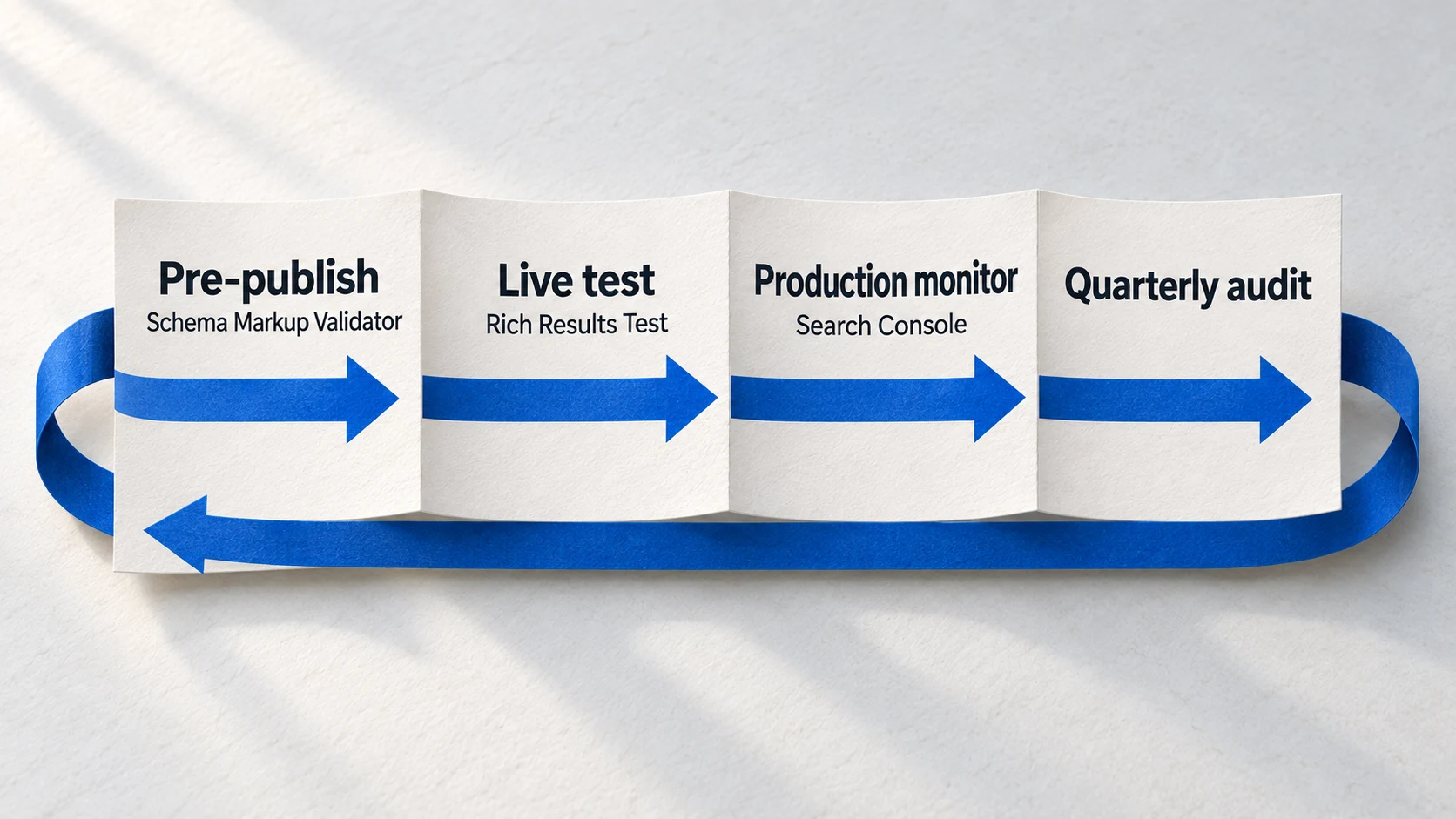
Step-by-Step Validation Workflow
Follow this sequence every time you implement or update schema markup.
Pre-Publish Validation
Before adding schema to your live site, test the code snippet locally:
- Copy your JSON-LD code (the entire script block)
- Paste into Schema Markup Validator using the "Code Snippet" tab
- Fix all errors until you see "No errors found"
- Review warnings-address those affecting AI understanding (author, dateModified, sameAs)
This catches 90% of issues before they ever reach your live site.
Live URL Testing
After publishing, verify the schema renders correctly on your live page:
- Wait 5-10 minutes for caching to clear
- Test live URL in Google Rich Results Test
- Check for JavaScript issues-some schema only appears after JS execution
- Verify mobile vs desktop rendering if your schema is viewport-dependent
Testing the live URL catches issues with dynamic schema, JavaScript rendering, and server-side problems.
Google Search Console Verification
Wait 48-72 hours for Google to recrawl, then check Search Console:
- Navigate to Enhancements → Your schema type (Article, FAQ, etc.)
- Review valid/warning/invalid counts
- Click into error details to see affected URLs
- Request reindexing after fixing issues
Search Console shows you how Google actually sees your schema in production-the ultimate validation.
Quarterly Audit
Schema can break over time from website updates, CMS changes, or plugin conflicts:
- Sample 10-15 URLs across different page types
- Run through validation tools to catch degradation
- Check for deprecated properties-Schema.org evolves
- Update dateModified if content has changed
Quarterly audits prevent silent schema failures that can persist for months undetected.
Practical Validation Workflow: Real-World Application
The four-step process above sounds straightforward, but real-world implementation requires understanding when each tool is most effective. Here's how to apply validation strategically.
Development Phase: Use Schema Markup Validator
During development, copy your JSON-LD code snippet into Schema Markup Validator's "Code Snippet" tab. This catches structural errors before you've deployed anything. The tool validates against Schema.org's official vocabulary-not just Google's subset.
Key insight: Google's Rich Results Test only validates schema types Google uses for rich results. Schema Markup Validator validates everything, including schema types AI platforms like ChatGPT and Perplexity rely on for entity understanding.
Staging/Preview Phase: Test Live URL Rendering
If your site has a staging environment, test the preview URL in Google Rich Results Test. This catches issues where schema exists in your code but doesn't render properly due to JavaScript loading, server-side rendering issues, or caching conflicts.
Common gotcha: Schema that works in local development may fail in production due to environment variables, CDN caching, or build process differences. Always validate the actual deployed output.
Production Phase: Monitor Search Console
Within 48-72 hours of deployment, Google Search Console's Enhancements reports show how Google interprets your live schema. This is the ultimate validation-how search engines actually parse your markup in production conditions.
Pro tip: Set up email notifications for new schema errors. A plugin update, CMS change, or content edit can silently break schema. Immediate alerts let you fix issues before they affect AI citations.
Maintenance Phase: Quarterly Sampling
Schema degradation happens gradually. A property format changes, a plugin conflict develops, or content updates create mismatches. Quarterly validation of 10-15 representative URLs catches drift before it becomes site-wide.
Sample strategy: Include your homepage, About page, 3-4 key blog posts, service pages, and any pages with complex nested schema (Person, Organization, FAQPage). These represent your schema diversity.
When to Validate: Decision Guide
Validate Immediately:
- • After implementing new schema
- • After any CMS or plugin update
- • When content management system changes
- • After template or theme modifications
Validate Periodically:
- • Quarterly audits (minimum)
- • Monthly for high-traffic sites
- • After bulk content imports
- • When Search Console shows warnings
Common Validation Errors and Fixes
Based on analysis from Kadima Digital and TestSprite research, these are the errors that break most schema implementations.
Error #1
Syntax Errors in JSON-LD
What it looks like: Missing comma, extra bracket, unmatched quotation mark, trailing comma after last property.
Why it breaks: JSON-LD is strict. Even a tiny formatting error makes the entire schema unparseable.
How to fix: Use a JSON validator (jsonlint.com) before using schema validators. Fix syntax first, then validate schema structure.
Prevention tip: Use a code editor with JSON-LD syntax highlighting. Visual Studio Code will flag syntax errors as you type.
Error #2
Missing Required Properties
What it looks like: "Missing field 'headline'" or "Missing field 'author'" in Article schema.
Why it breaks: Each schema type has mandatory fields. Without them, the schema is invalid and non-functional.
How to fix: Check Schema.org documentation for your schema type. Look for properties marked "Required" or "Recommended." Add all required fields.
Article schema required: headline, author (Person), datePublished, publisher (Organization). Missing any of these = invalid.
Error #3
Wrong Property Names (Case Sensitivity)
What it looks like: Using DatePublished instead of datePublished (capital D).
Why it breaks: Schema.org properties are case-sensitive. Incorrect capitalization means the property isn't recognized.
How to fix: Always use exact property names from Schema.org documentation. Double-check capitalization-most properties are camelCase (firstWordLowercase, restTitleCase).
Common mistakes: "DatePublished" → "datePublished", "ImageURL" → "imageUrl", "SameAs" → "sameAs"
Error #4
Using Wrong Schema Type
What it looks like: Using Product schema for a recipe, or Article schema for an event listing.
Why it breaks: Schema types have specific purposes. Mismatched schema confuses search engines about your content's actual nature.
How to fix: Review Schema.org types and choose the MOST SPECIFIC type for your content. Recipe for recipes, Event for events, Product for products.
Specificity rule: Use "Article" over "CreativeWork", "BlogPosting" over "Article" when applicable. More specific = better AI understanding.
Error #5
Schema-Content Mismatch
What it looks like: FAQ schema includes 10 questions, but only 5 appear on the visible page. Or review ratings in schema don't match actual reviews.
Why it breaks: Google considers this deceptive markup and may issue manual penalties. AI engines ignore markup that conflicts with visible content.
How to fix: Audit every schema property against page content. If it's in the schema, it MUST be visible on the page. No hidden information, no inflated counts.
Critical rule: Schema annotates existing content-it doesn't add content. If you can't see it on the page, don't put it in the schema.
Error #6
Invalid Date Formats
What it looks like: Using "12/16/2025" or "December 16, 2025" instead of "2025-12-16".
Why it breaks: Schema.org requires ISO 8601 date format (YYYY-MM-DD). Other formats aren't recognized.
How to fix: Always use ISO 8601 format for dates: "2025-12-16" for dates, "2025-12-16T14:30:00-05:00" for date-times with timezone.
Quick check: Dates should always be YYYY-MM-DD. No exceptions, no alternatives.
Error #7
Using Deprecated Properties
What it looks like: Using properties that Schema.org has deprecated or superseded with newer versions.
Why it breaks: Deprecated properties may stop working or produce validation warnings that damage trust signals.
How to fix: Check Schema.org changelog quarterly. Replace deprecated properties with current alternatives. Validators will flag deprecated elements.
Example: "highPrice" is deprecated-use "priceSpecification" with detailed pricing structure instead.
Debugging Techniques That Work
When validation fails and you can't immediately see why, these debugging approaches help you isolate the problem.
The Minimal Schema Test
Strip your schema down to only required properties. Test. If it validates, add optional properties back one at a time until you find what breaks it.
Example for Article schema: Start with just headline, author (name only), datePublished, publisher (name + url). Validates? Add image. Still validates? Add description. Repeat until you isolate the problem property.
The Nested Entity Check
Many schema errors happen in nested entities (Person inside Article, Organization inside Publisher). Test nested entities separately.
Workflow: Extract your Person schema into a standalone block. Test it separately. Then extract Organization schema. Test it. Once both validate individually, reintegrate them into the parent Article schema.
The Character Encoding Hunt
Special characters, smart quotes, and non-ASCII characters can break JSON-LD even when they look fine visually.
Fix: Replace curly quotes (" ") with straight quotes (" "), remove em dashes (-) or encode them properly, escape special characters in text fields. Test with plain ASCII first, then add special characters carefully.
The URL Format Verification
Schema requires absolute URLs (full path including domain), not relative URLs.
Wrong: "/about" or "../images/logo.png"
Right: "https://aruntastic.com/about" and "https://aruntastic.com/images/logo.png"
The Fresh Browser Test
Sometimes schema validates in testing tools but fails on live pages due to caching, JavaScript conflicts, or CMS issues.
Workflow: Open an incognito/private browser window. View page source (not Inspect Element-actual source). Copy the JSON-LD script block from the raw HTML. Test that exact code in Schema Markup Validator.
This ensures you're testing what's actually being served to search engines, not what you think you're serving.
Validation is not a one-time task. Schema can break from website updates, CMS changes, plugin conflicts, or content management system migrations.
Set up monitoring. Validate after every site update. Check quarterly even if nothing has changed. Your schema is part of your trust infrastructure-treat it with the same care as your security certificates.
FAQ
What's the difference between Google Rich Results Test and Schema Markup Validator?
How often should I validate my schema markup?
Can invalid schema hurt my SEO?
Should I fix warnings or just errors?
Ready to Master Schema Validation?
Learn the complete GEO framework-from schema implementation to AI citations-in the upcoming GEO Accelerator course.
Join the waitlist to get early access and exclusive launch bonuses
Take the GEO Readiness Quiz →60 seconds · Personalized report · Free
Continue Learning
Dive deeper into AI search with these related articles:
The Complete Schema Markup Guide for GEO
Master schema markup for AI visibility. Essential types, implementation strategy, and common mistakes.
Article Schema: Making Your Content AI-Readable
Learn how Article schema markup helps AI engines understand your content, improves citation likelihood, and makes your expertise visible in ChatGPT, Perplexity, and Google AI Overviews.
FAQPage Schema: Your Secret Weapon for AI Visibility
Pages with FAQ schema are 3.2x more likely to appear in AI Overviews. Learn the implementation strategy that maximizes AI citation potential.