GEO & AI Search
AI Referral Traffic: Setting Up Tracking in Google Analytics
Quick Answer
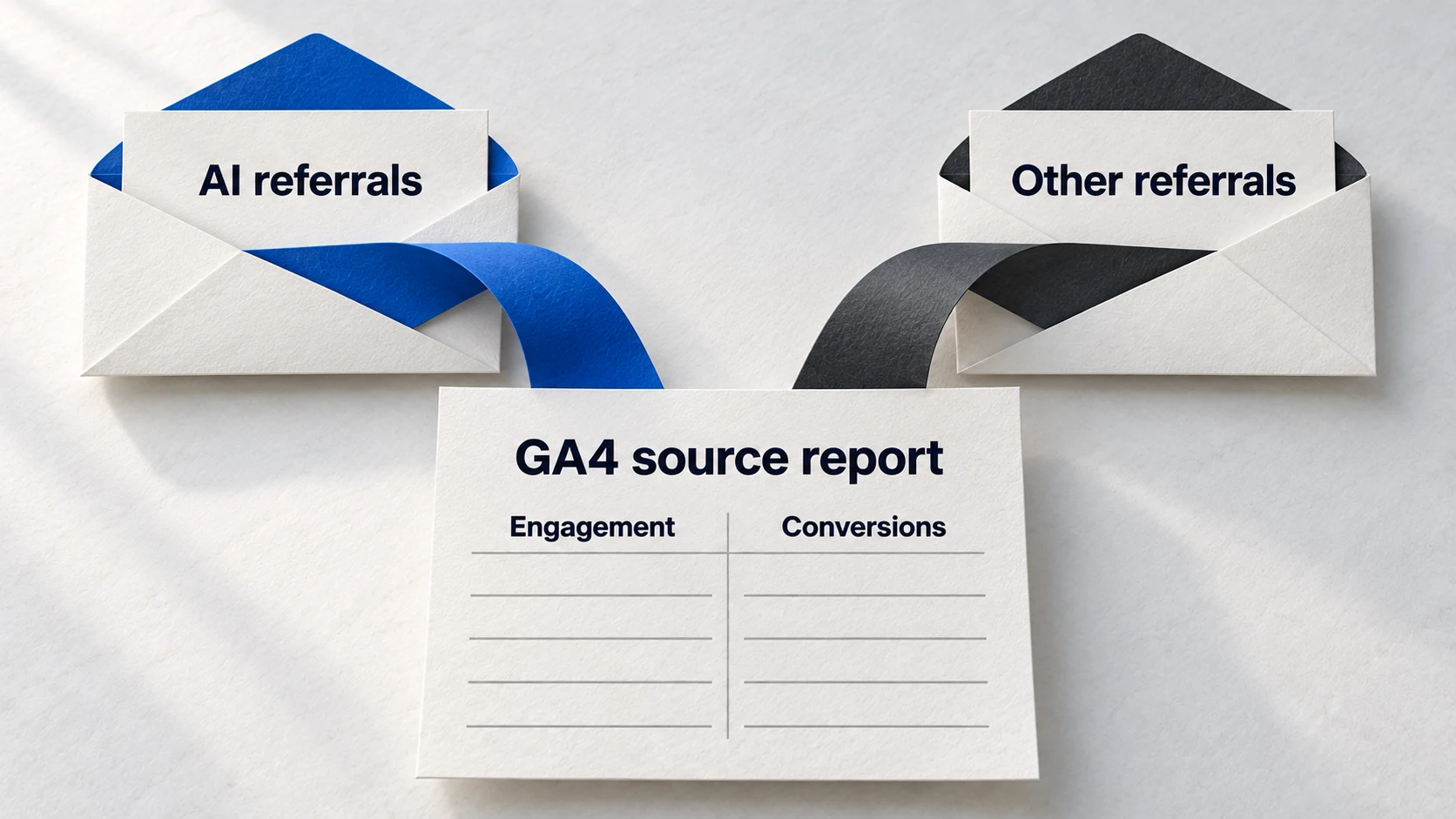
Track AI referral traffic in GA4 by creating a custom channel group with a regex filter for AI sources. Go to Admin → Channel Groups → Create new group. Add a channel called "AI Traffic" with the source condition matching regex: chatgpt\.com|perplexity\.ai|claude\.ai|gemini\.google\.com|copilot\.microsoft\.com. Position this channel ABOVE "Referral" in the list. GA4 will now separate AI traffic from generic referrals across all reports.
You open Google Analytics to check your traffic sources. Organic looks normal. Direct is high as always. Referral shows a mix of sites. But buried somewhere in those numbers is traffic from ChatGPT, Perplexity, and Claude-and GA4 doesn't separate it by default.
AI referral traffic is growing rapidly. According to ScaleMath, websites now receive anywhere from 0.5% to 3% of total traffic from LLMs-and that percentage is climbing monthly. But without proper tracking, this traffic gets lost in your "Referral" bucket, mixed with Pinterest pins and forum backlinks.
This guide walks you through setting up dedicated AI traffic tracking in GA4, from quick filters to permanent custom channel groups.
Why AI Referral Traffic Deserves Its Own Report
AI traffic behaves differently from traditional referral traffic. Visitors from ChatGPT and Perplexity have already asked a specific question and received your content as an answer-they arrive with higher intent than someone clicking a random backlink.
4.4x
Higher conversion rate
LLM visitors convert at 4.4x the rate of traditional organic visitors.
0.5-3%
Of total website traffic
Current AI traffic share for most websites-and growing monthly.
Without dedicated tracking, you can't answer basic questions: Which AI platforms send you traffic? Which pages do AI visitors land on? Are AI visitors converting better than search visitors?
The business case: If AI referrals convert at 4.4x the rate of organic traffic, even a small increase in AI visibility could outperform major SEO wins. But you can't optimize what you can't measure.
Setting Up AI Traffic Tracking in GA4
There are three approaches to tracking AI traffic in GA4, ranging from quick checks to permanent solutions. Here's each method with step-by-step instructions.
Method 1: Quick Traffic Acquisition Check
For a fast look at current AI traffic without permanent changes:
Open Traffic Acquisition report
Navigate to Reports → Acquisition → Traffic acquisition
Change dimension to Session source/medium
Click the dropdown above the table (default is "Session default channel group")
Search for AI sources
Type "chatgpt" in the search box. You'll see rows like "chatgpt.com / referral"
Repeat for other AI platforms
Search for "perplexity", "claude", "gemini", "copilot" individually
Limitation: This method requires manual searching each time and doesn't aggregate all AI traffic together.
The quick method works for spot checks, but for ongoing monitoring you need a permanent solution. That's where custom channel groups come in.
Create a Custom Channel Group (Recommended)
A custom channel group separates AI traffic permanently across all GA4 reports. Once set up, AI traffic appears alongside Organic, Direct, and Social as its own channel-no manual filtering needed.
Step-by-Step Setup
Navigate to Channel Groups
Admin → Data display → Channel groups
Create new channel group
Click "Create new channel group" and name it (e.g., "With AI Traffic")
Add new channel
Click "Add new channel" and name it "AI Traffic"
Configure the filter
Set "Source" condition to "matches regex" and paste the AI regex pattern
Reorder channels (CRITICAL)
Drag "AI Traffic" ABOVE "Referral" in the channel list
Recommended Regex Pattern
Copy this pattern into your channel source filter:
chatgpt\.com|chat\.openai\.com|openai\.com|perplexity\.ai|claude\.ai|gemini\.google\.com|copilot\.microsoft\.com|grok\.x\.ai|deepseek\.com
This pattern captures the major AI platforms. Review quarterly and add new sources as they emerge.
Why order matters: GA4 processes channel rules top-down. If "Referral" appears before "AI Traffic", ChatGPT visits get categorized as Referral before the AI rule can catch them. Always position AI Traffic above Referral.
Build an AI Traffic Exploration Report
Custom channel groups show AI traffic in standard reports. But for deeper analysis-like which landing pages AI visitors prefer-you need a custom Exploration.
Create an AI Traffic Exploration
Start a blank exploration
Navigate to Explore → Blank. Name it "AI Traffic Analysis" and set date range to Last 12 months.
Add dimensions
Import: Session source, Session medium, Landing page + query string
Add metrics
Import: Sessions, Engaged sessions, Engagement rate, Key events (conversions)
Apply the AI filter
Add filter: Session source matches regex with the AI source pattern
Key Metrics to Track
What Each AI Platform Actually Tracks
Not all AI traffic shows up in GA4. Each platform handles referrer data differently, and some strip it entirely. Understanding these limitations helps you interpret your data accurately.
| Platform | Referrer Data | Shows In GA4 As | Tracking Reliability |
|---|---|---|---|
| Perplexity | Usually passes | perplexity.ai / referral | High |
| Copilot | Usually passes | copilot.microsoft.com / referral | High |
| ChatGPT (Plus with web) | Sometimes passes | chatgpt.com / referral | Medium |
| ChatGPT (Free) | Rarely passes | Direct / (none) | Low |
| Claude | Inconsistent | Direct or claude.ai / referral | Medium |
| Gemini | Sometimes passes | gemini.google.com / referral | Medium |
The implication: Your GA4 AI traffic numbers are a floor, not a ceiling. True AI referral traffic is likely 2-3x higher than what GA4 reports, especially for ChatGPT which dominates market share but has the worst referrer tracking.
Google has indicated plans to add a dedicated AI traffic channel to GA4, but implementation timing remains unclear. Until then, custom channel groups are the best solution according to Search Engine Land.
FAQ
Why isn't my ChatGPT traffic showing up in GA4?
Does creating a custom channel group affect historical data?
How often should I update my AI source regex?
Can I track AI traffic in Google Search Console?
Ready to Track Your AI Traffic?
Setting up AI tracking is step one. Understanding what to do with that data is step two.
Learn how to build a complete GEO dashboard and calculate the ROI of AI citations.
Take the GEO Readiness Quiz →60 seconds · Personalized report · Free
Continue Learning
Dive deeper into AI search with these related articles:
The New SEO Metrics That Matter in AI Search
Traditional SEO metrics are failing. Learn the new metrics that actually matter: AI Citation Frequency, Share of Model Visibility, and more.
AI Citation Frequency: What It Is and How to Track It
Citation frequency measures how often AI models reference your content. Learn what it is and how to track it.
Share of Model Visibility: The New Market Share Metric
Share of Model Visibility measures your brand's presence in AI answers versus competitors.