AI PowerPoint Course · Course Reference
Google Gemini API Setup Guide (for the AI Presentation Theme Generator)
 Arun Nagarathanam · 10 Jul 2026 Guide · 16 of 16 in this course
 An exclusive resource for students of Arun's AI PowerPoint Course.
Course Reference
Step-by-Step Instructions
Step 1: Open the Theme Generator
- Visit the Theme Generator link: aruntastic AI Presentation Theme Generator
- Open it in any modern browser.
- This is where you will generate presentation themes.
Step 2: Open the Settings Panel
- Click the gear icon (top-right corner).
- This opens the API Key settings.
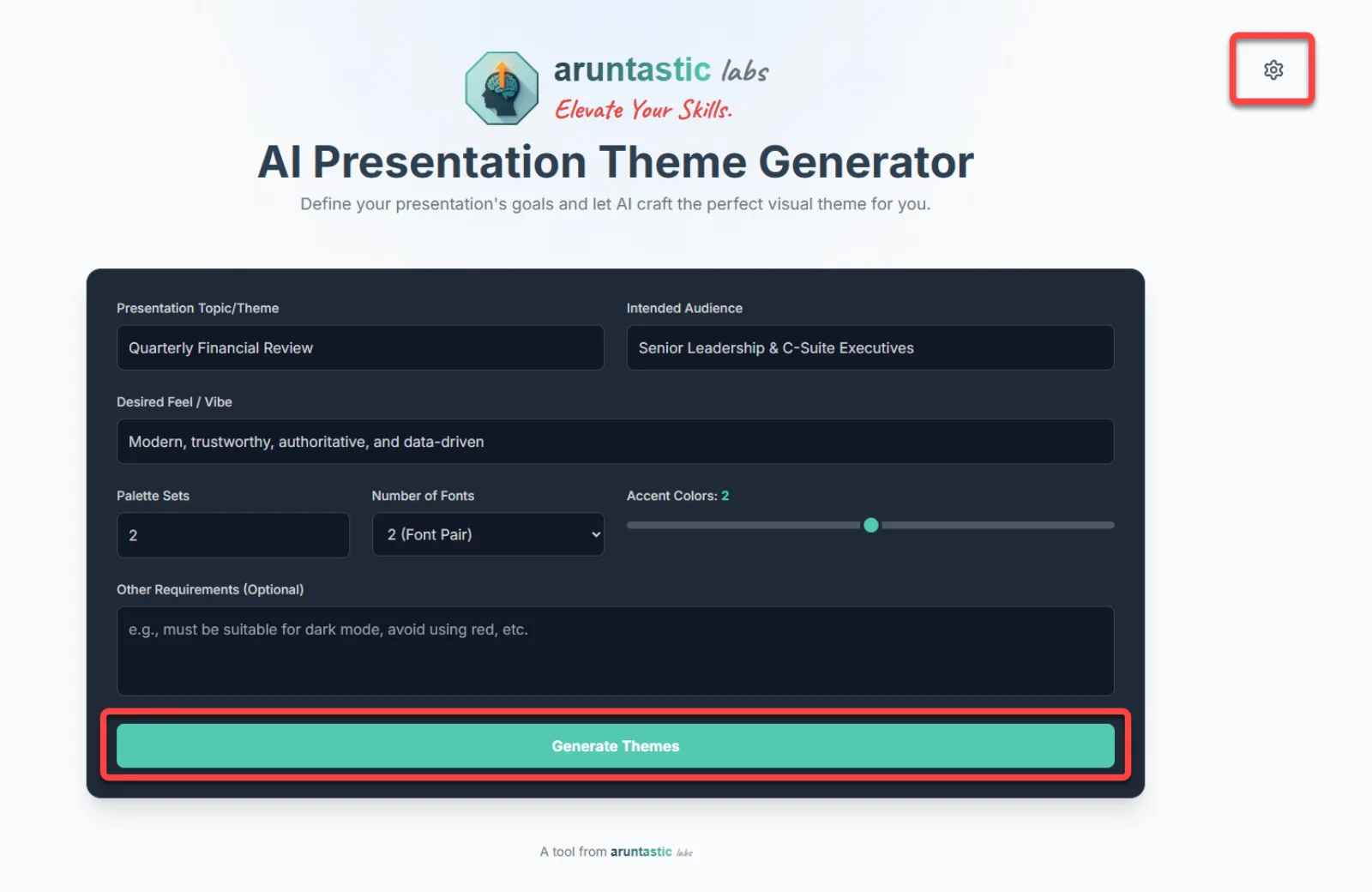
Step 3: When You Click "Generate Themes" Without a Key
- If no API key is saved, you will see a message stating:
"API Key Required — Please add your Google Gemini API key to start generating themes."
- This is normal, proceed to create your own API key.
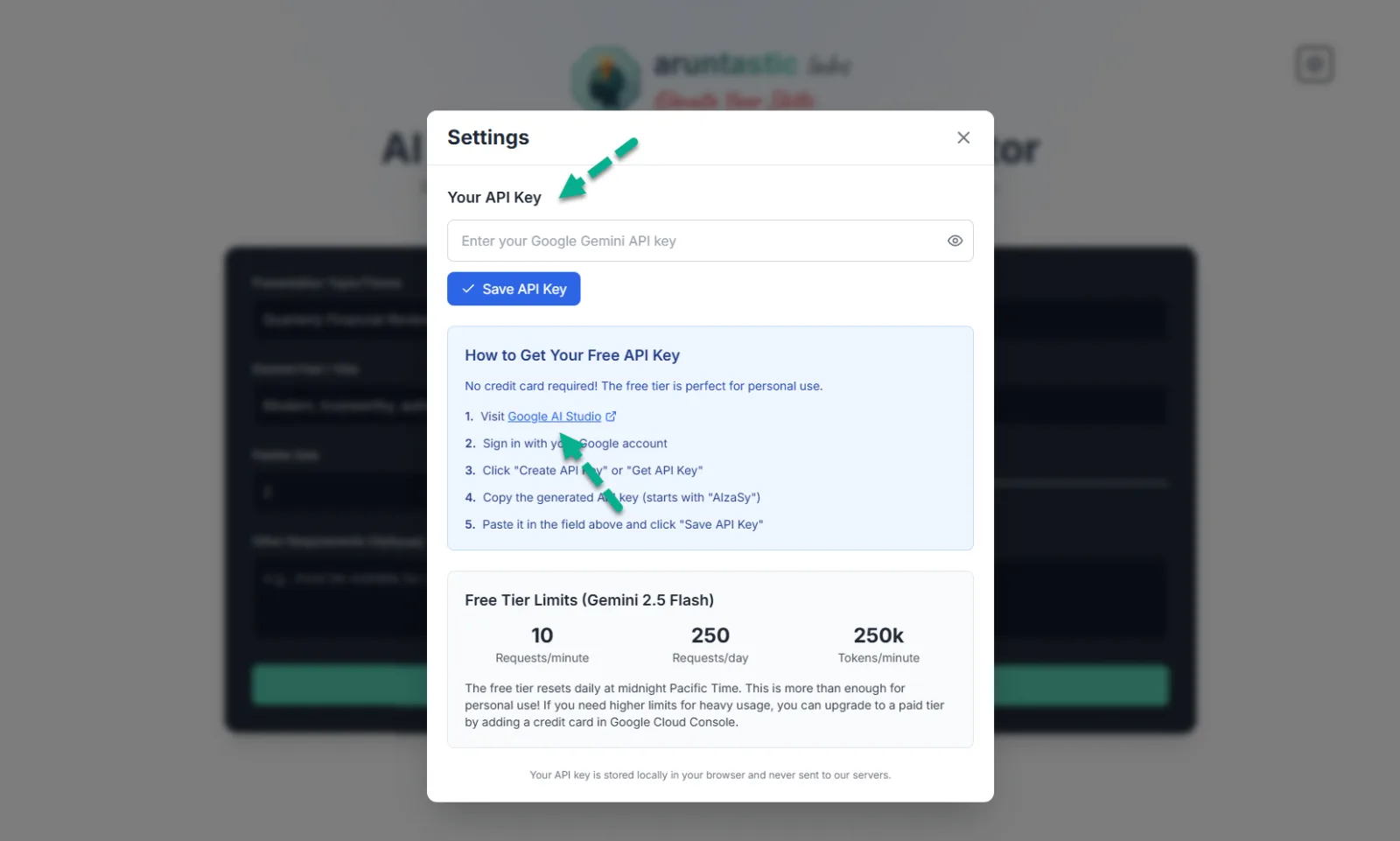
Step 4: Visit Google AI Studio
- Go to Google AI Studio (https://studio.google.ai).
- Sign in with your Google account.
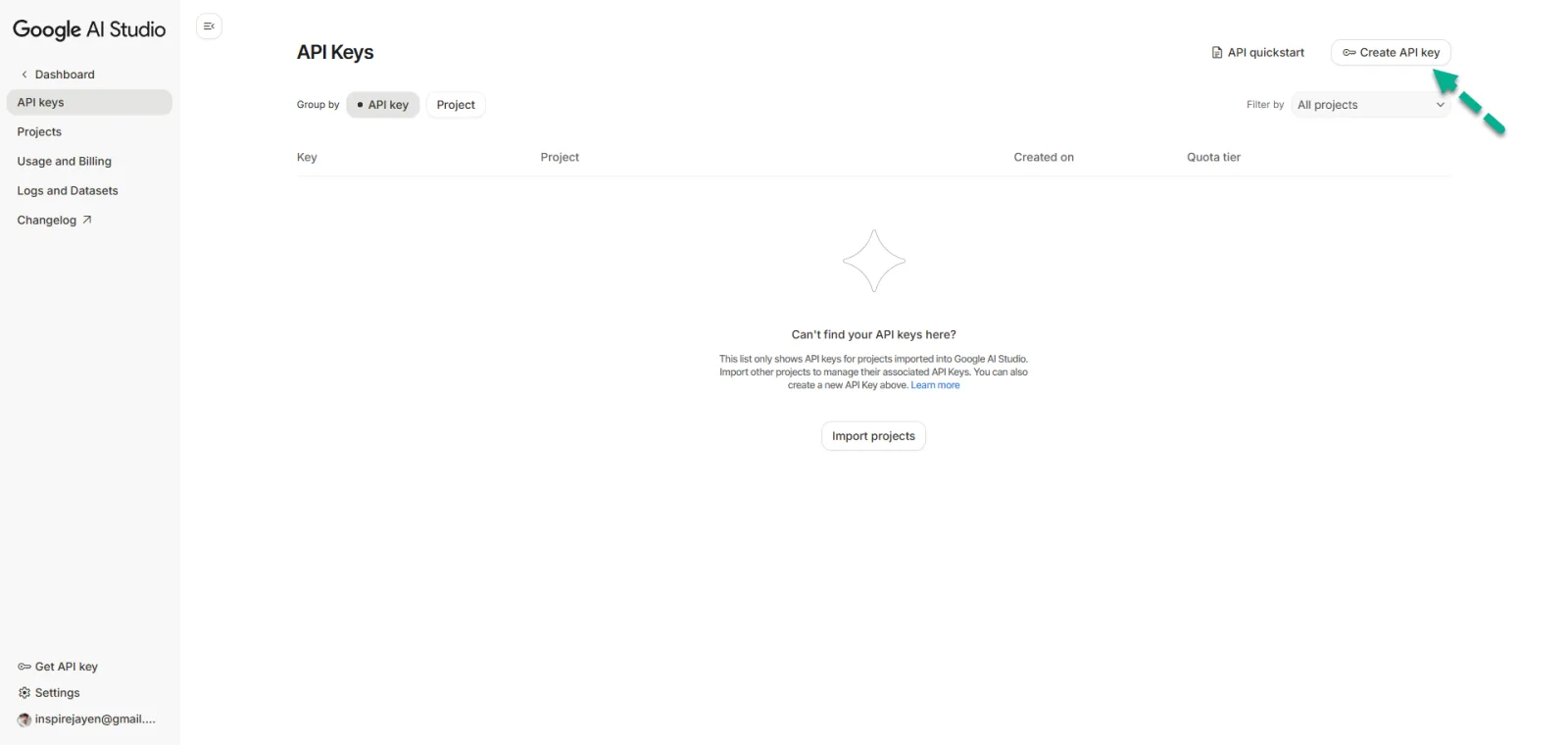
Step 5: Create Your Free Gemini API Key
- Click Create API Key.
- A popup titled "Create a new key" will appear.
Course Reference
Step 6: Follow These Required Steps Inside Google AI Studio (Important!)
Select or create a project
Follow along
- Click the dropdown under Choose an imported project.
- Select Create project.
- Enter a project name (e.g., aruntastic labs).
- Click Create project.
Now the new project will appear in the dropdown.
Create the API key
- After selecting the project
- Enter a name (e.g., AI Presentation Theme Generator).
- Click Create key.
Your API key is displayed
- Google AI Studio will show the newly generated API key.
- Copy it securely.
- Keys often start with AIzaSy…

Step 7: Add the API Key to the Theme Generator
Follow along
- Return to the Theme Generator's Settings.
- Paste the API key into the field provided.
- Click Save API Key.
The key is stored locally in your browser, not sent to any server.
Step 8: Generate Themes
- Go back to the main screen.
- Click Generate Themes again.
- Your custom themes should now be created successfully.
Course Reference
Important Notes
- Free Tier Limits (Gemini 2.5 Flash)
- 10 requests/minute
- 250 requests/day
- 250k tokens/minute
- Limits reset daily at midnight Pacific Time.
- If you need more capacity, you can upgrade in Google Cloud Console.
Course Reference
Troubleshooting
- If the key does not work, re-paste and save it again.
- Ensure there are no extra spaces before or after the key.
- If the system says quota exceeded, wait for the daily reset.
- If you exposed your key publicly, delete it in Google AI Studio and create a new one.


Keep building
More from Aruntastic
Practical courses for people who want to build useful things with AI.

AI SEO Course 2026: From Zero to Page-One Results
Research search demand, structure useful pages, and work through technical and off-page SEO.
Open the course →
AEO, GEO, AI SEO: Get Cited by ChatGPT, Google, Perplexity
Study how AI search finds information, and make your pages clear enough to be cited.
Open the course →
Microsoft PowerPoint Presentation 2026 for Professionals
Learn visual hierarchy, slide composition, typography and animation through practical work.
Open the course →
AI Agents for Leaders Who Have No Time to Learn AI
If you can delegate to a person, you can delegate to an AI agent. You keep the judgment. For managers and founders.
Open the course →
Introduction to Agentic AI and AI Agents
Learn how to direct an AI agent at work, with agentic workflows, RAG and MCP explained from a real first run.
Open the course →Toolkits and programme
Go deeper

Toolkit
SEO Accelerator Toolkit
150+ copy-paste AI prompts for audience research, keywords, content, technical SEO and link building.

Toolkit
GEO Accelerator Toolkit
100 detailed AI prompts for GEO audits, entity building, content structure and client reporting.

Programme
GEO Authority Accelerator
A complete GEO programme on our learner platform: nine modules and a 30, 60, 90 day roadmap. The GEO Accelerator Toolkit is included.
Claude certification practice
Preparing for a Claude certification?
Practice exams written by Arun: 600 questions across 4 mock exams and 2 drill banks. Unofficial preparation, not affiliated with Anthropic.
 CCAR-F
 CCAO-F
 CCDV-F
 CCAR-P
See Where You Stand
This resource is one piece of a much bigger system.
Take the free GEO Readiness Quiz to see exactly where your business stands with AI search engines today.
Take the GEO Readiness Quiz 60 seconds · Personalized report · Free