Claude Code Without Coding · Section 8 · Notes
Notes: Give Claude a Method It Can Reuse
The ideas worth keeping from each lecture, the steps to follow, and one question to check yourself.
 Arun Nagarathanam · 5 Oct 2026 Notes · 58 of 80 in this course
Lecture 8.1
What Is a Claude Code Skill, and Why Would You Use One?
A Skill saves a method once, so the same careful treatment is waiting when the next batch of customer comments arrives. I no longer retype the instructions, and nobody who picks up the job has to guess them.
Key ideas
- 01Willow Desk: Our fictional desk-organizer business. Twelve practice comments carry every example in this section.
- 02Feedback IDs: Each comment is numbered F01 to F12, so I can check that a conclusion points back to a real comment and that none is counted twice.
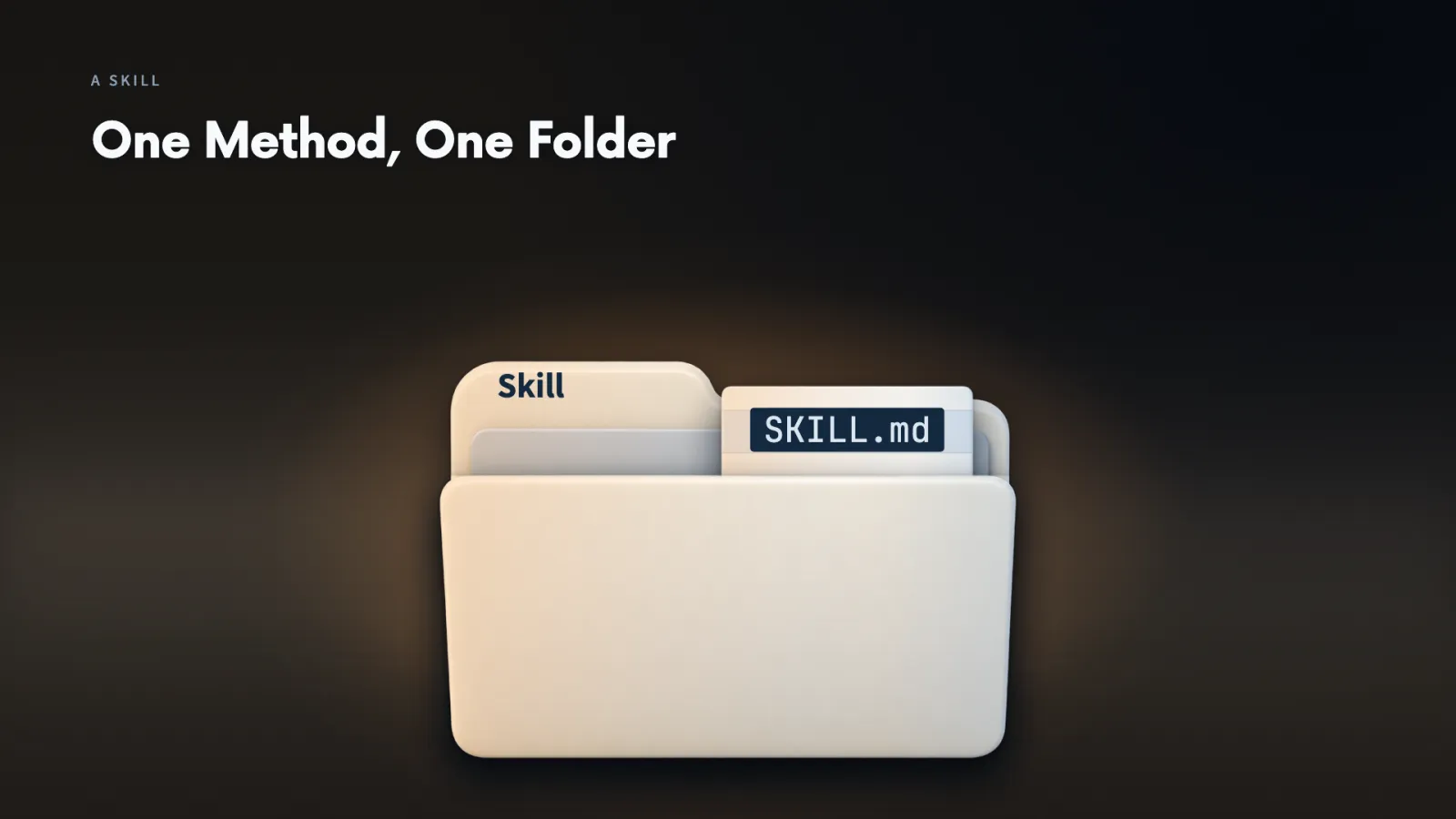
- 03Skill: A reusable method saved in a folder. Its main file, SKILL.md, is the same kind of plain text as the project instructions.
- 04Instructions or Skill: Project instructions hold facts that apply to all the work. A Skill holds the longer steps for one particular job and is brought in when I do that job.
On feedback day I want Claude to do three things:
- group the comments and show which IDs support each group
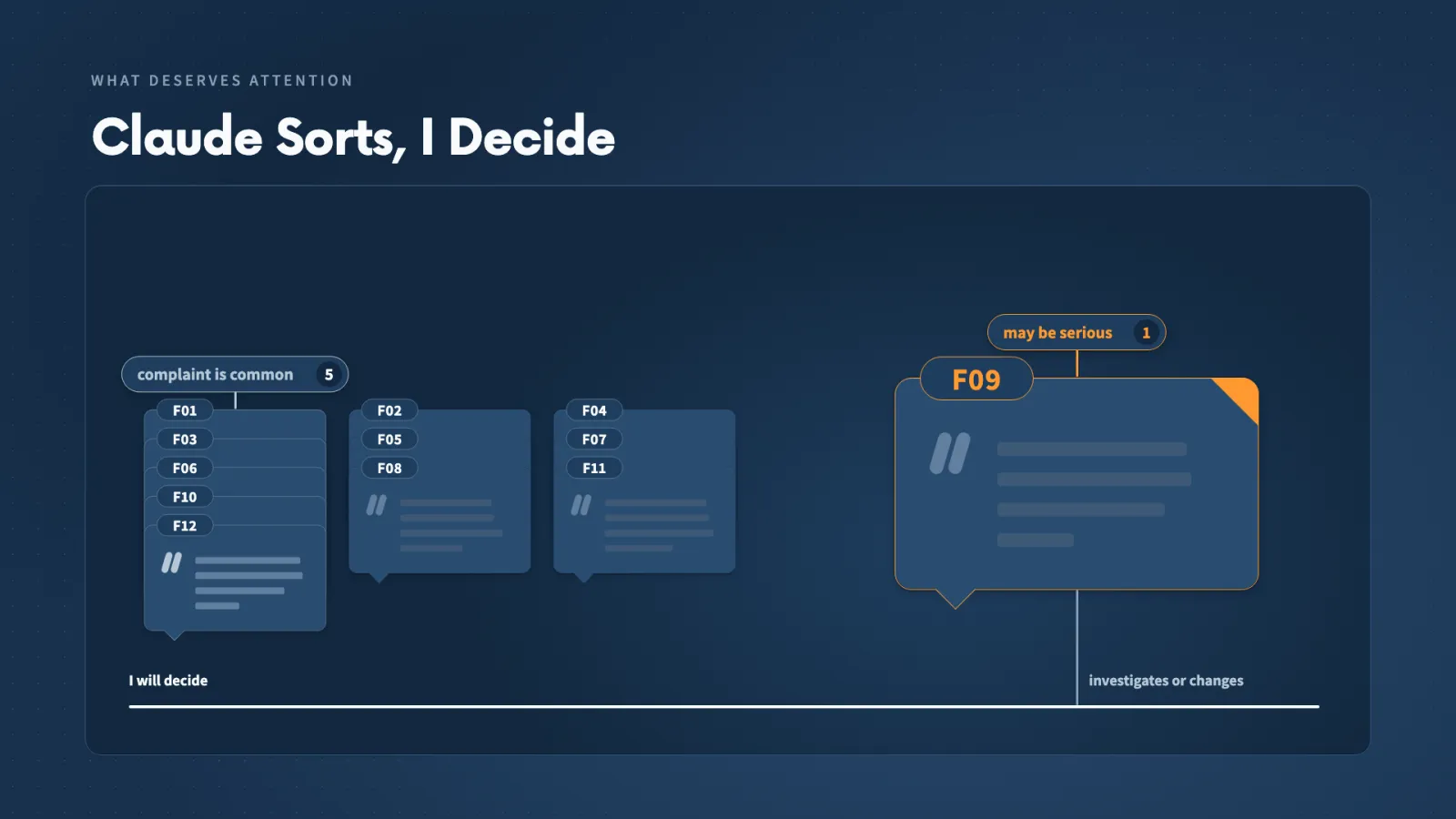
- keep a serious comment visible even when it appears only once
- leave the decision about what to investigate with me
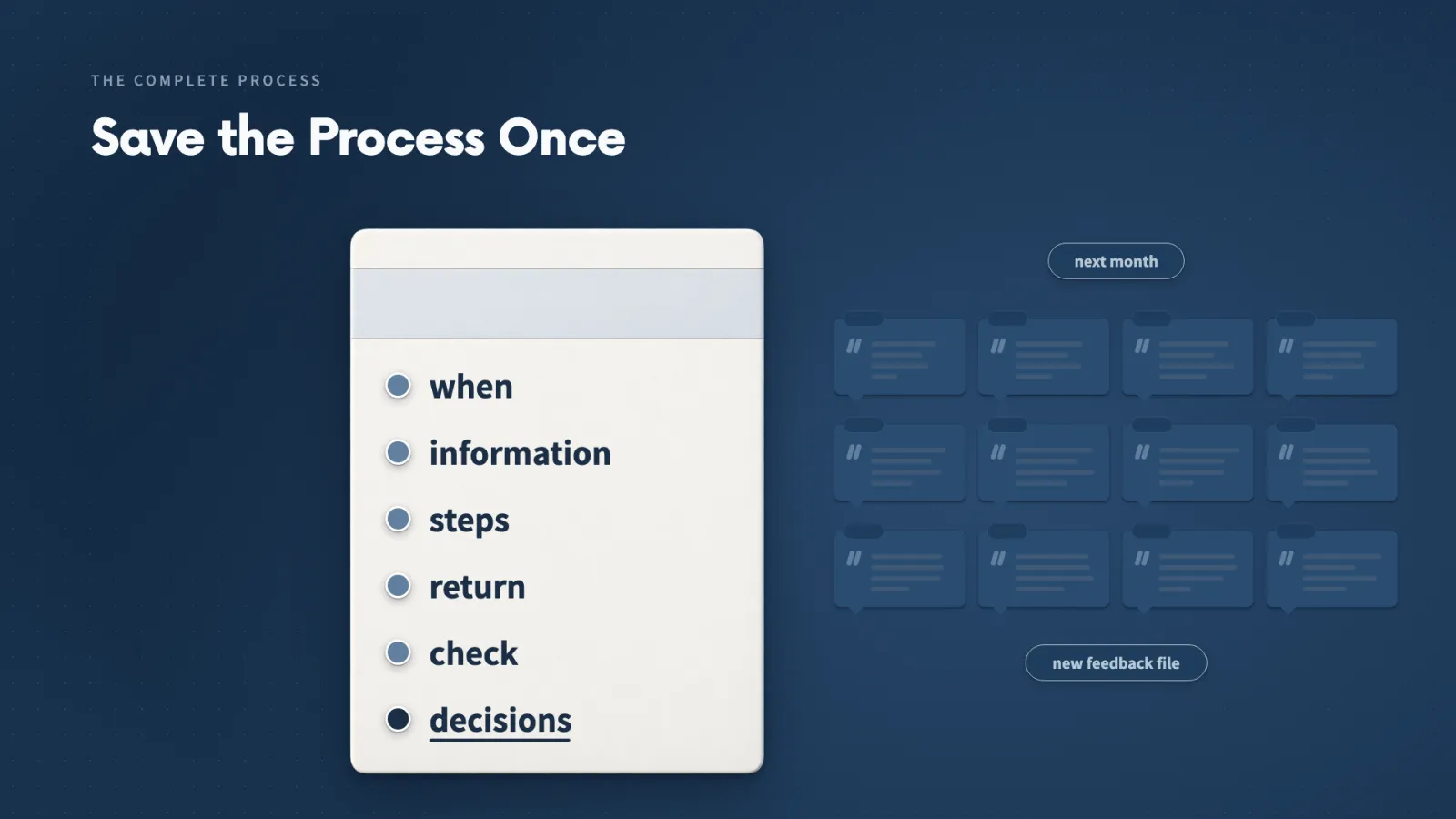
Why not a prompt. I could say all of that in a prompt, but next month I would write it again. A colleague might follow a different process and lose the IDs, and someone assigned the job months later might look only at the most frequent problems and miss the rare serious one.
Why not the project instructions. Those instructions also go along with work that has nothing to do with customer feedback. I want the project facts available all the time and this longer set of steps brought in only for this job.
The section builds the ability in four stages:
- Recognize a useful Skill and choose one carefully.
- Install and use existing Skills.
- Build a customer-feedback Skill from my own decisions and check that Claude used it.
- Adapt it, diagnose faults and confirm an improvement did not damage something that worked.
Lecture 8.2
Why Use a Skill If Claude Can Already Answer?
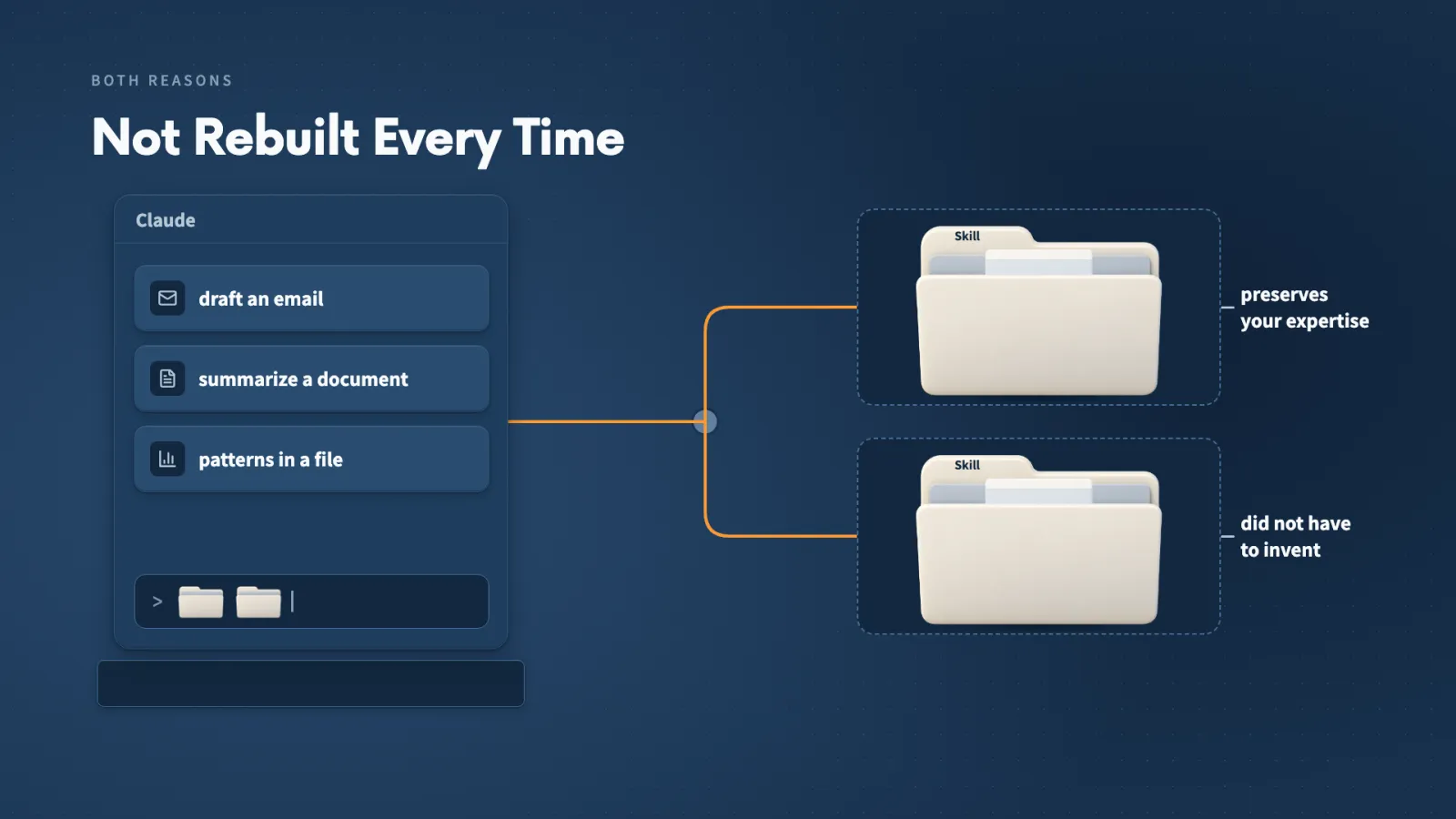
Claude can already draft and summarize, so a Skill has to earn its place. It does that in two situations, and knowing which one I am in tells me how much checking the Skill needs first.
Key ideas
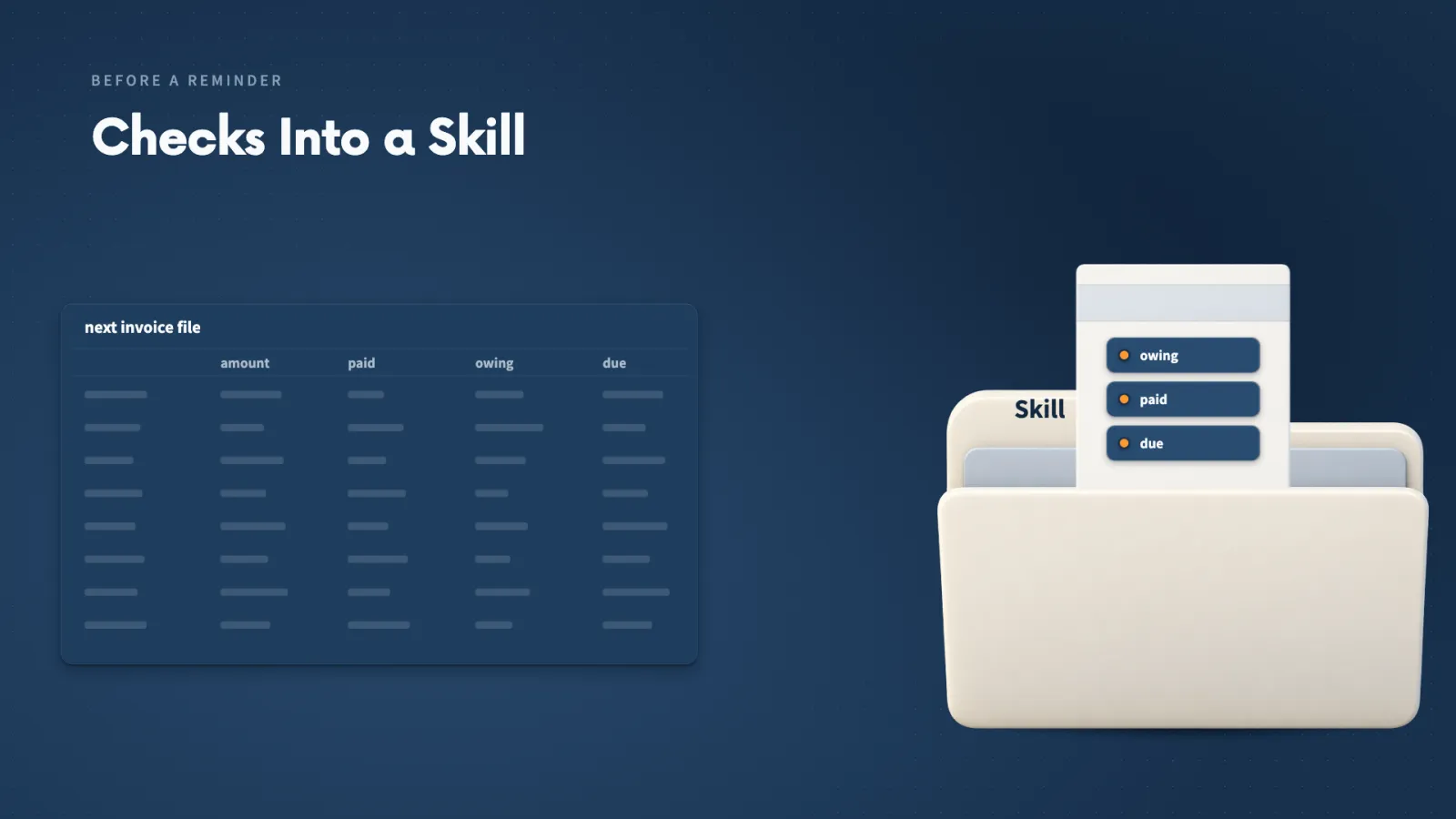
- 01Preserve a process: I already know the right checks, so I save them. A customer billed $500 who has paid $300 is chased for the remaining $200.
- 02Borrow a process: A call-preparation Skill gives me the structure an experienced salesperson would use: objective, history, likely questions, risks and the decisions I want.
- 03Same way, new result: The Skill keeps how Claude works consistent while the answer changes with each new file.
- 04Loading: Claude first sees a short description. When a Skill is selected, its full instructions are added to the conversation.
I reach for a Skill in two situations:
- I know the right process and want to keep it.
- The job is unfamiliar and a source I have checked already has a process for it.
The invoice case. The reminder asks about the remaining $200, leaves out invoices paid in full and checks whether the payment date has passed. The next file has different customers and amounts, so the answer changes while the checks stay the same.
The sales-call case. I have the meeting time, the company name, notes from the last conversation and an open proposal. I may not know how to turn those into a one-page brief, and the Skill supplies that structure.
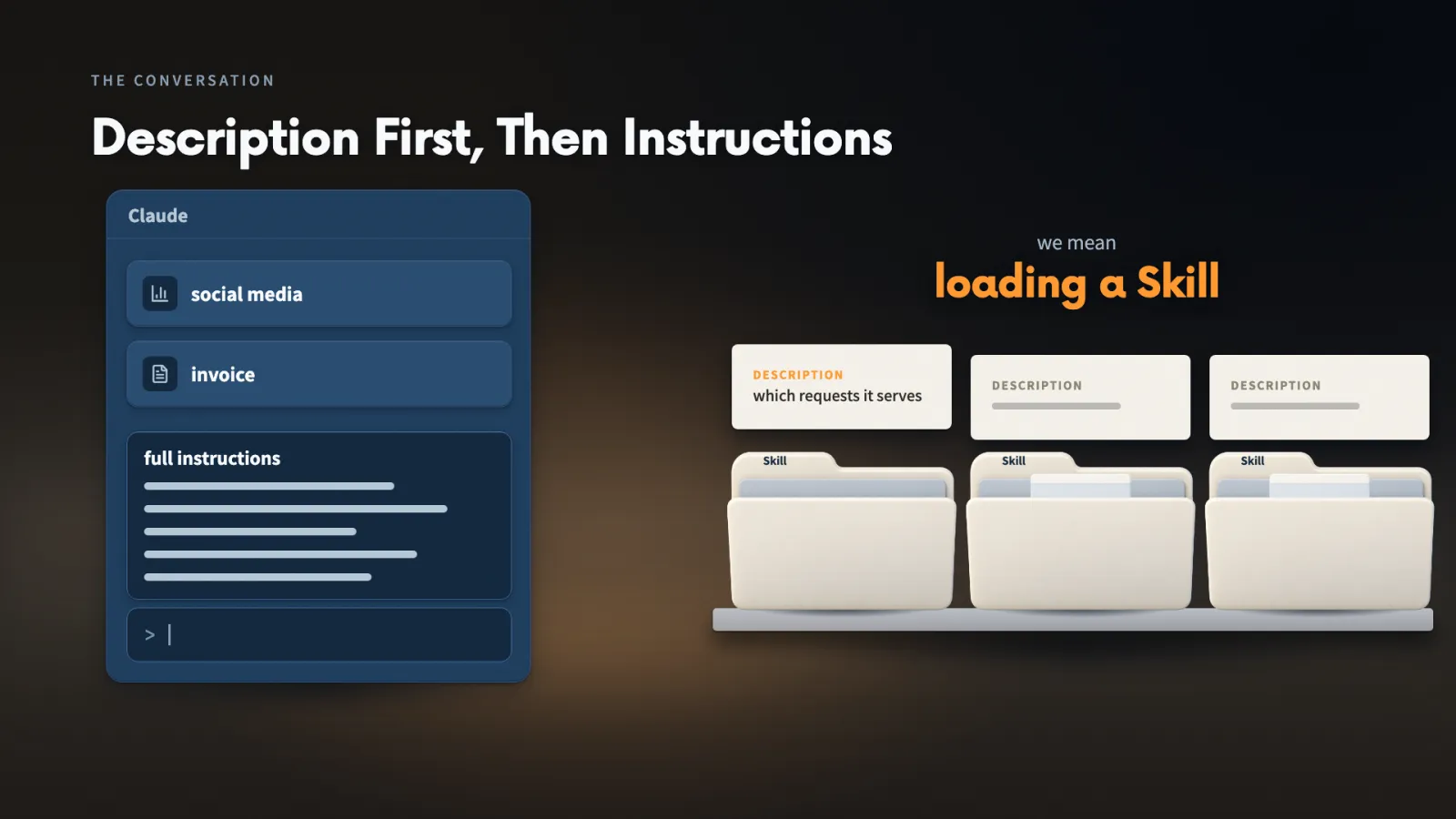
Why loading matters. I do not want invoice instructions filling a conversation about social media. Only the short description stays in front of Claude until the invoice Skill is selected.
For an unfamiliar job, I use a Skill only after I have checked where its process came from and what it will ask Claude to do.
Lecture 8.3
Which Claude Code Feature Fits This Job?
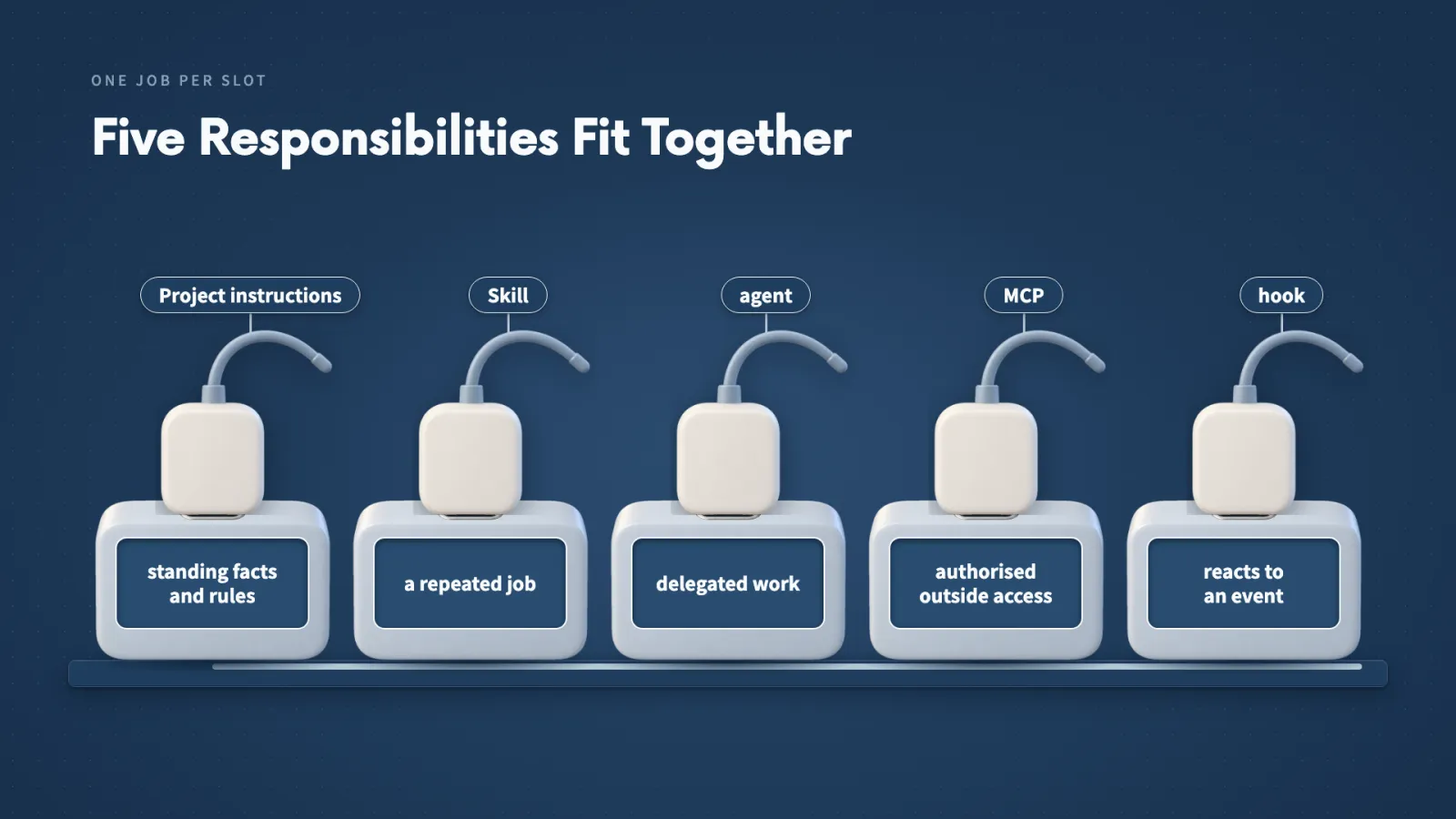
Claude Code has five different ways to organize work, and each answers a different need. When I start from the need, I stop forcing one feature to do every kind of work.
Key ideas
- 01Project instructions and Skill: Instructions carry standing facts and rules. A Skill carries the process for a repeated job.
- 02Agent: A separate Claude assistant given one part of the work. It is called a subagent when it works under the main assistant.
- 03MCP: An authorised way for Claude to reach outside information or actions, such as comments that live in a support platform.
- 04Hook: A rule that connects an event, such as saving a report, to an action, such as a check.
The feedback work can change in three ways, and each change needs a different feature:
- The feedback lives outside the project, so I need MCP to bring it in.
- The analysis grows, so I can give one part, such as the setup complaints, to an agent.
- I keep forgetting to check a report after saving it, so a hook starts the check when the save happens.
What stays the same. Willow Desk is fictional, the source files stay unchanged and I make the final business decisions. Those standing facts belong in the project instructions, and the feedback Skill still explains how to analyse the comments.
Features working together. The agent does the analysis and the Skill supplies the instructions it follows. The connection supplies the comments, and the hook decides when the separate check starts.
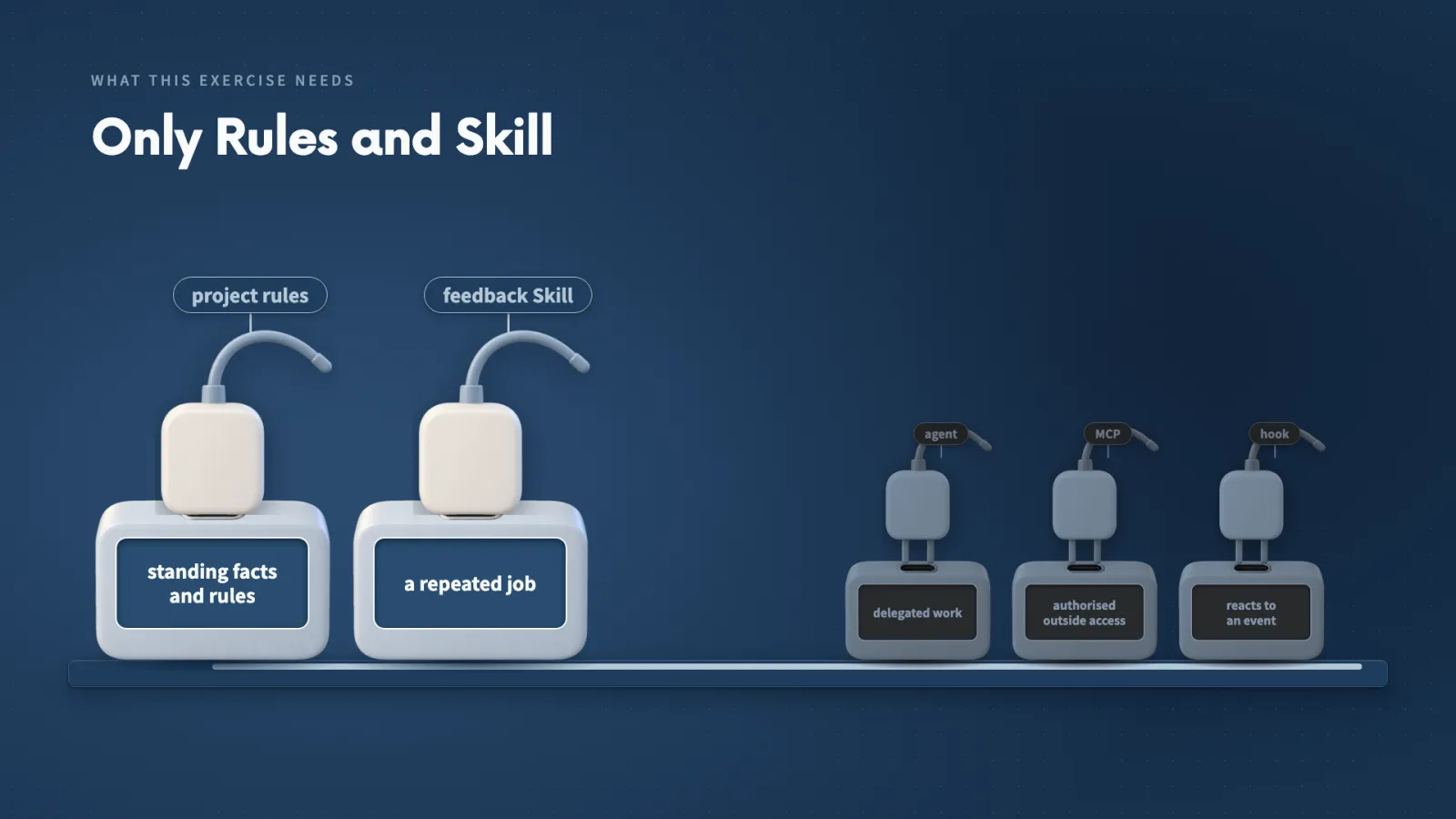
Our exercise needs only the project rules and the feedback Skill, so the other three answer needs that appear as the work grows.
Lecture 8.4
What Can Skills Help You Do?
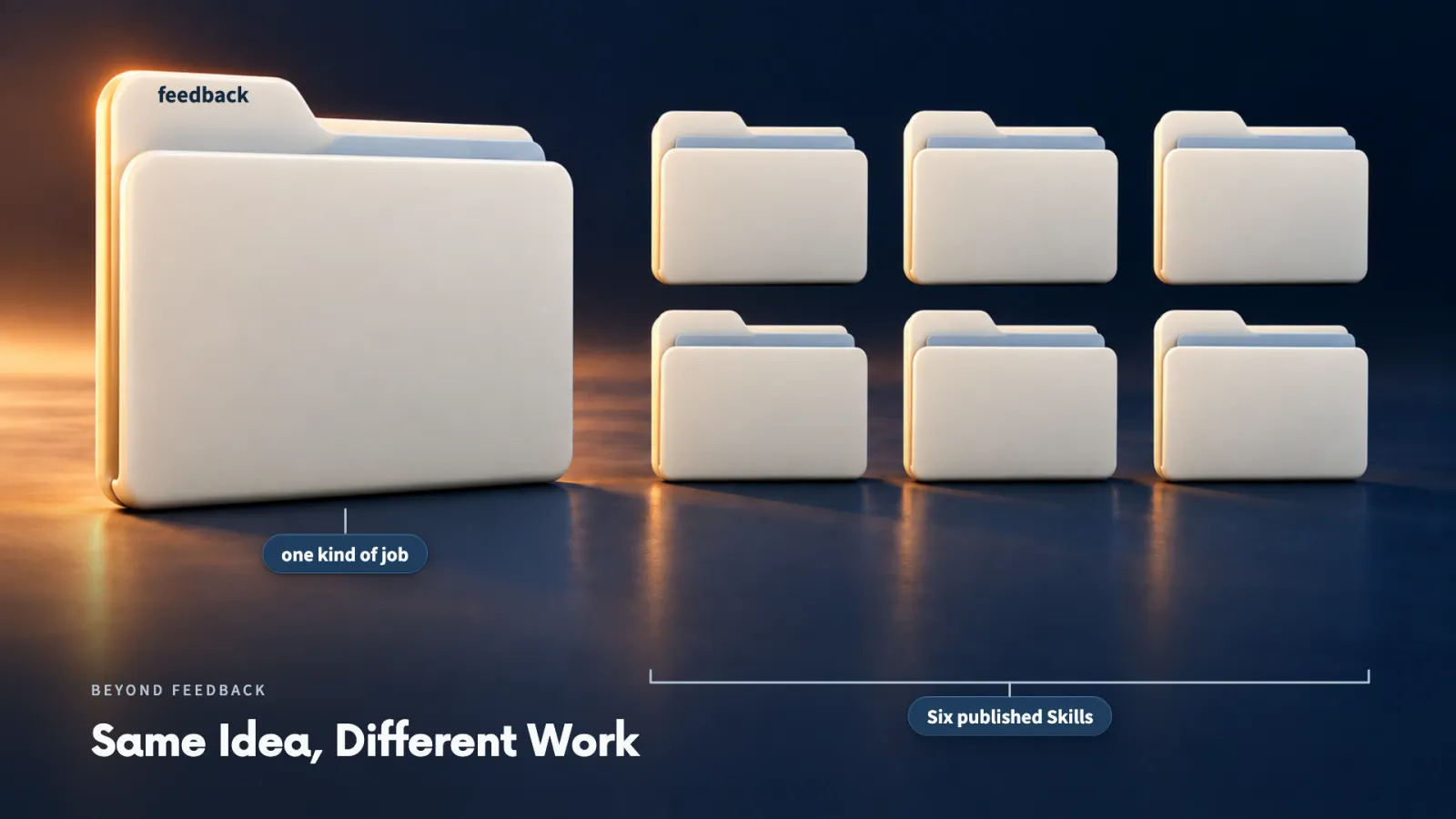
The same idea fits very different work. Six published Skills show it, and picking the one nearest my own job tells me what I would hand Claude and what I would check.
Key ideas
- 01brand-review: Checks where a draft moves away from approved voice guidance and suggests focused revisions.
- 02campaign-plan: Turns a goal, audience, timeline and business information into one plan, with a calendar and the measures of response.
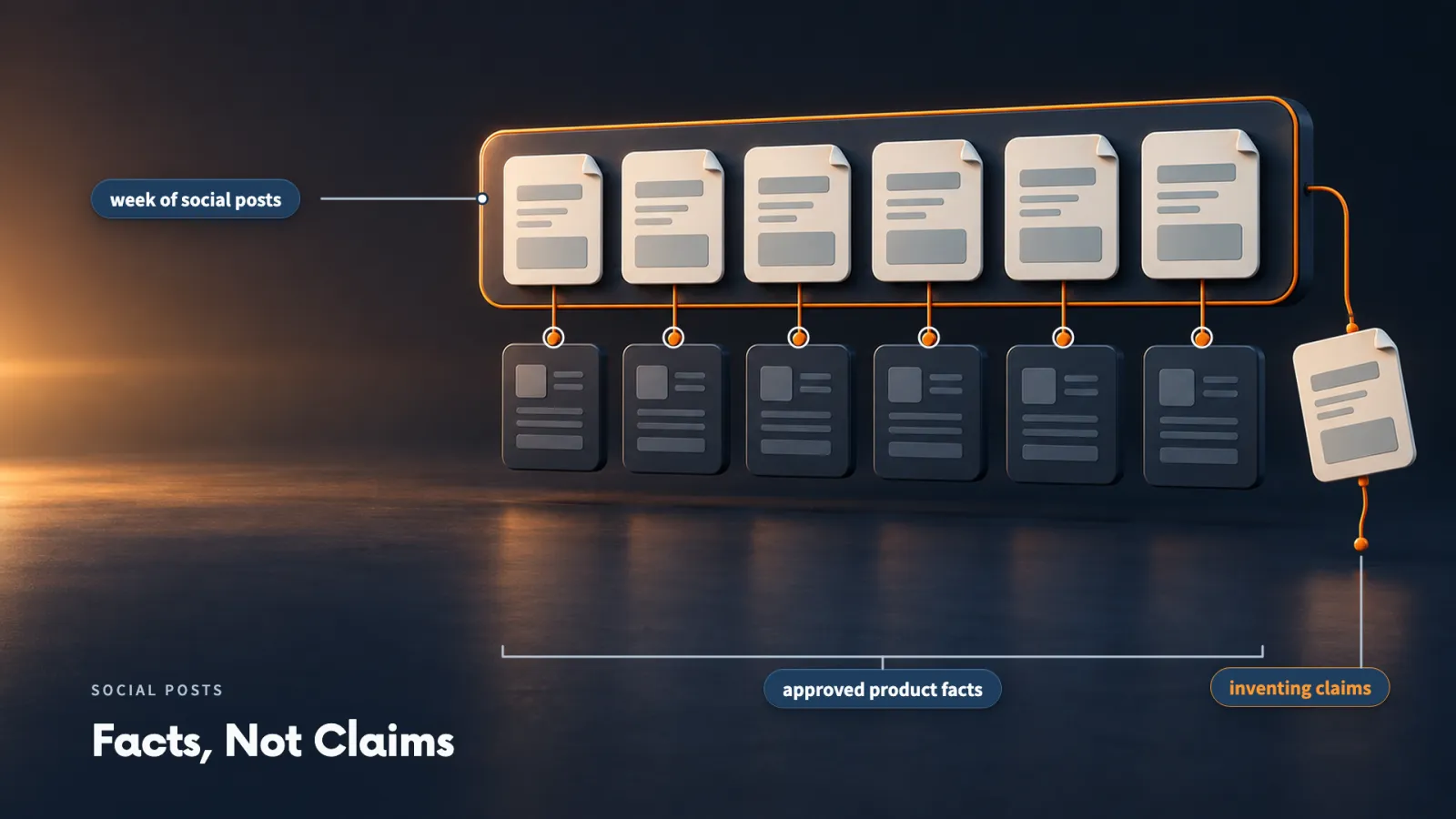
- 03social-content-engine: Prepares a calendar and drafts for review from a product brief. We use it with Willow Desk shortly.
- 04The other three: ad-manager analyses spend and enquiries and proposes changes for a person to review. call-prep prepares an objective, history, questions and likely objections. job-post-builder creates a job post, an interview guide and an offer-letter template.
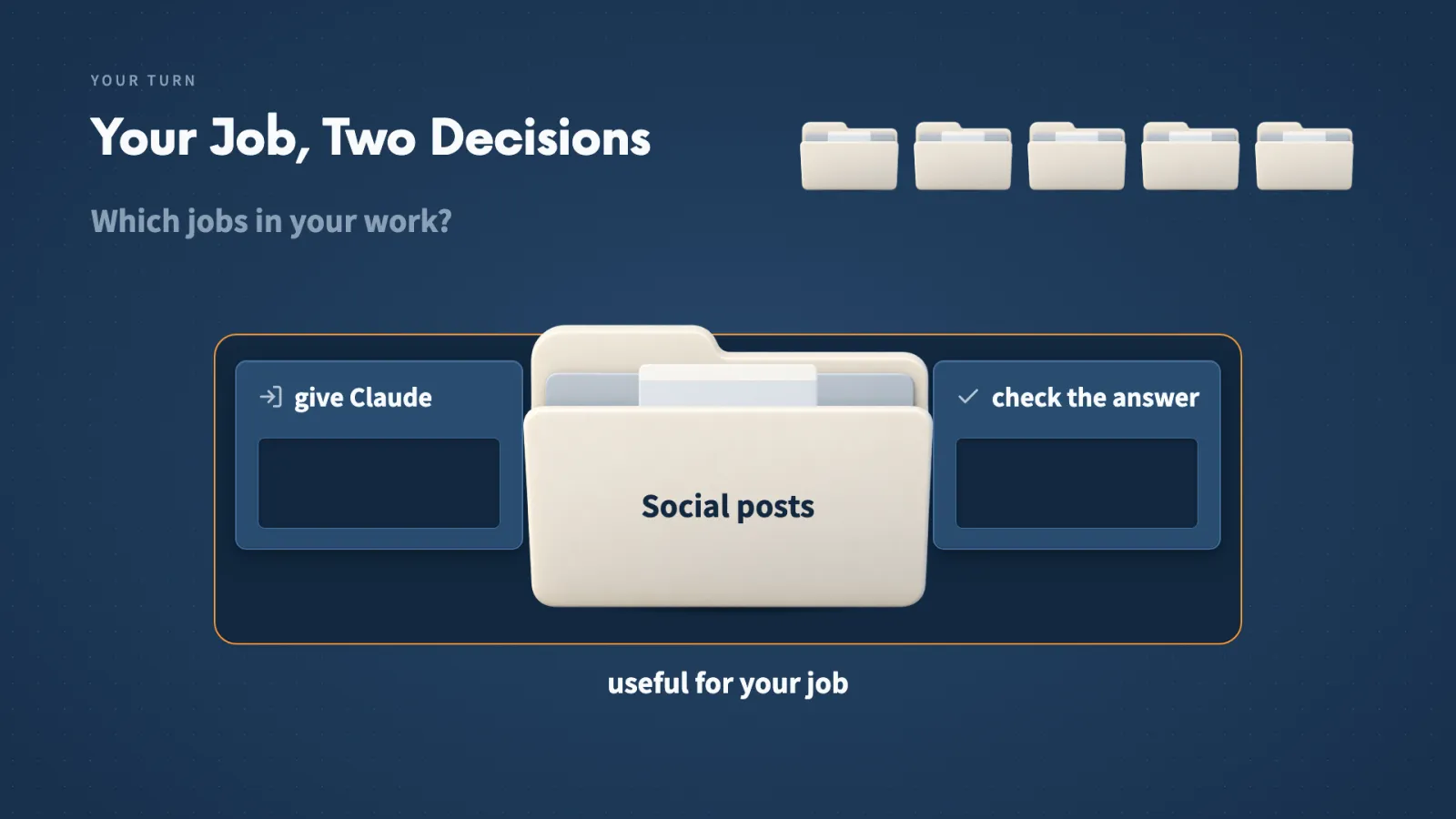
Before trying any of the six, I settle two decisions:
- What I would give Claude.
- What I would check in the answer.
Those two decisions help me judge whether a Skill I find later is useful for my job.
What each one is for. A general request such as 'improve this' can change a draft in the wrong direction, so brand-review compares it with the approved guidance. For ads, I want to find the ones that spent money without the response I expected, then decide what to inspect or change.
Make it yours
- Freelancer or consultant
- Your input
- A client's brand voice guidance and a draft that should sound like it
- Ask Claude
- Check where this draft moves away from the guidance and suggest focused revisions
- Check
- Each suggested revision against the guidance, not against how well it reads
- Small business owner
- Your input
- A product brief, examples of my own writing and the channels I post on
- Ask Claude
- Prepare a week of posts and drafts for review
- Check
- Each claim in the drafts against the brief
- On a team at work
- Your input
- Meeting notes, earlier conversations and the open proposal before a sales call
- Ask Claude
- Prepare the objective, history, useful questions and likely objections
- Check
- History and objections against what is really in our notes
Lecture 8.5
Where Do You Find Skills You Can Trust?
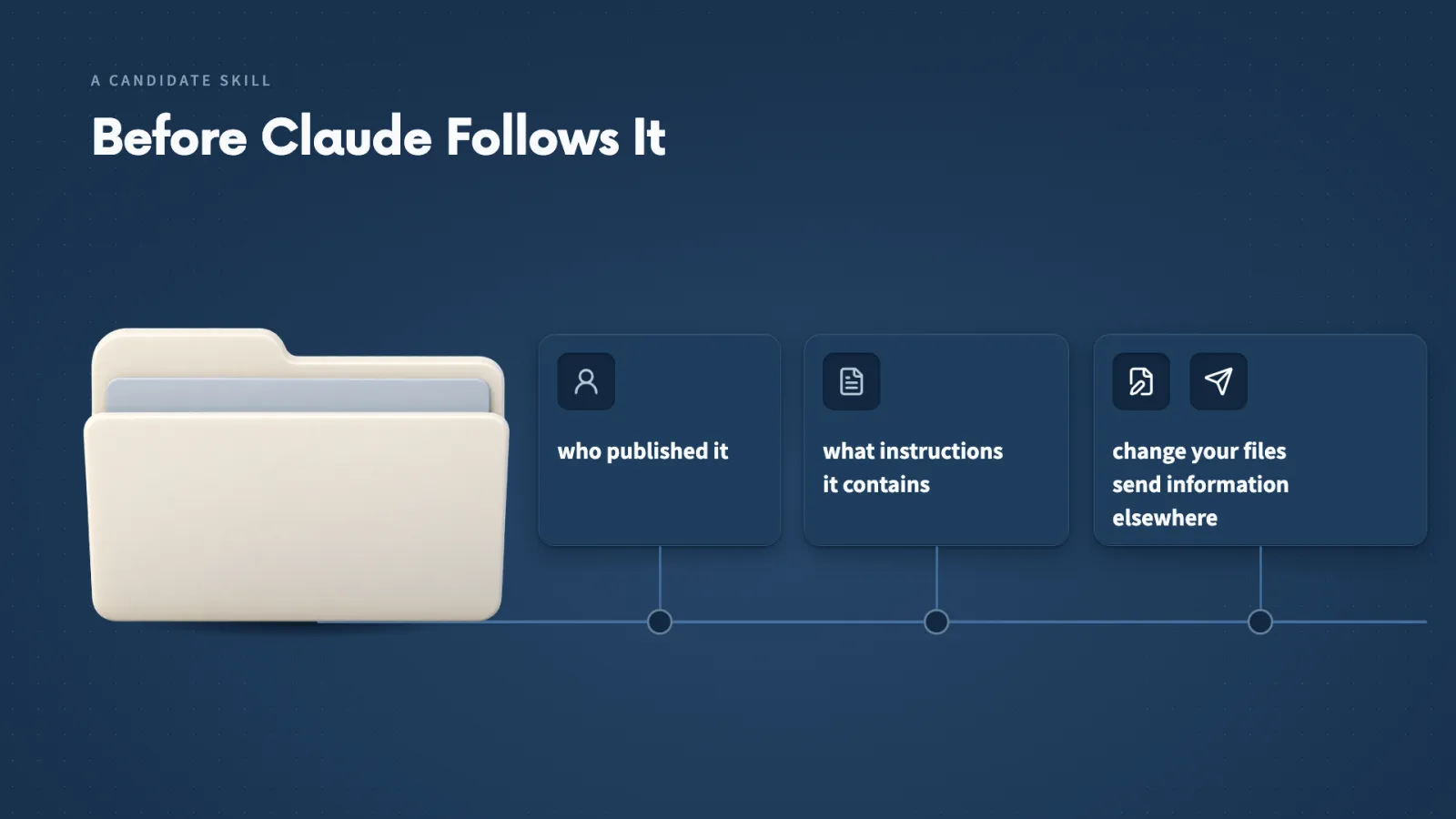
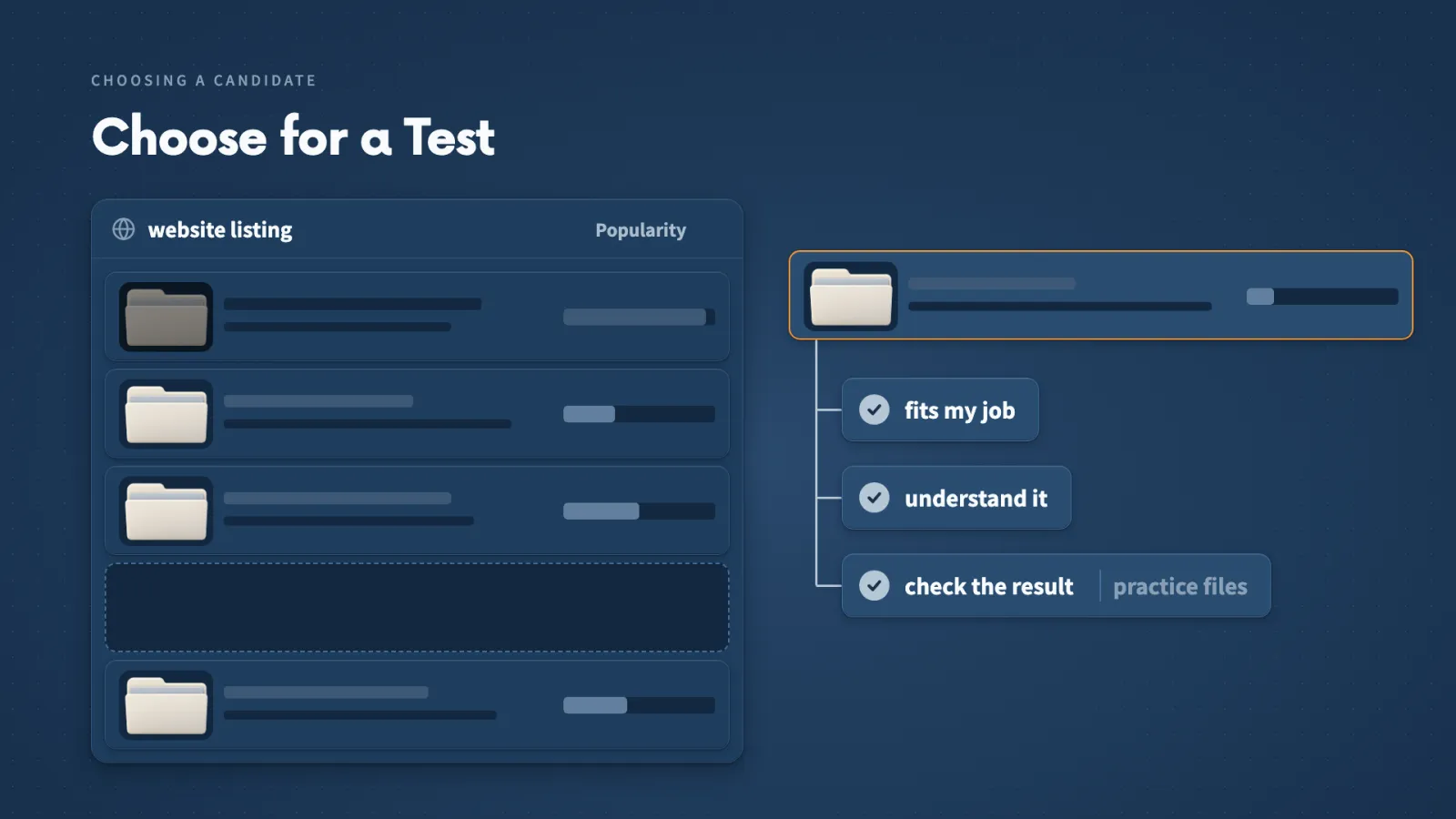
A Skill that looks right in a search listing still needs checking, because a listing cannot show everything the Skill will ask Claude to do. Checking takes a few minutes and tells me whether the Skill is safe to try.
Key ideas
- 01Plugin: The package publishers use for Skills. Claude Code installs it.
- 02Repository: The project page or folder that holds the real source files. A listing is only the doorway to it.
- 03Licence: The publisher's written conditions for copying, changing or sharing a Skill.
- 04Recent maintenance: A Skill written for a changing product can keep old paths and settings. I prefer the current source over an older video or a short directory description.
I looked for Skills in four places:
- Claude's plugin website
- GitHub
- skills.sh
- SkillsMP
What a listing leaves out. A short listing can simplify the description or use a friendlier name. It cannot show me every instruction, command or outside service the Skill may use.
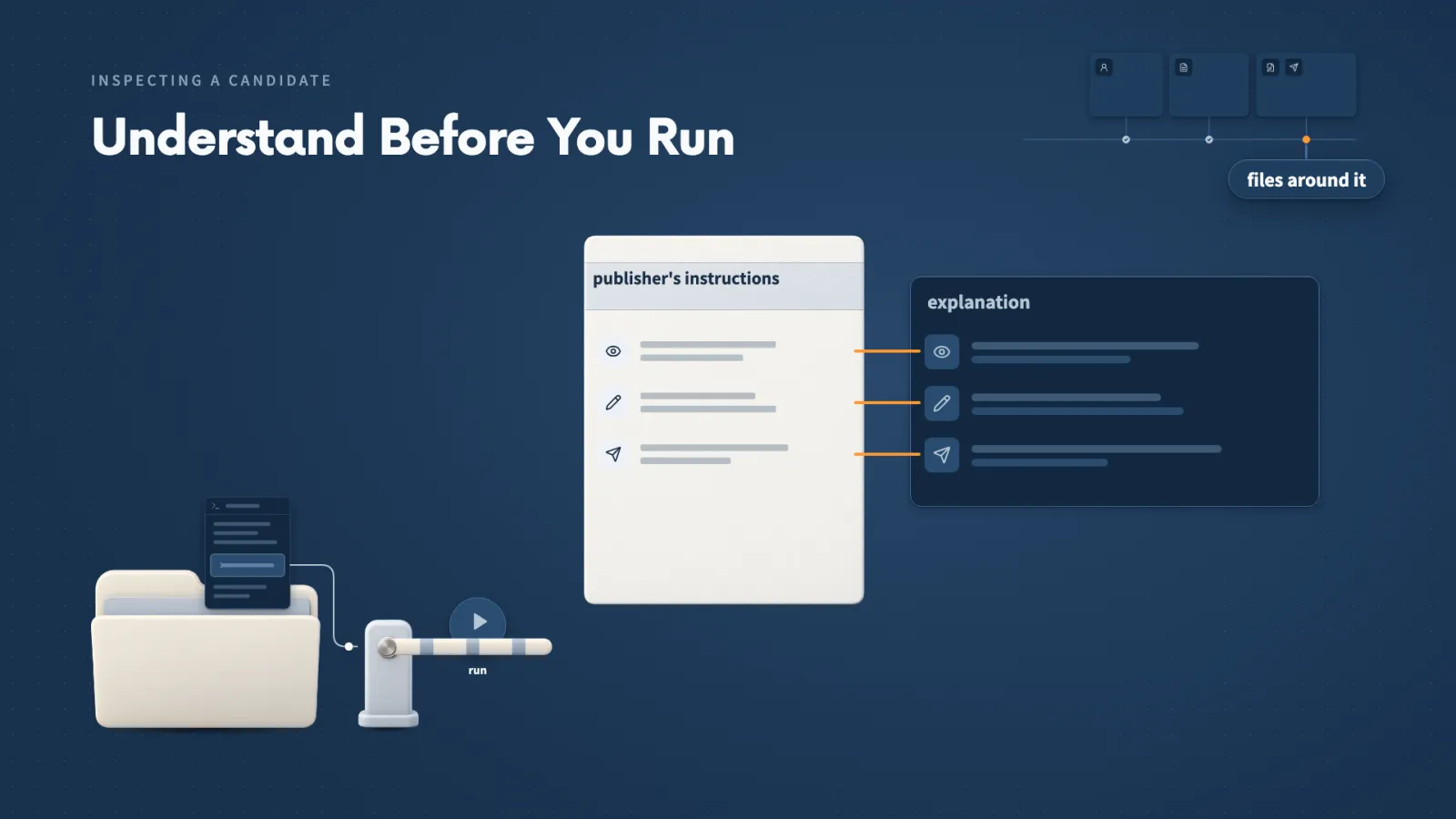
When I cannot read a command. I ask Claude to explain the actual file without running it, covering which files it reads, what it changes and whether it sends information elsewhere. Then I compare that explanation with the publisher's instructions.
What a good sign is worth. A familiar publisher or a helpful explanation from Claude gives me somewhere to start checking. If I still cannot tell what will happen, I leave that candidate unused and choose one I can understand.
Lecture 8.6
Where Should a Skill Live?
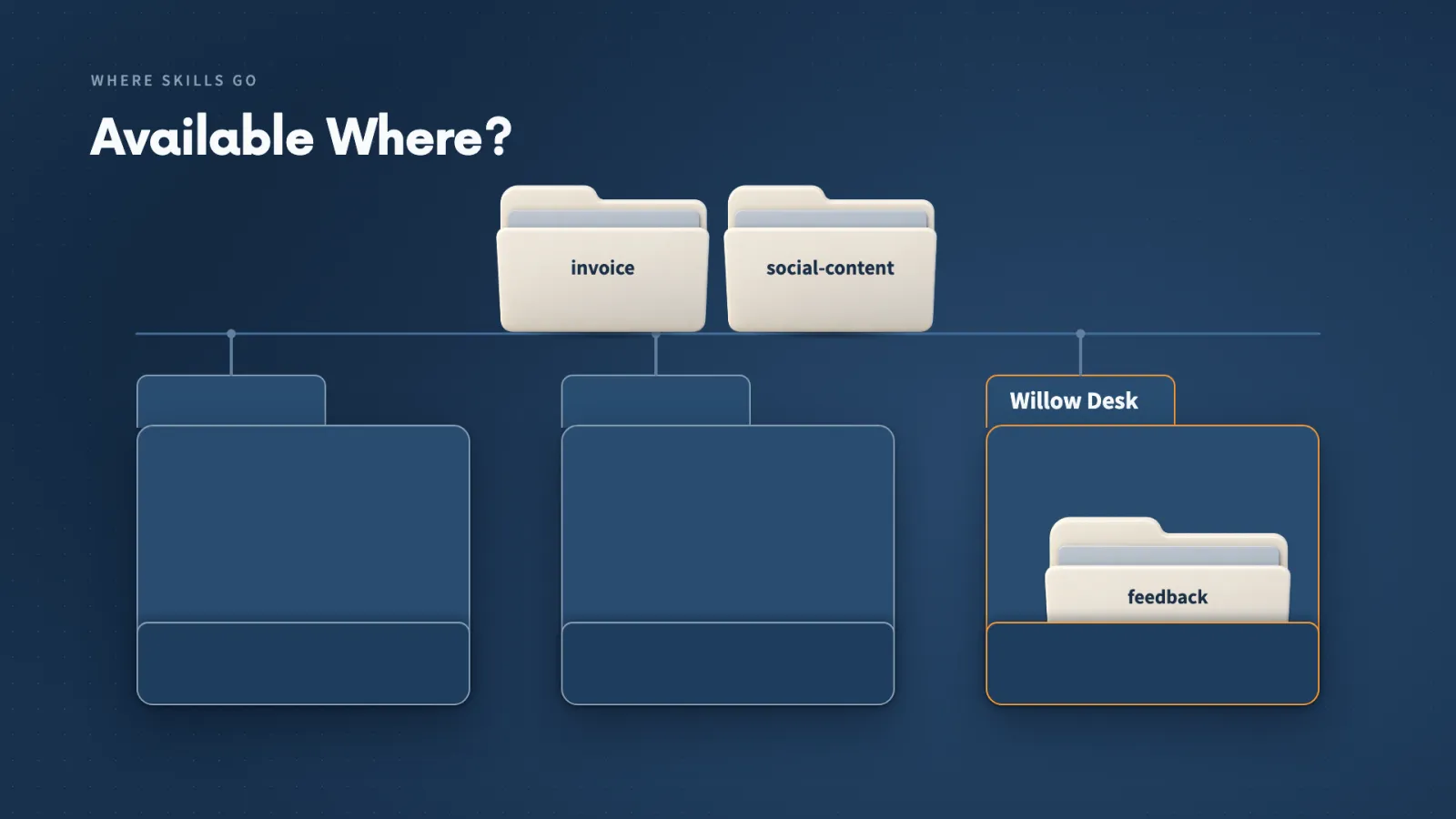
Where a Skill is saved decides who can use it and in which projects. I made that choice twice here, once for tools I want everywhere and once for a Skill that belongs to a single project.
Key ideas
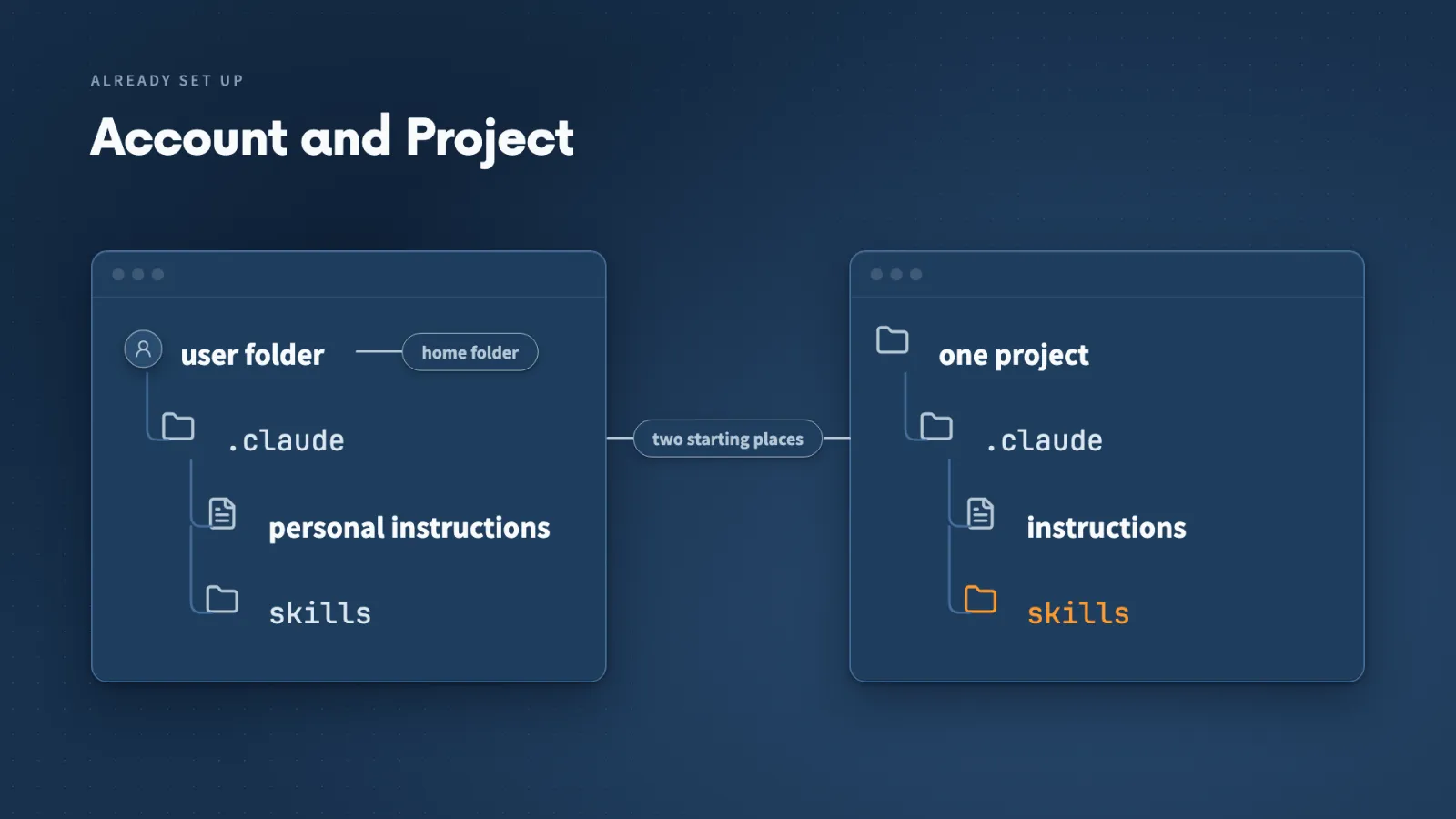
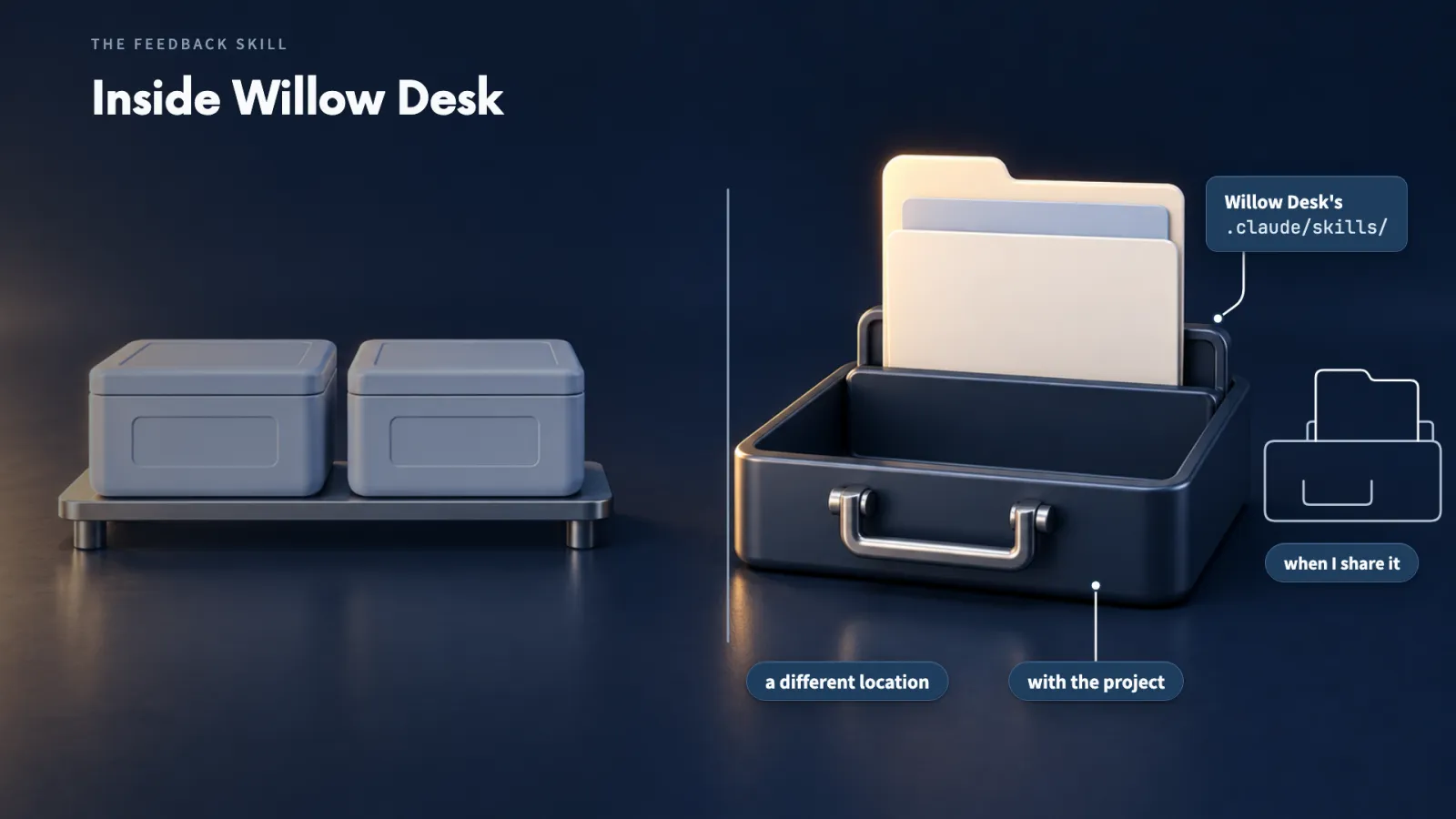
- 01User location: A skills folder inside .claude in my home folder. A Skill there can follow me into other projects.
- 02Project location: A skills folder inside the project's own .claude folder. It belongs to that project, and I can include it when I share the project.
- 03Plugin and marketplace: Claude Code installs packages as plugins from a marketplace, and one plugin can hold a single Skill or several.
- 04Home folder: On a Mac, the tilde in ~/.claude/skills/ means my home folder. On Windows, the account folder inside Users is the equivalent.
Desktop and terminal install differently. The desktop Add button did not ask me for a scope, and Finder then showed the Skill Creator files under my home .claude folder, so that install is a user location. The terminal's /plugin manager gives me the choice.
In the terminal I get three choices for where a plugin lives:
- User: available across my projects.
- Project: placed with this project, so collaborators can receive it.
- Local: this project, but only for me. Sharing the folder or uploading it to GitHub leaves it out.
Check before I click Add. Small Business opened a warning that the plugin may run code and that installing it grants access to everything on my computer. I looked at the publisher, Anthropic, and the install count before I chose Continue.
Our custom feedback Skill needs the project location, so it stays with Willow Desk when I share the project.
Make it yours
- Freelancer or consultant
- Your input
- A Skill I use for several different clients
- Ask Claude
- Install it in my user location so it is available in every project
- Check
- That its name shows in the slash menu when I open a different project
- Small business owner
- Your input
- A Skill that only my one business needs
- Ask Claude
- Which scope fits, and install it there
- Check
- In Finder, that the files landed in the folder I expected
- On a team at work
- Your input
- A Skill the whole team should receive
- Ask Claude
- Install it with project scope so collaborators get it
- Check
- The scope shown in the plugin manager, before I press Enter
Lecture 8.7
How Do You Use and Check Downloaded Skills?
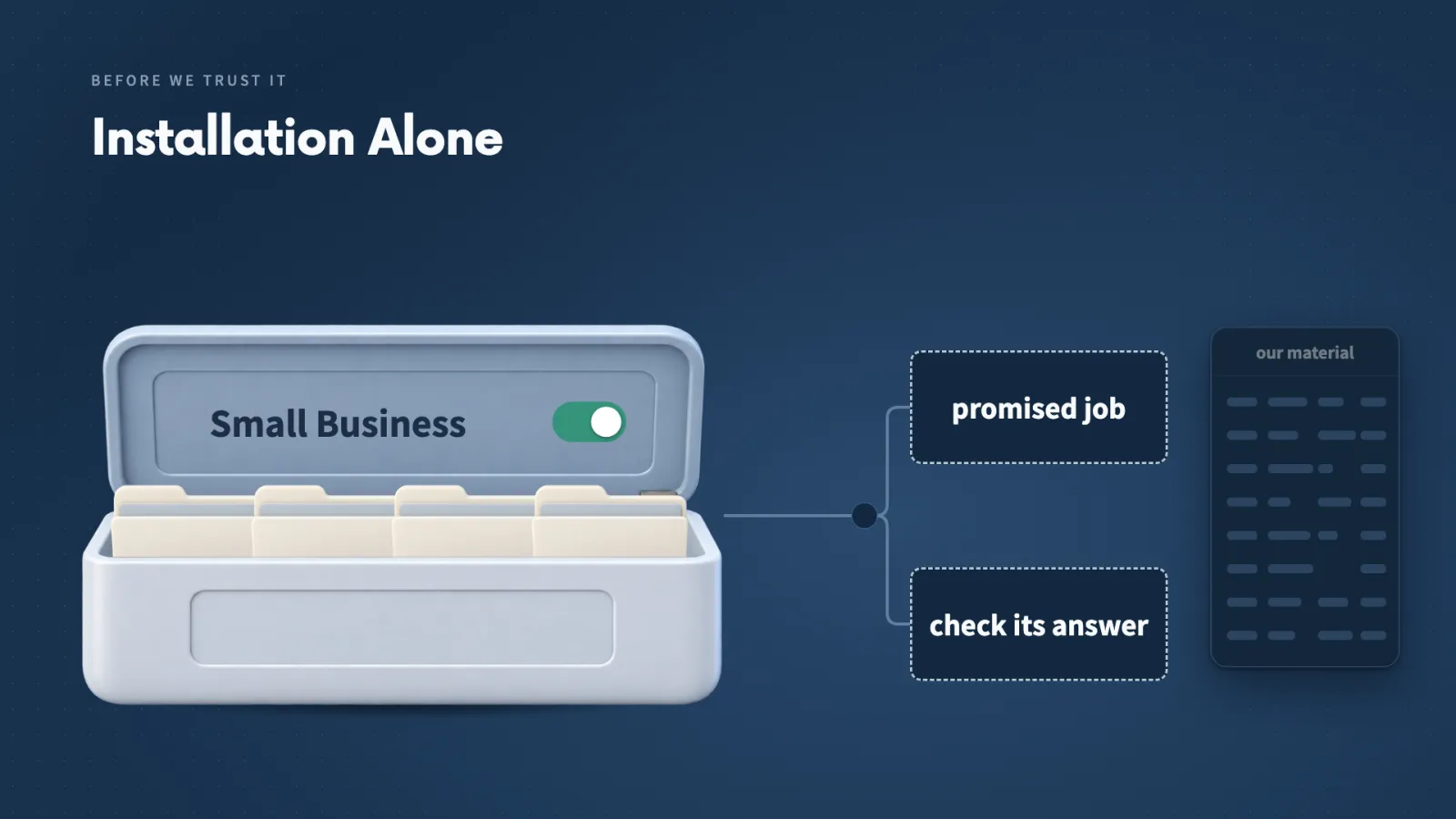
Installing a Skill proves it is available. Whether it does its promised job on my material is a separate question, and I answer it by comparing the result with the source.
Key ideas
- 01Listed name: In /small-business:invoice-chase, the part before the colon is the plugin and the part after it is the Skill. I check the exact name in the slash menu.
- 02Fixed reporting date: I used September 21, 2026, so the arithmetic can be checked against the same table whenever you try it.
- 03Read-only request: I asked Claude to use only the supplied file and send nothing, so the first run could not do any harm.
- 04Missing facts: A repeat late payer needs a payment history we did not supply, and the social posts needed a product-page address and images the brief did not contain.
The two jobs carry different risks:
- Invoices: choosing the wrong rows or the wrong balances.
- Social posts: invented product claims, or drafts that pretend images and links exist.
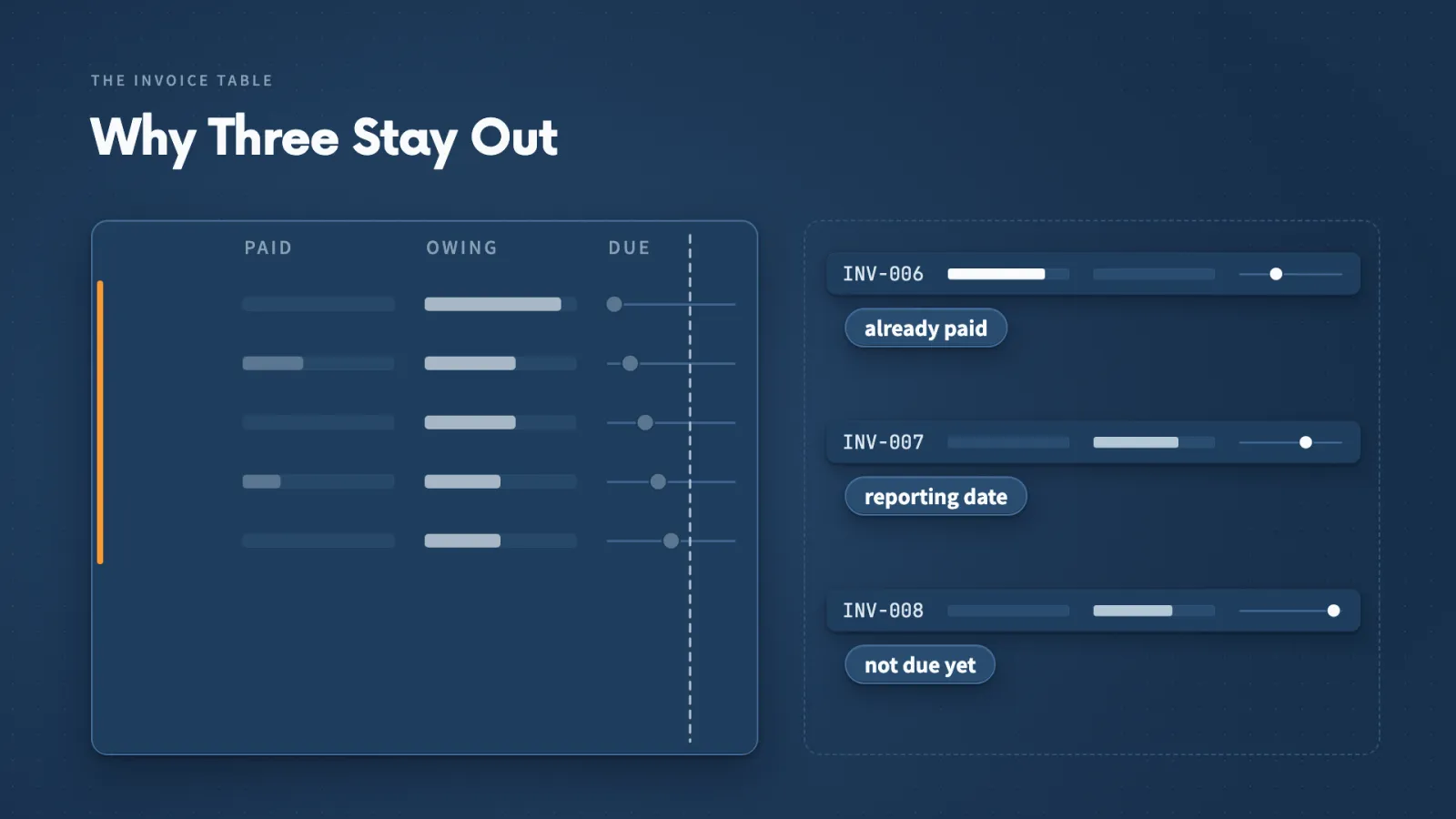
The invoice result. Claude selected INV-001 to INV-005, with remaining balances adding to USD 4,065.00. I compared those five rows with the original CSV, and the Northstar Office reminder repeated the $1,200 still owing on INV-001.
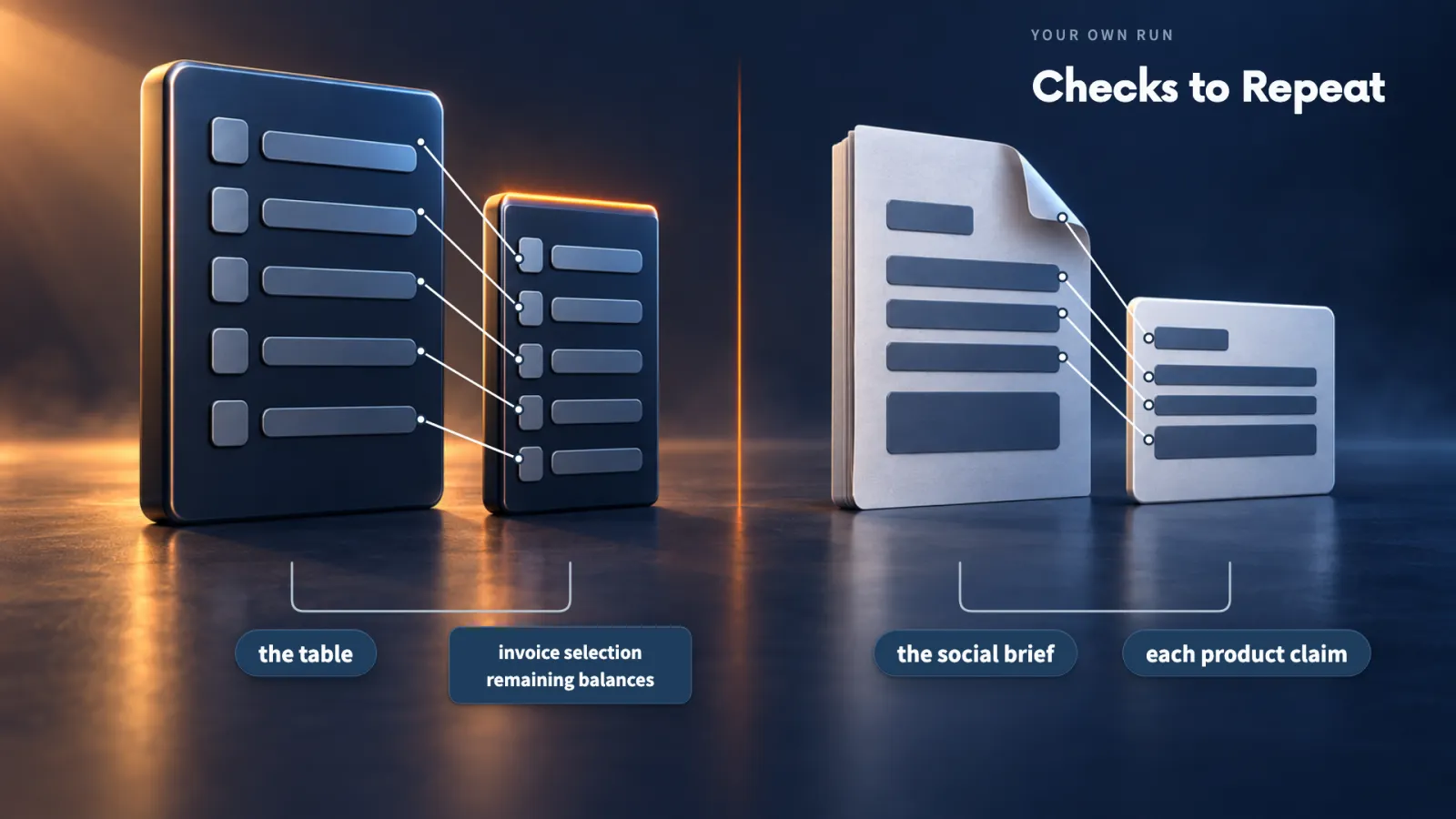
The social result. The Instagram draft used the three-piece set, the $36 price and the call to action 'See the three-piece set'. The brief gave no product-page address and no images, so I add those before publishing, and the fact check kept free shipping tied to two or more sets and the offer's end date.
A result that looks professional still needs those comparisons.
Make it yours
- Freelancer or consultant
- Your input
- A client's invoice table with a fixed reporting date
- Ask Claude
- Show the overdue invoices that still have money owing, total them and draft reminders here, sending nothing
- Check
- The selected rows and balances against the table, including any paid invoice that should stay out
- Small business owner
- Your input
- My own product brief with the price, offer and channels
- Ask Claude
- Draft a week of posts using only those facts, with no publishing
- Check
- Each claim against the brief, and the list of details I still have to supply
- On a team at work
- Your input
- A ledger or brief the whole team already uses
- Ask Claude
- Select the installed Skill by its listed name and show the result here
- Check
- The exact name in the slash menu, then the result against the source
Lecture 8.8
What Should Your First Custom Skill Do?
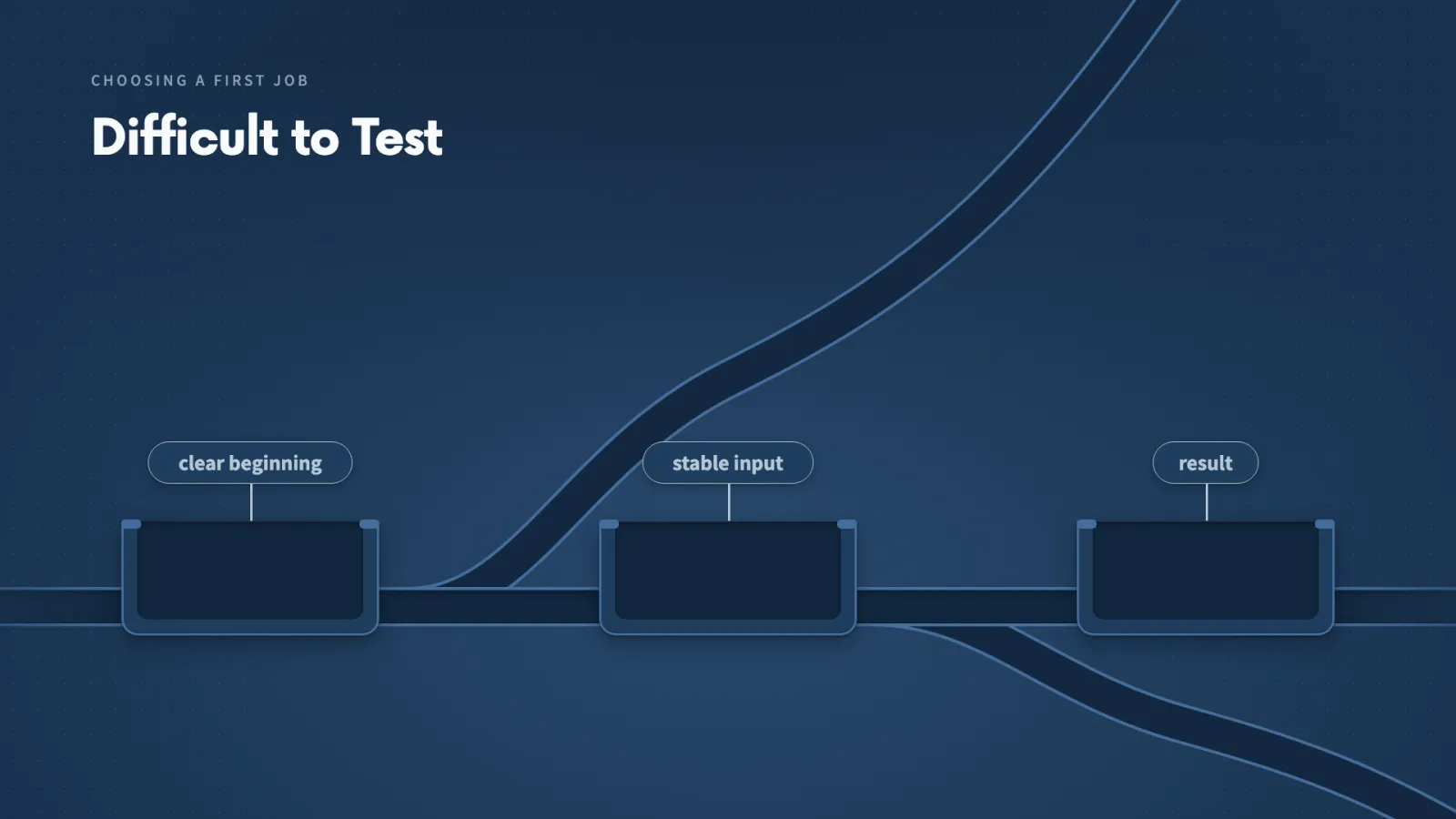
A first Skill that tries to do too much is hard to test, so I pick a job with a clear start, a stable input and a result I can inspect. Then I can tell whether the Skill worked and what to repair.
Key ideas
- 01Beginning and end: The job starts with a supplied feedback file and ends with a report I can inspect.
- 02Theme: A group of comments about the same subject, such as setup instructions. The report shows the comments behind each theme.
- 03One job at a time: Writing promotional posts from a positive review is a different job. I keep it separate so I can judge this Skill by the report I asked for.
- 04The job in one sentence: Turn supplied feedback into groups that point back to the customer comments, show common problems beside serious single reports, and propose what to investigate without choosing the priority for me.
The Willow Desk job passes three tests:
- I recognise it the moment a new batch of comments arrives.
- I will need it again, so the steps are worth saving.
- I can check the result: whether Claude included each comment and quoted it correctly.
What I want from it. Group related comments, show which comments support each group and keep the possible safety concern visible. It can then propose no more than three actions, and I choose the priority.
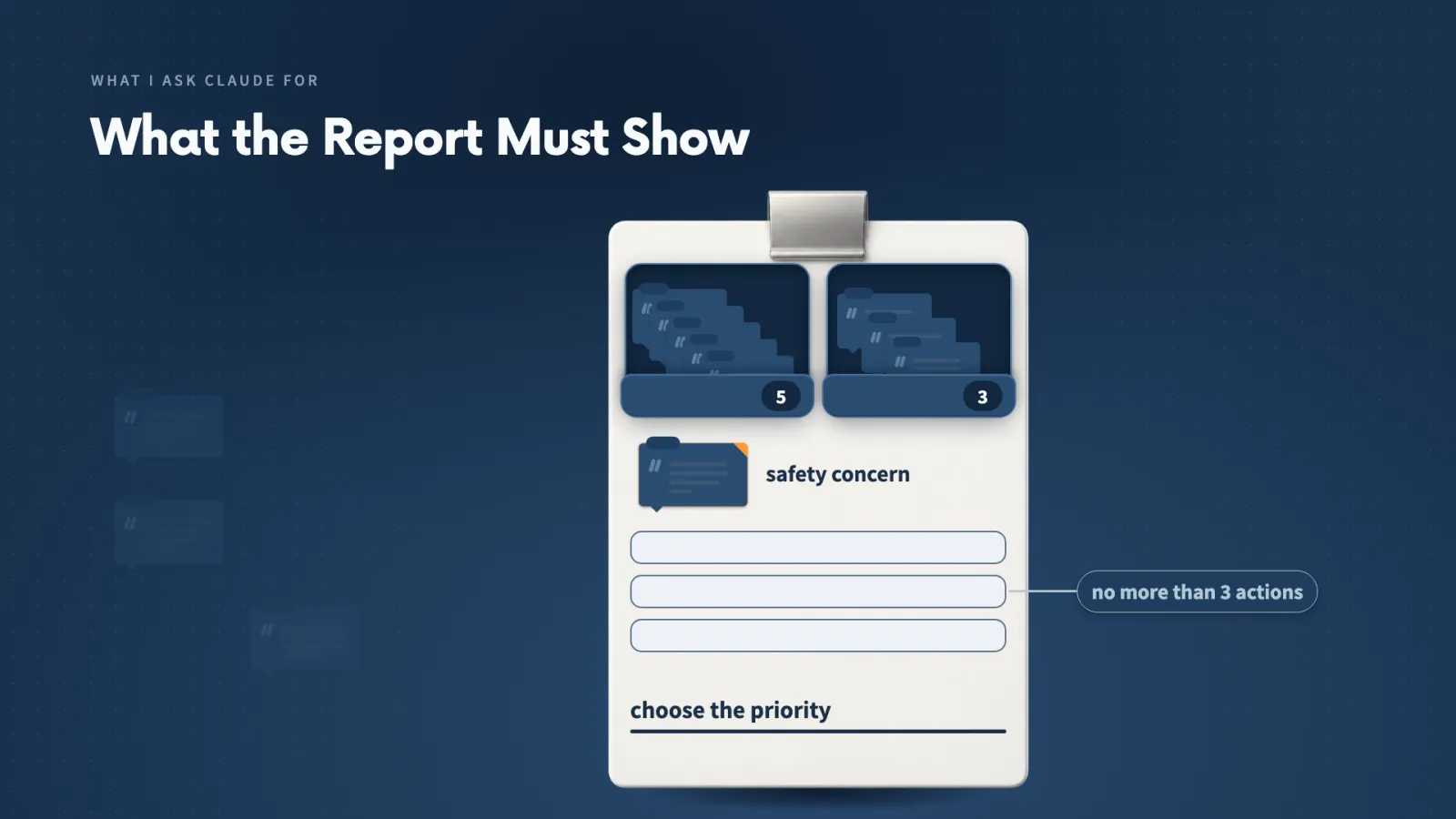
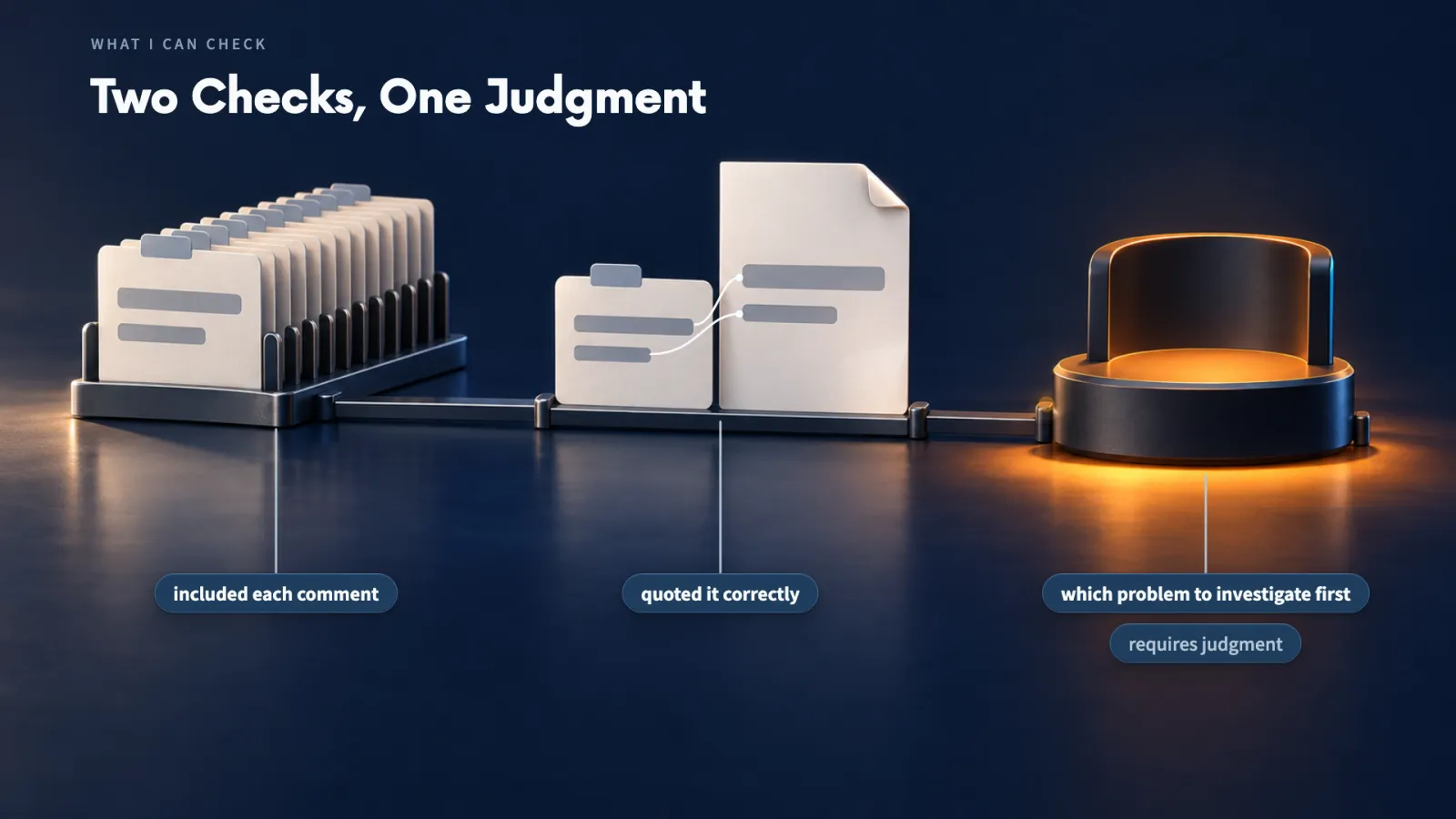
One file, two forms. The practice folder holds the same twelve comments as a CSV table and as a Markdown table. Several ask for better setup help, and one says a tray edge catches a finger.
Make it yours
- Freelancer or consultant
- Your input
- A batch of client survey responses, each with an ID
- Ask Claude
- Group related responses, show which ones support each group and propose up to three actions
- Check
- Whether I can say where the job begins and what result I will inspect
- Small business owner
- Your input
- My customer comments or reviews in a CSV
- Ask Claude
- The same job: groups, supporting comments and any rare serious comment kept visible
- Check
- Every comment quoted correctly, and a possible safety concern still visible
- On a team at work
- Your input
- A support-ticket export with ticket numbers
- Ask Claude
- Group the tickets, point back to them and propose no more than three actions
- Check
- That the choice of what to fix first stays with us
Lecture 8.9
What Must You Decide Before Writing?
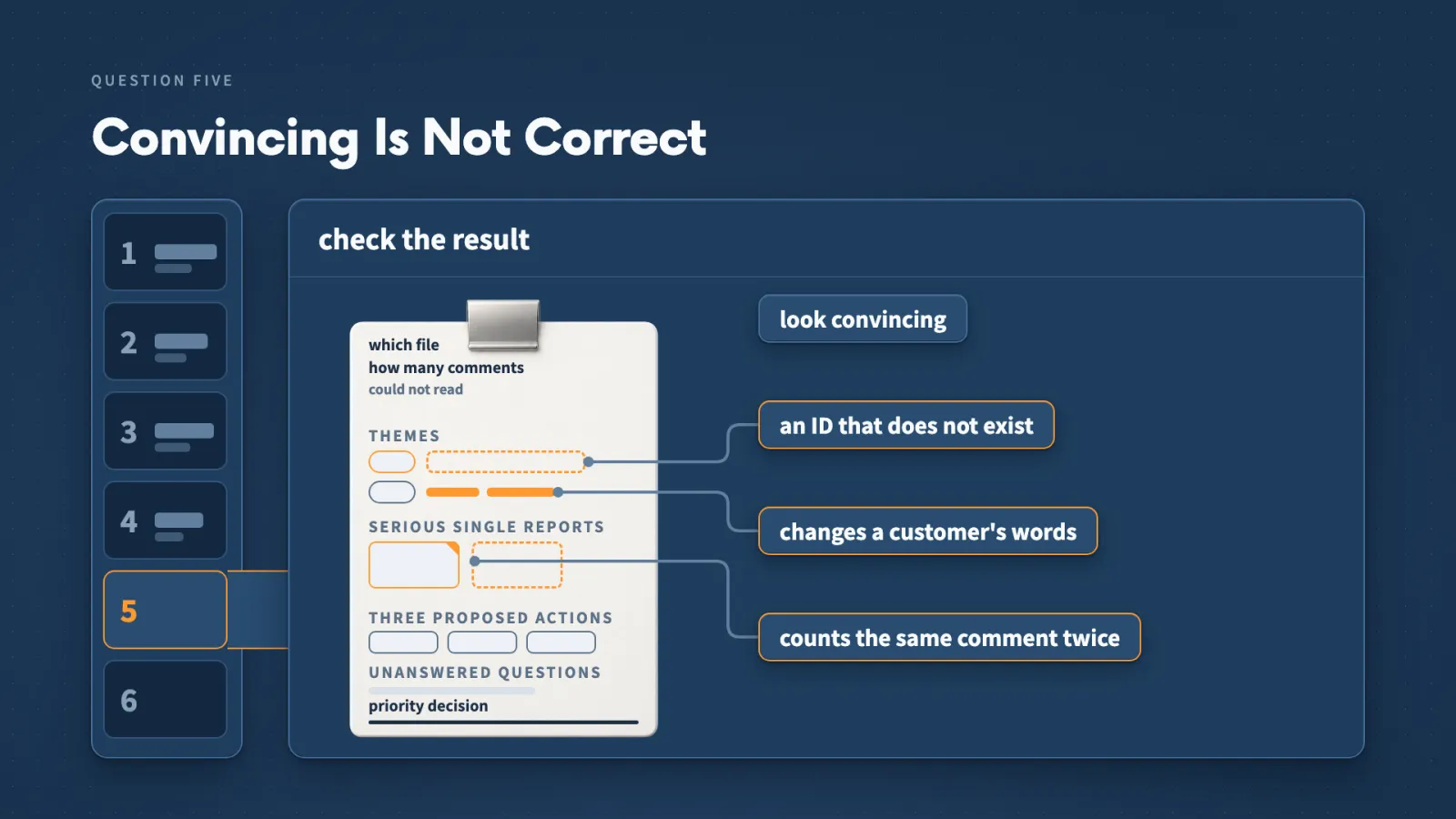
If I only say 'Analyse these reviews', Claude has to guess which reviews, how to group them and what proof to show, and two runs can guess differently. Six decisions made before writing remove the guessing.
Key ideas
- 01Frequency and seriousness: Setup appears most often, but F09, the sharp tray edge, could hurt someone. Claude keeps both visible.
- 02Excerpt: A short quotation from the source, so I can read the evidence without reopening the whole file.
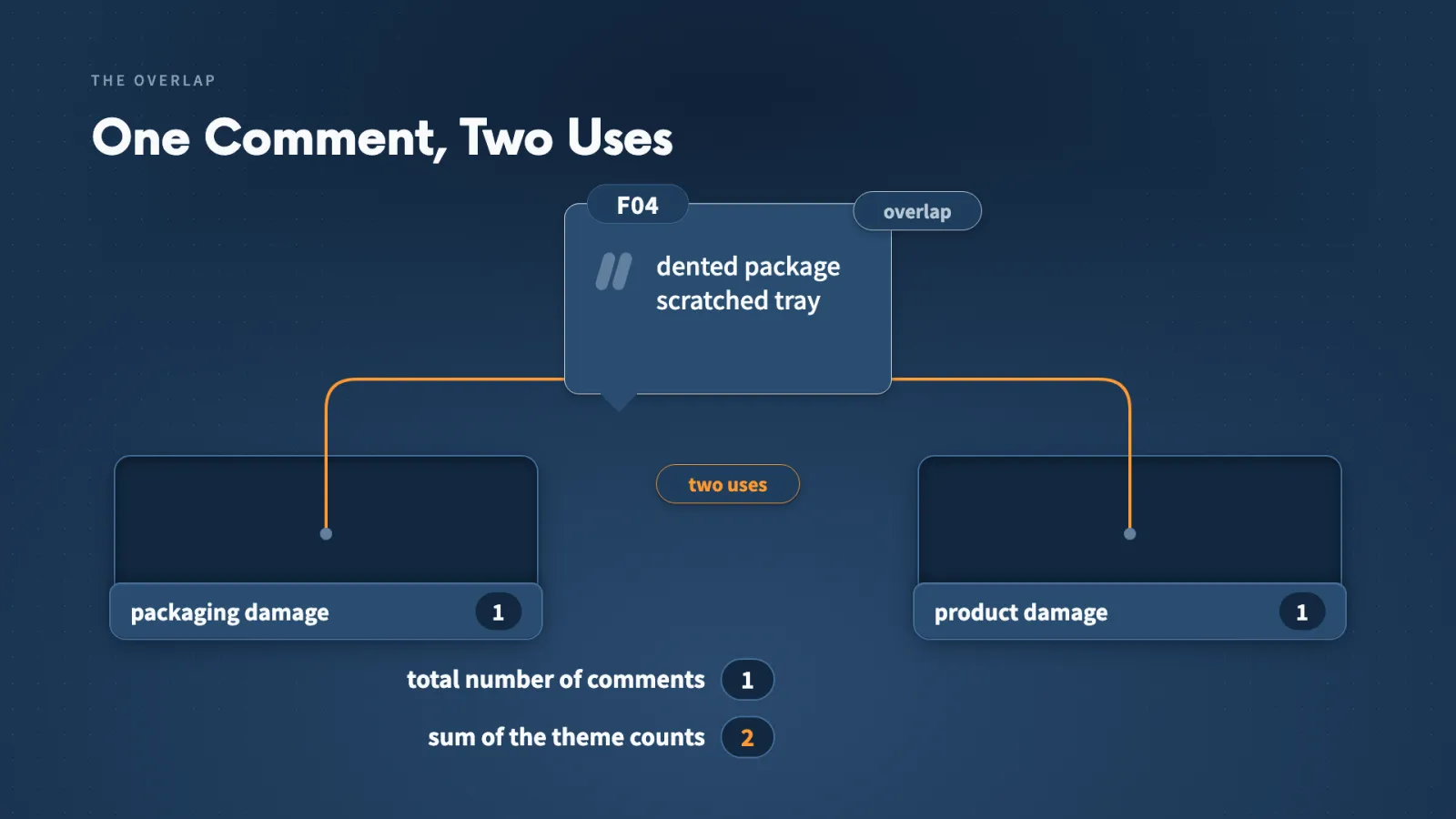
- 03Overlap: One comment under two themes counts once among the comments, and the report shows the overlap.
- 04Unanswered question: Every proposed action carries a reason and a question the comments cannot answer, such as how many other trays have the same problem.
My six answers for the feedback Skill:
- When to use it: a request to analyse customer reviews or support messages for recurring themes, evidence and possible next investigations.
- What I provide: a CSV or Markdown file with an ID and the original text of every comment, with date and source as extra context.
- What Claude does: reads every record, groups related feedback, keeps the IDs, quotes short phrases, counts each ID once inside a group and shows overlaps.
- What it produces: a Markdown report with the file and comment count, themes with IDs and quotations, a separate place for serious single reports, up to three actions and the unanswered questions.
- How it checks: each ID and quotation against the file, and the IDs supporting each theme.
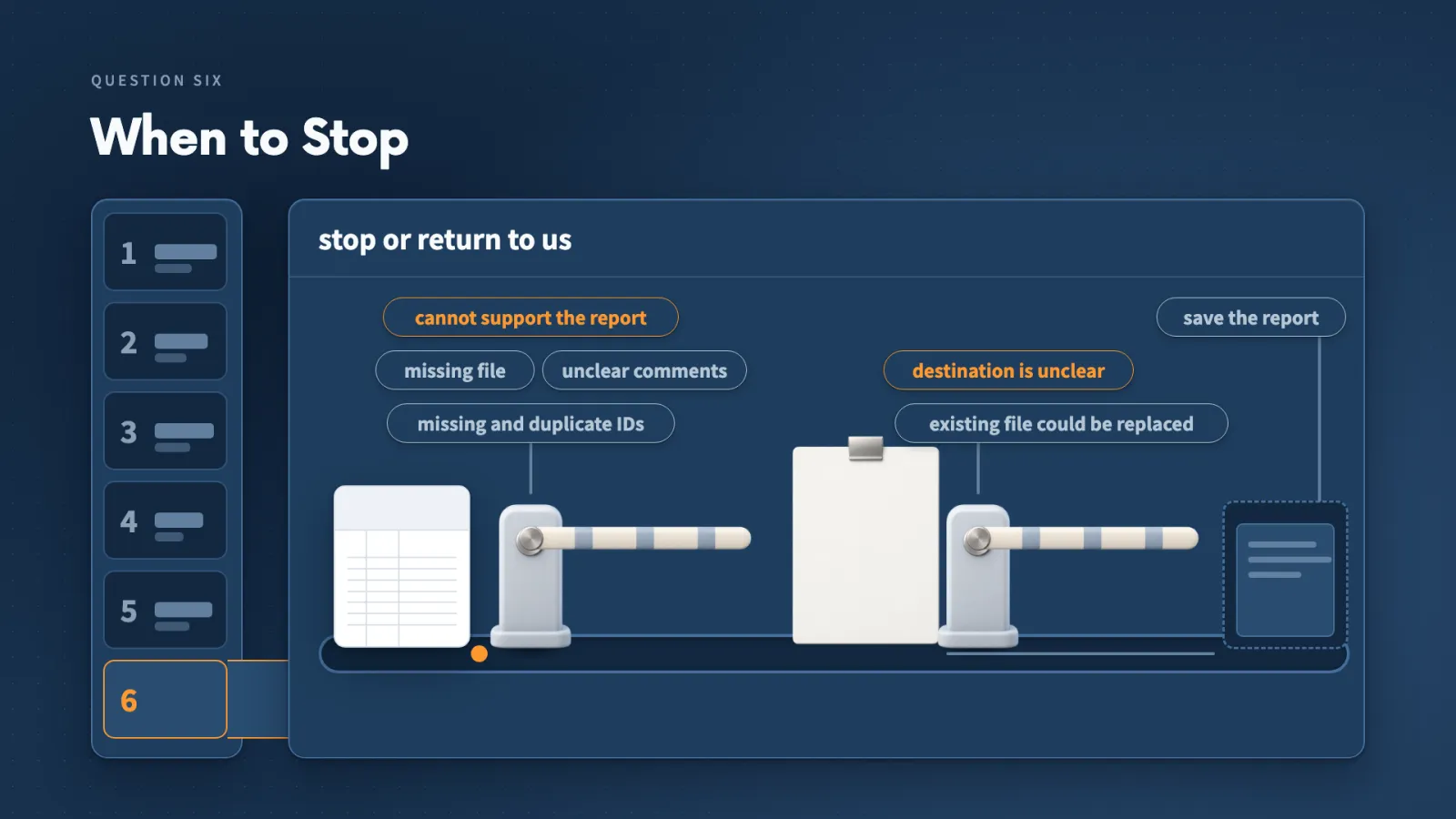
- When it stops: a missing file, unclear comments, or missing and duplicate IDs.
A theme in practice. F01 says the setup guide was hard to find and F02 asks for cable-box steps with pictures. They describe different experiences but both ask for better setup help, so both go under one theme with their IDs beside it.
The decision about what to investigate first stays with me. When I inspect the file Skill Creator builds, I compare it with these answers instead of judging whether it merely looks complete.
Make it yours
- Freelancer or consultant
- Your input
- A client's survey results, each with an ID
- Ask Claude
- Draft answers to the six questions for that job before building anything
- Check
- That the answer to 'when to stop' names real problems such as a missing file or duplicate IDs
- Small business owner
- Your input
- A job I repeat and what its result should help me decide
- Ask Claude
- Answer the six questions from my description, and ask about anything missing
- Check
- That every answer is specific enough for two runs to agree
- On a team at work
- Your input
- The way our team already does this job
- Ask Claude
- Turn it into answers to the six questions
- Check
- That the final decision is left with a person
Lecture 8.10
Can Claude Build the Skill for You?
Skill Creator can turn my six decisions into a working Skill file. I run the job once by hand first, because that report can show a missing step I would otherwise save into the Skill.
Key ideas
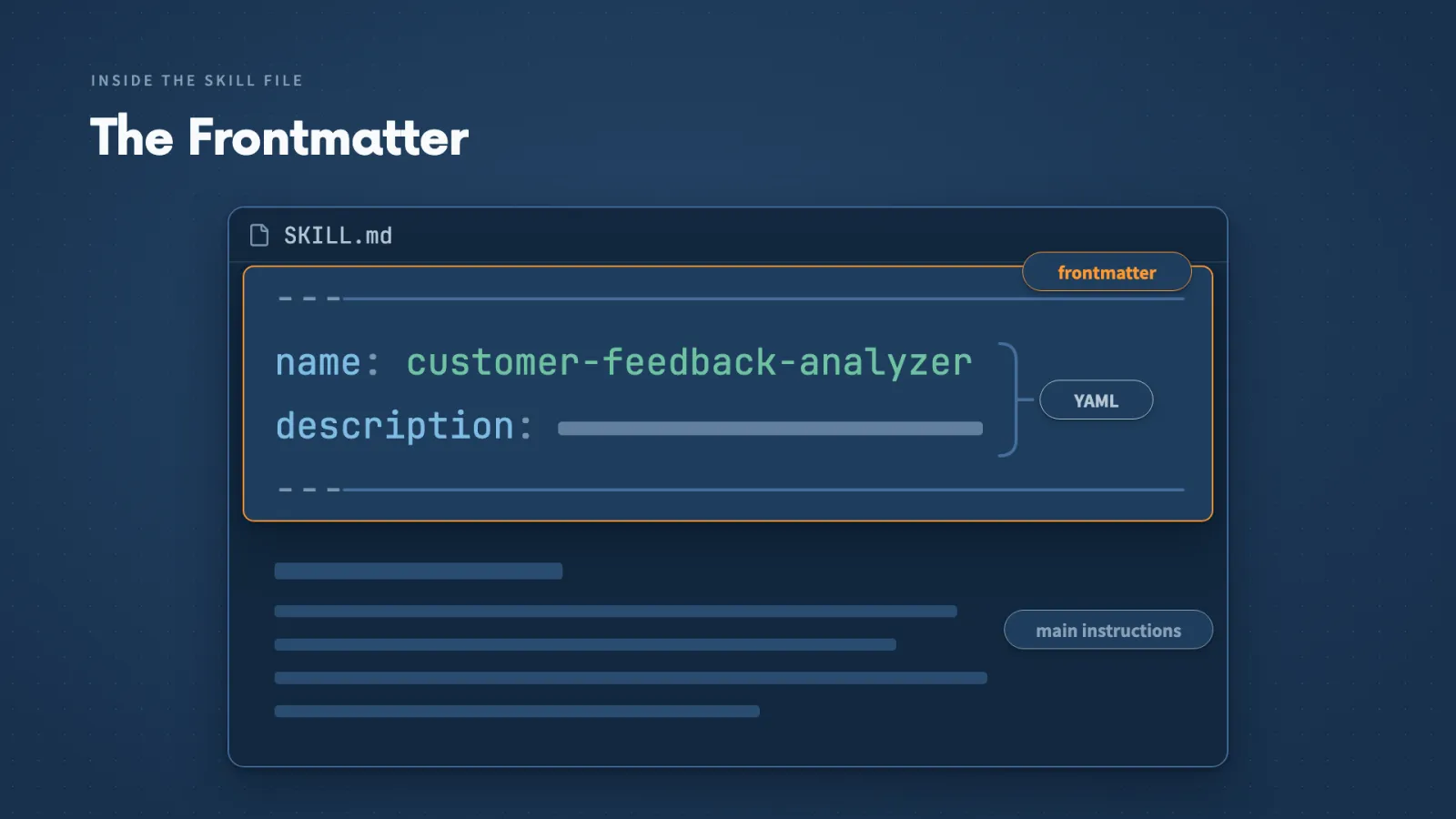
- 01Frontmatter: The short header with a name and a description. YAML is the way each setting is written: the name, a colon, then its value.
- 02Name matches folder: I keep the name inside the file the same as the folder name, so the displayed label and the slash command agree.
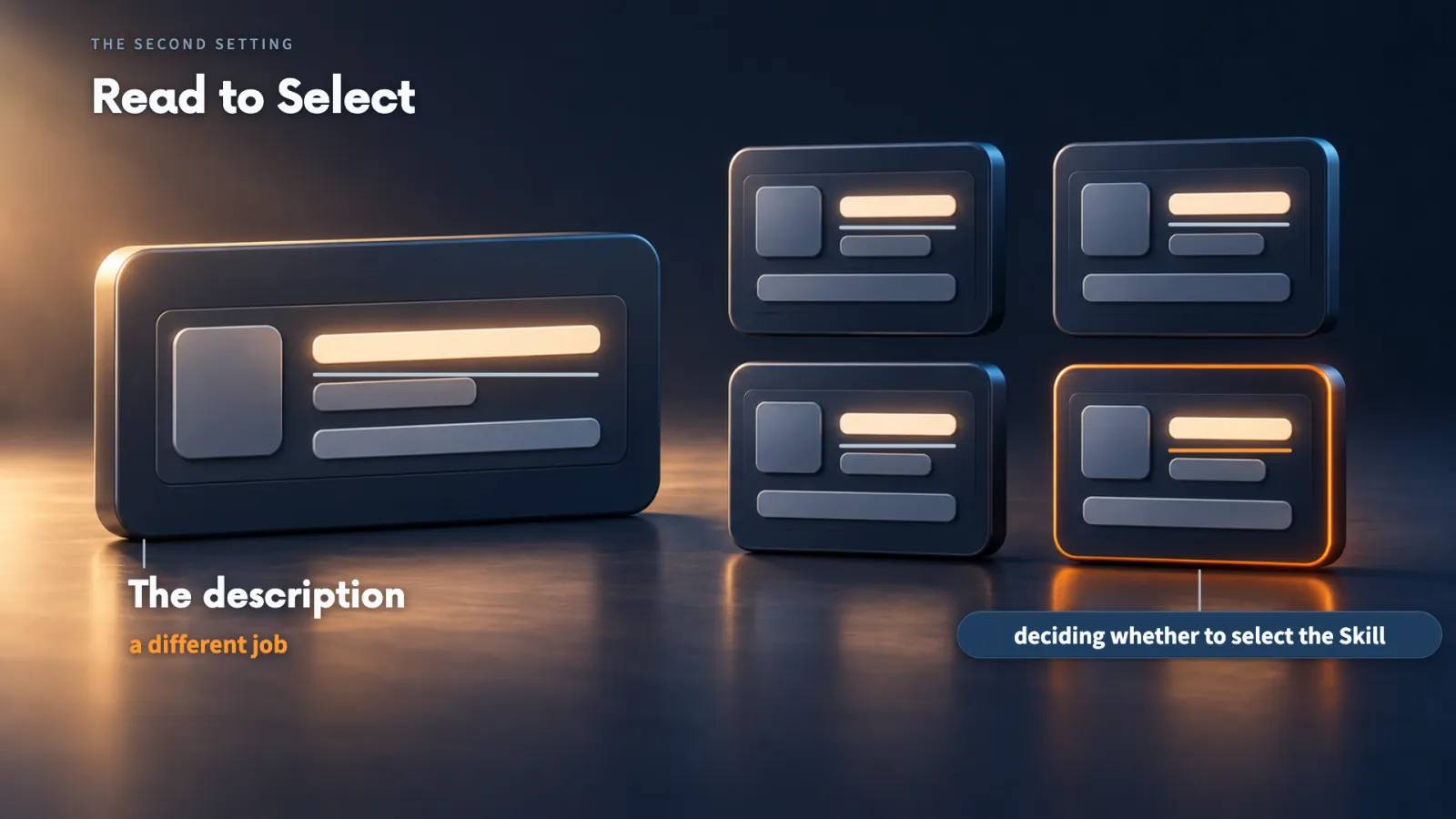
- 03Description: Claude reads it to choose the Skill for an ordinary request. It has a limit of about 1,500 characters, so it must say when the Skill fits.
- 04Listing budget: Skill names and descriptions share about 10,000 tokens, 1% of a million-token window. Beyond that some descriptions disappear, and a Skill still runs when I name it.
The build went in four steps:
- One report without a Skill: I asked Claude to follow the six answers on the CSV and neither use nor create a Skill, then compared the report with the answer key.
- A request to Skill Creator for a project Skill at .claude/skills/customer-feedback-analyzer/SKILL.md, keeping repeatable steps and checks but not this batch's IDs, counts or conclusions.
- A follow-up giving permission, because the automatic check blocked the file write twice. The new SKILL.md then appeared with 89 lines added.
- A look at the header and body against the six answers.
Why I test instead of reading every line. I have built about 366 Skills, and some run 4,000 or 5,000 lines. I check what the Skill does, and I read the file for the decisions I made.
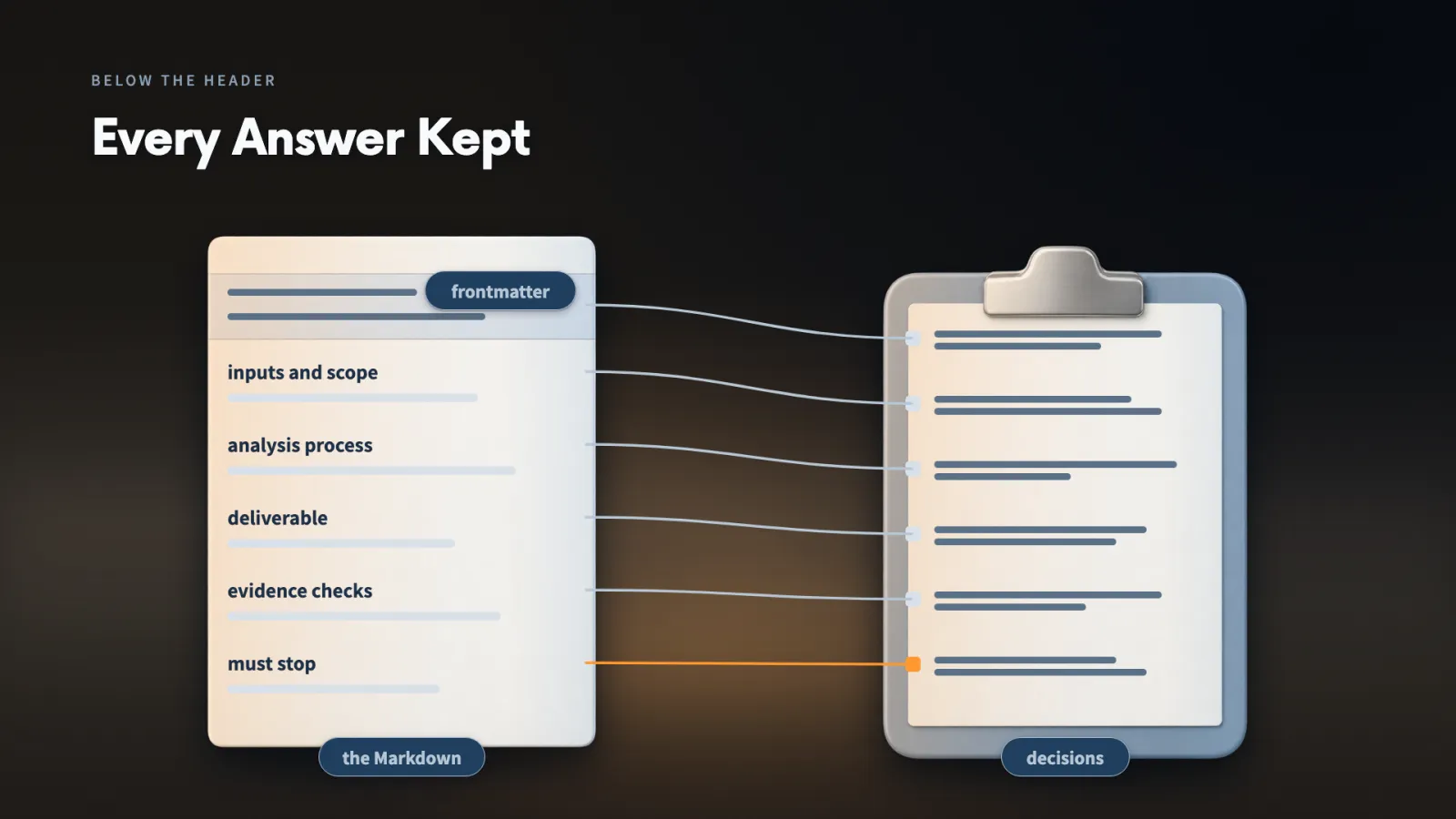
Carry the corrections forward. If steps one and two failed and a later route worked, I tell Skill Creator which route I accepted so the new Skill does not repeat the failed ones.
If a decision from the planning sheet has disappeared, the file is incomplete however polished the Markdown looks.
Make it yours
- Freelancer or consultant
- Your input
- My six answers and one report I have already checked
- Ask Claude
- Create a project Skill from them, keep the repeatable steps, replace no file and ask me about anything missing
- Check
- The header against the folder name, and the body against my answers
- Small business owner
- Your input
- A job I have done once by hand, with the corrections I made along the way
- Ask Claude
- Build a Skill that keeps the route that worked
- Check
- That no ID, count or conclusion from this batch is written into it
- On a team at work
- Your input
- Our six answers and a sample file
- Ask Claude
- Build it in the project's .claude/skills folder so the team can share it
- Check
- That the file sits where the slash menu looks for it
Lecture 8.11
How Do You Know Claude Used It?
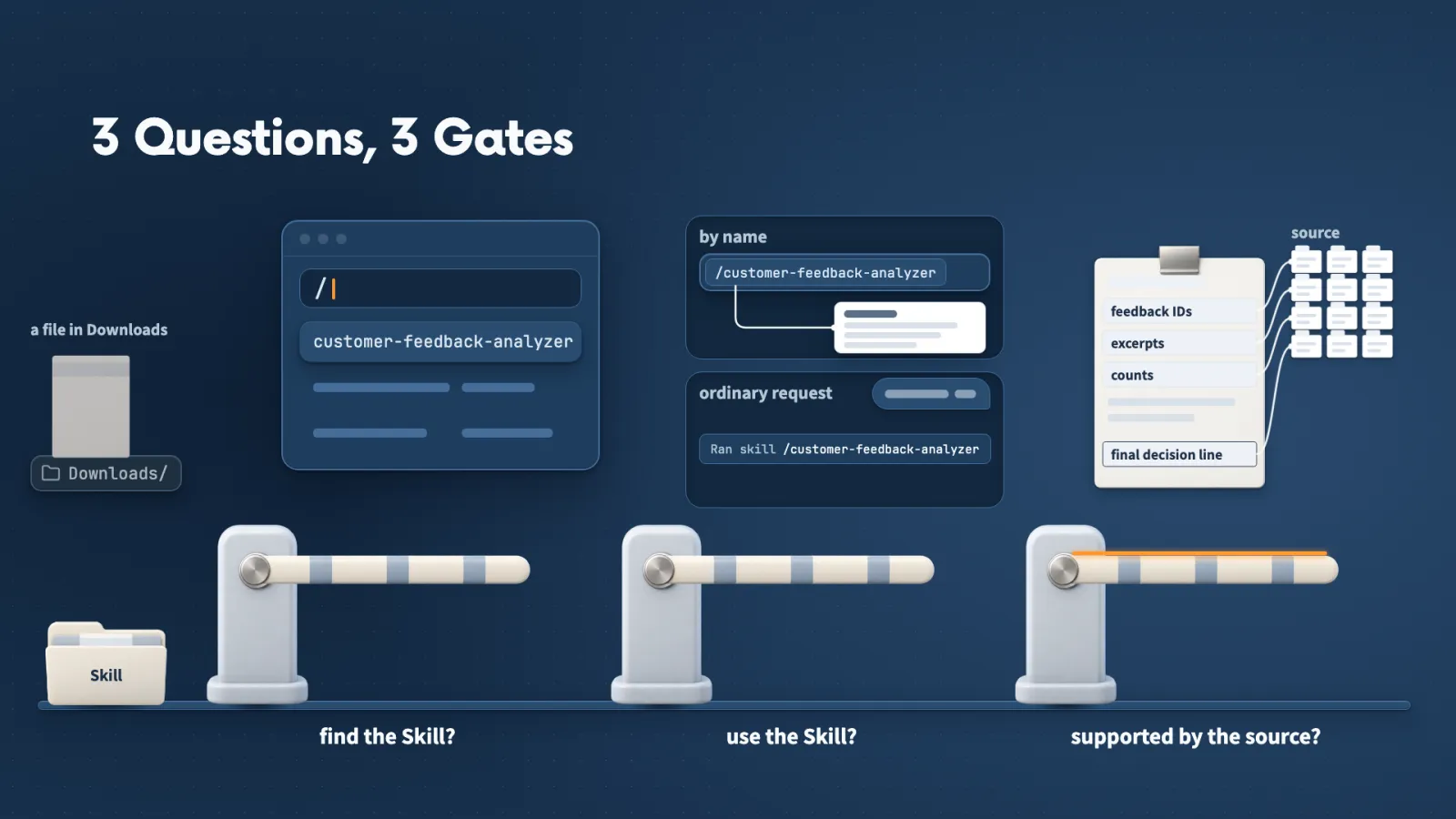
A saved Skill can go wrong in three separate places, and each has its own check. I open a fresh conversation and ask one question at a time, because a fresh chat cannot lean on how the Skill was built.
Key ideas
- 01Direct run: I type /customer-feedback-analyzer myself. Claude had no other Skill to choose, so no 'Ran skill' line appears.
- 02Ordinary request: With no Skill named, the chat shows 'Ran skill /customer-feedback-analyzer' when Claude matched my words to the description.
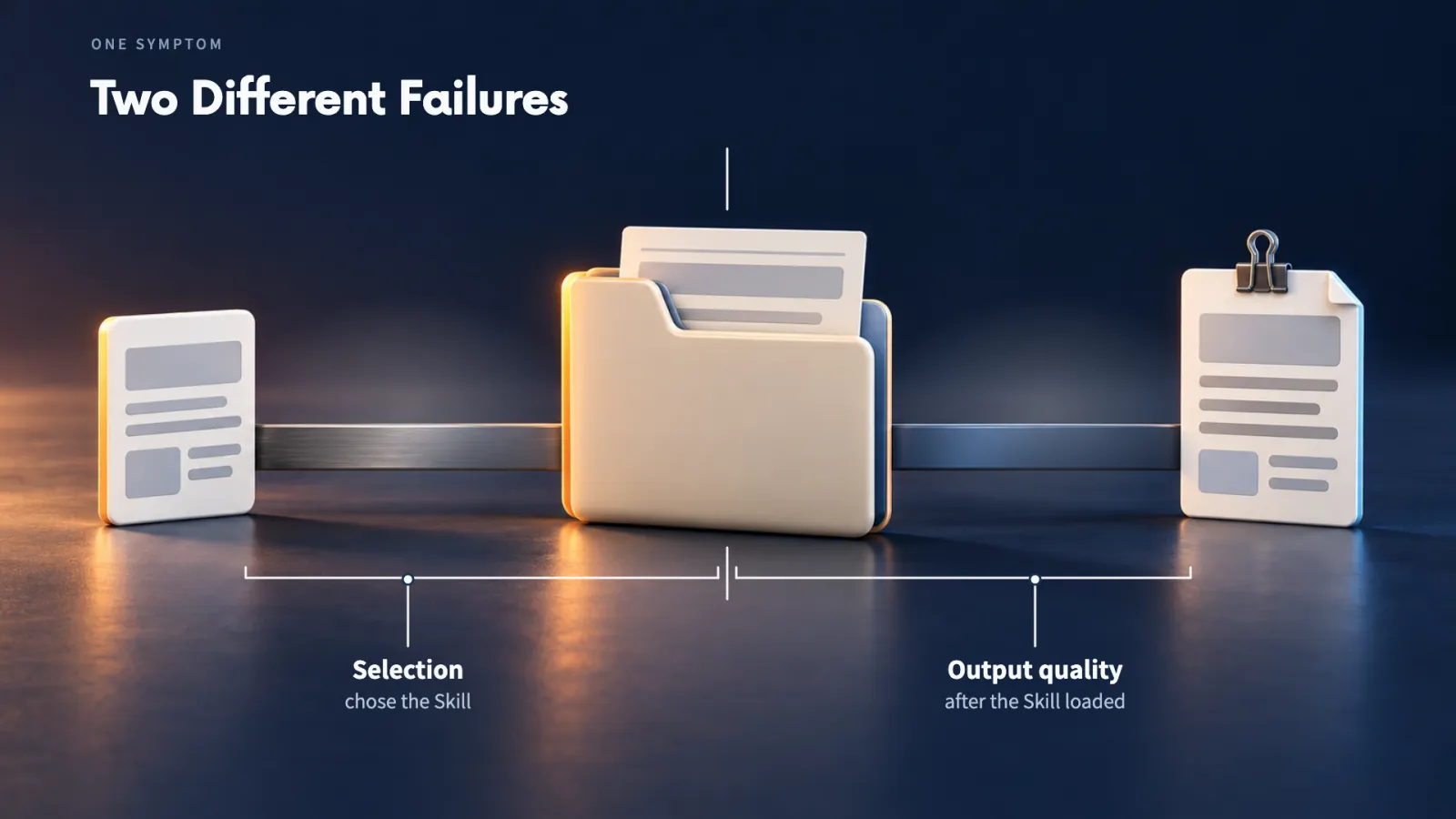
- 03Two failures: Rewriting the analysis instructions will not help Claude find a missing Skill, and moving the folder will not add a check the instructions never asked for.
- 04Debugging: Finding which step failed before changing anything.
I answer three questions separately:
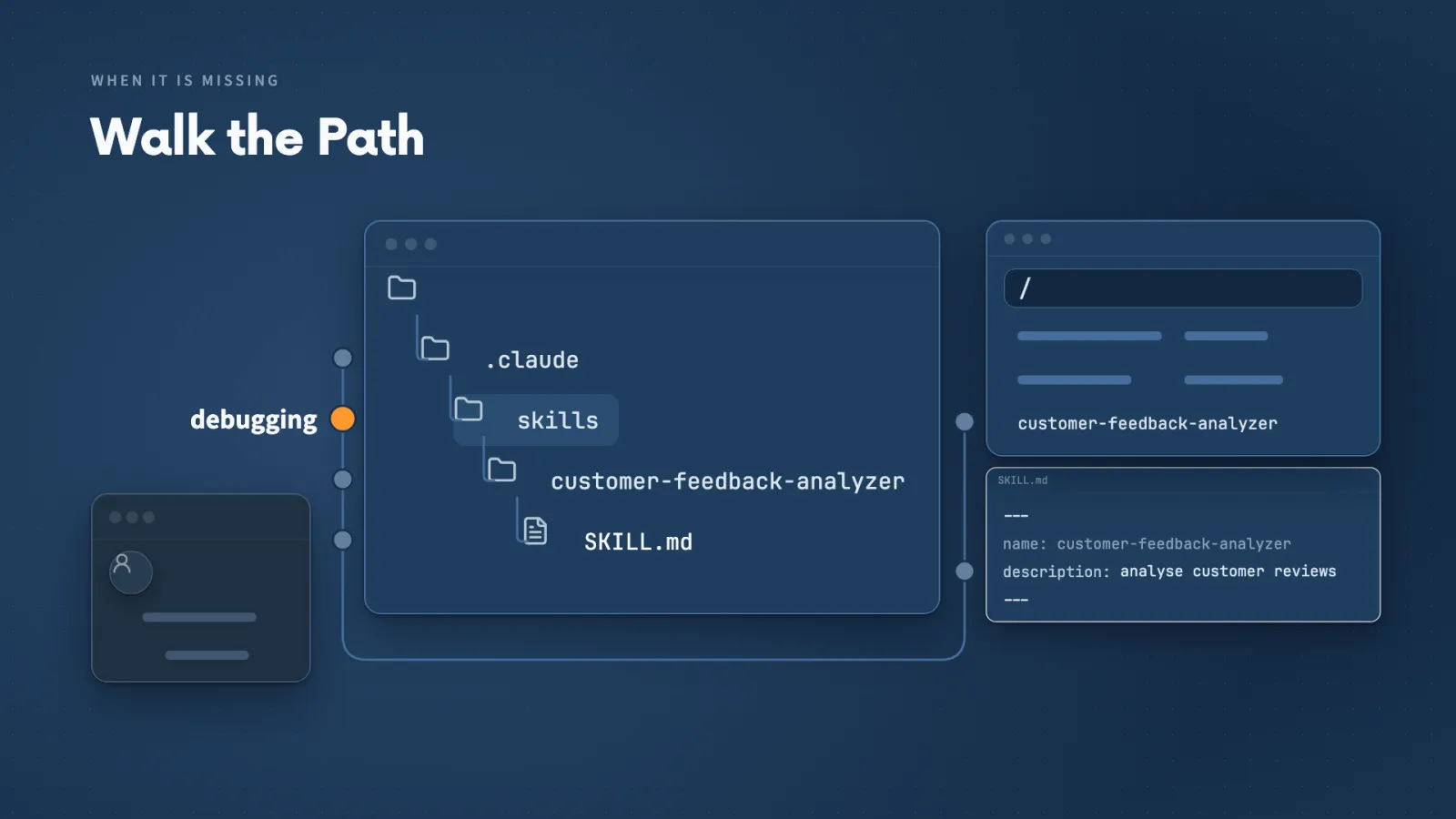
- Can Claude Code find the Skill? I type a slash and look for it in the list.
- Did Claude use it for this task? A direct run answers itself, and for an ordinary request I look for the 'Ran skill' line.
- Did it produce a result the source supports? The feedback IDs, excerpts, counts and the final decision line answer that.
My direct run. I left the file name out, so Claude asked which source to analyse. I chose Other and told it to look in the inputs folder, and the report followed the saved template.
What the evidence proves. The slash command and file reads show what happened in this run. They do not prove the grouping is sensible or the arithmetic is right, so I still compare the report with the source and the answer key.
When it is listed but not chosen. I invoke it directly to confirm it loads, then compare my request with the description. A description that says only 'my monthly routine' gives Claude very little to match.
Make it yours
- Freelancer or consultant
- Your input
- A Skill I have just saved in a project
- Ask Claude
- Invoke it by name in a fresh conversation and tell me what to look at
- Check
- That its name appears when I type a slash
- Small business owner
- Your input
- The wording I would really use, such as 'Analyze the customer feedback file'
- Ask Claude
- Make the request without naming the Skill
- Check
- The 'Ran skill' line in the activity
- On a team at work
- Your input
- A teammate's report that the Skill 'did not run'
- Ask Claude
- Go through the three questions in order before changing anything
- Check
- Which of the three failed, because each needs a different repair
Lecture 8.12
What Can a Skill Read, Run or Call?
A Skill's instructions can ask for an action, but Claude Code still carries it out through a tool and applies the permissions I chose. A few settings in the SKILL.md header change how that works.
Key ideas
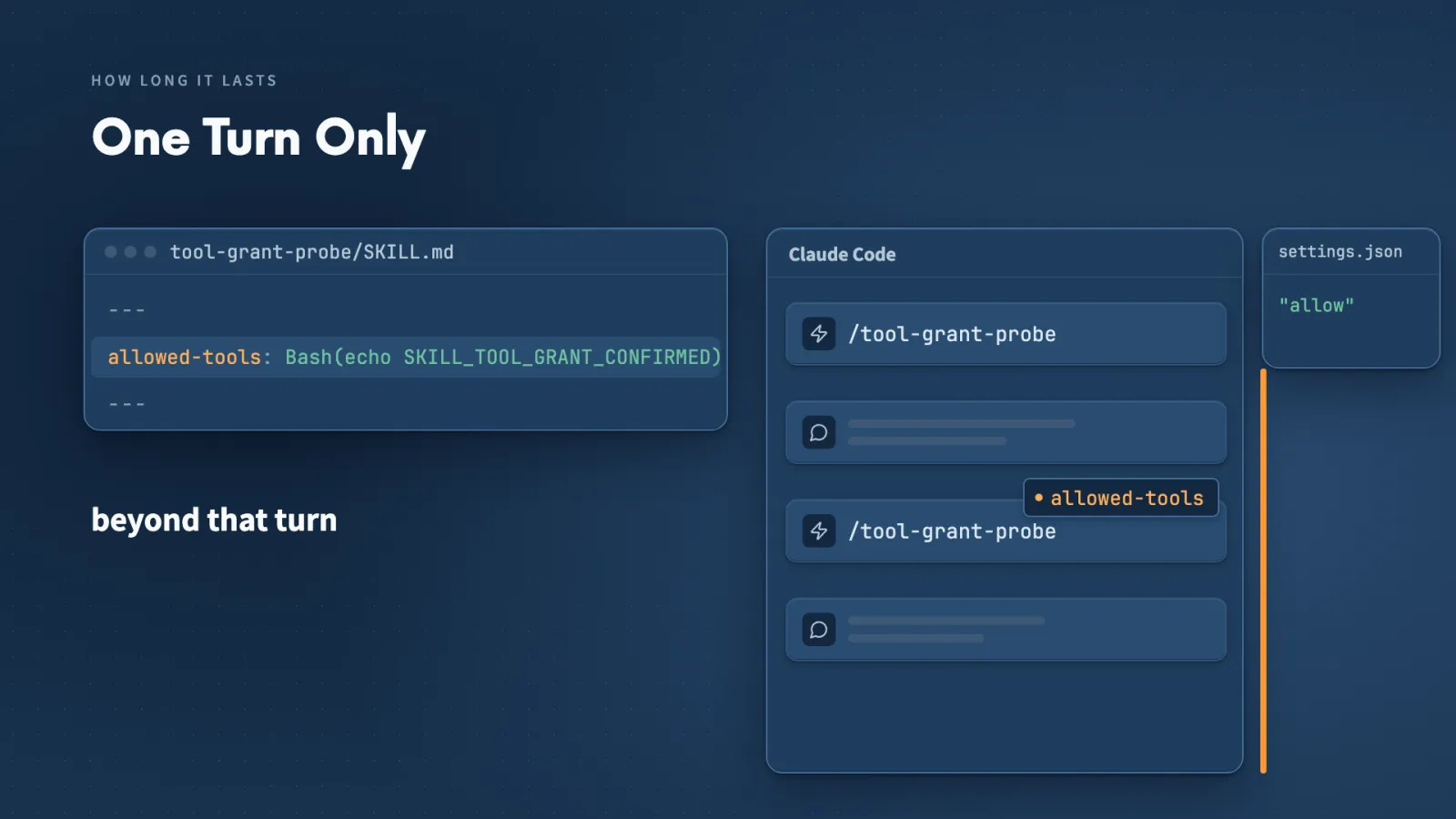
- 01allowed-tools: Pre-approves one named command, such as a Bash echo, while that Skill runs. It is pre-approval and nothing more.
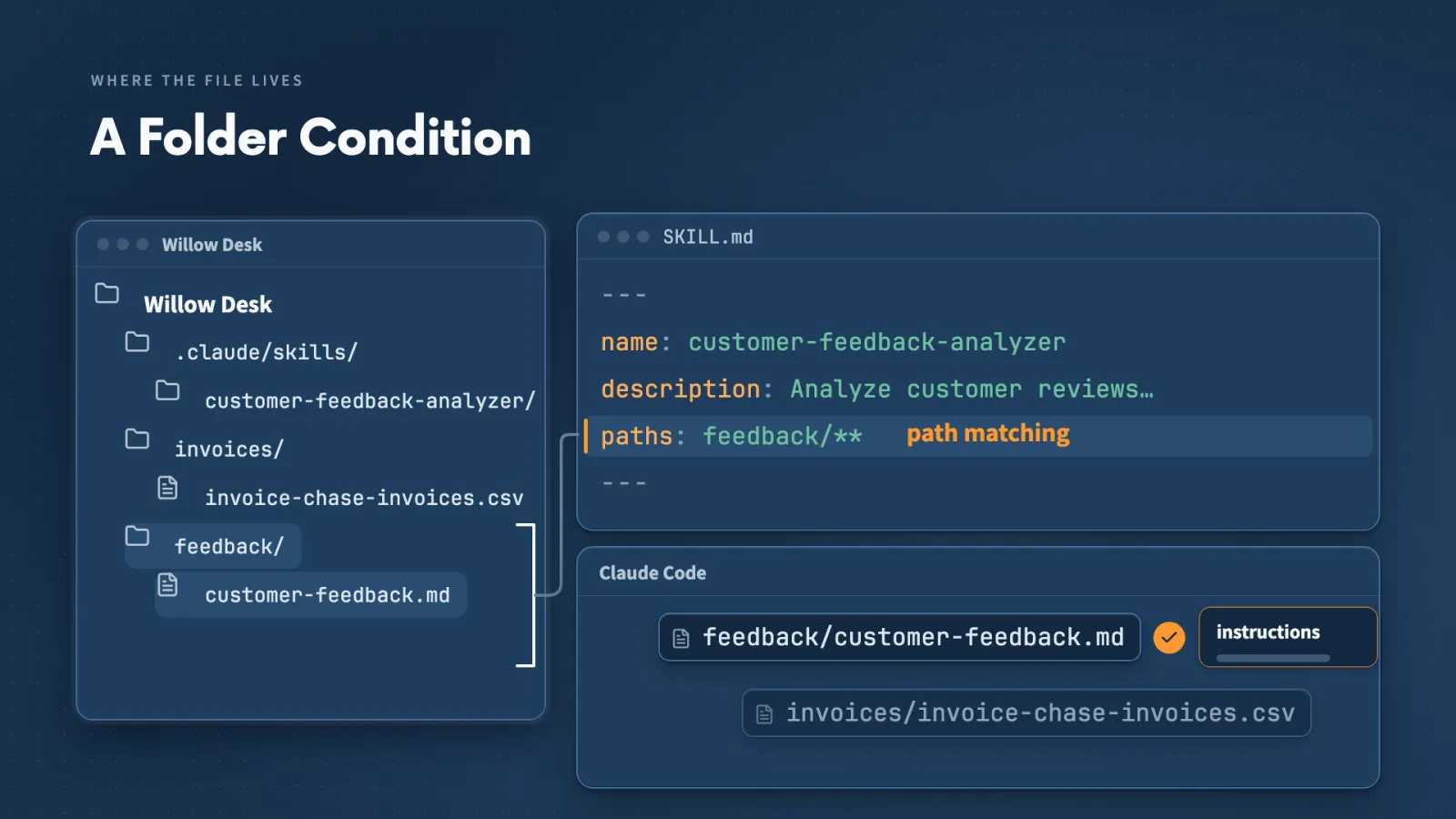
- 02paths: A pattern in the header describing which files should bring the Skill in automatically. The two stars mean everything underneath that folder.
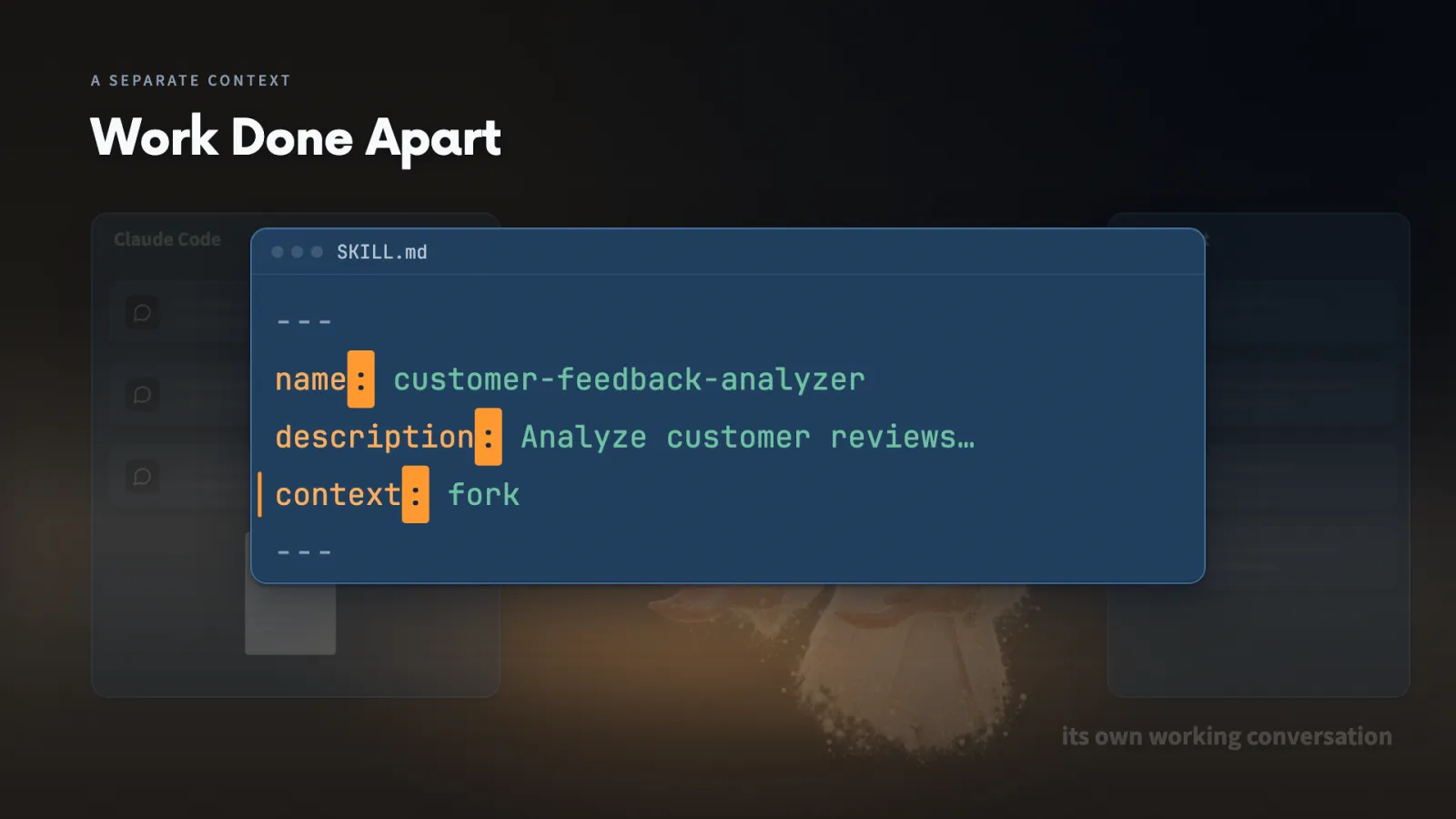
- 03context: fork: Hands the analysis to a subagent that keeps its detailed work separate from my main conversation.
- 04Complete assignment: The subagent does not receive the earlier conversation, so the assignment must name the file and say to leave it unchanged.
Four changes to the job, each answered by a different control:
- A command needs approval: allowed-tools in the Skill header.
- The Skill should load only for certain files: a paths pattern.
- Reviewed findings should arrive in the company layout: tell the feedback Skill to pass them to a report-formatting Skill.
- Hundreds of comments would flood the conversation: context: fork.
Rules still win. A rule that denies the command or makes me approve it takes precedence over allowed-tools. Tools I leave off the list use the ordinary permission checks, so to decide whether Claude may write a file I check the writing permissions.
A check on every save needs a hook rather than a Skill. The save is the event and the comparison with the source is the action, and we configure hooks when we reach automation.
Our twelve-comment Skill can stay as it is. I add one of these controls when a job calls for it.
Lecture 8.13
When Does One File Stop Being Enough?
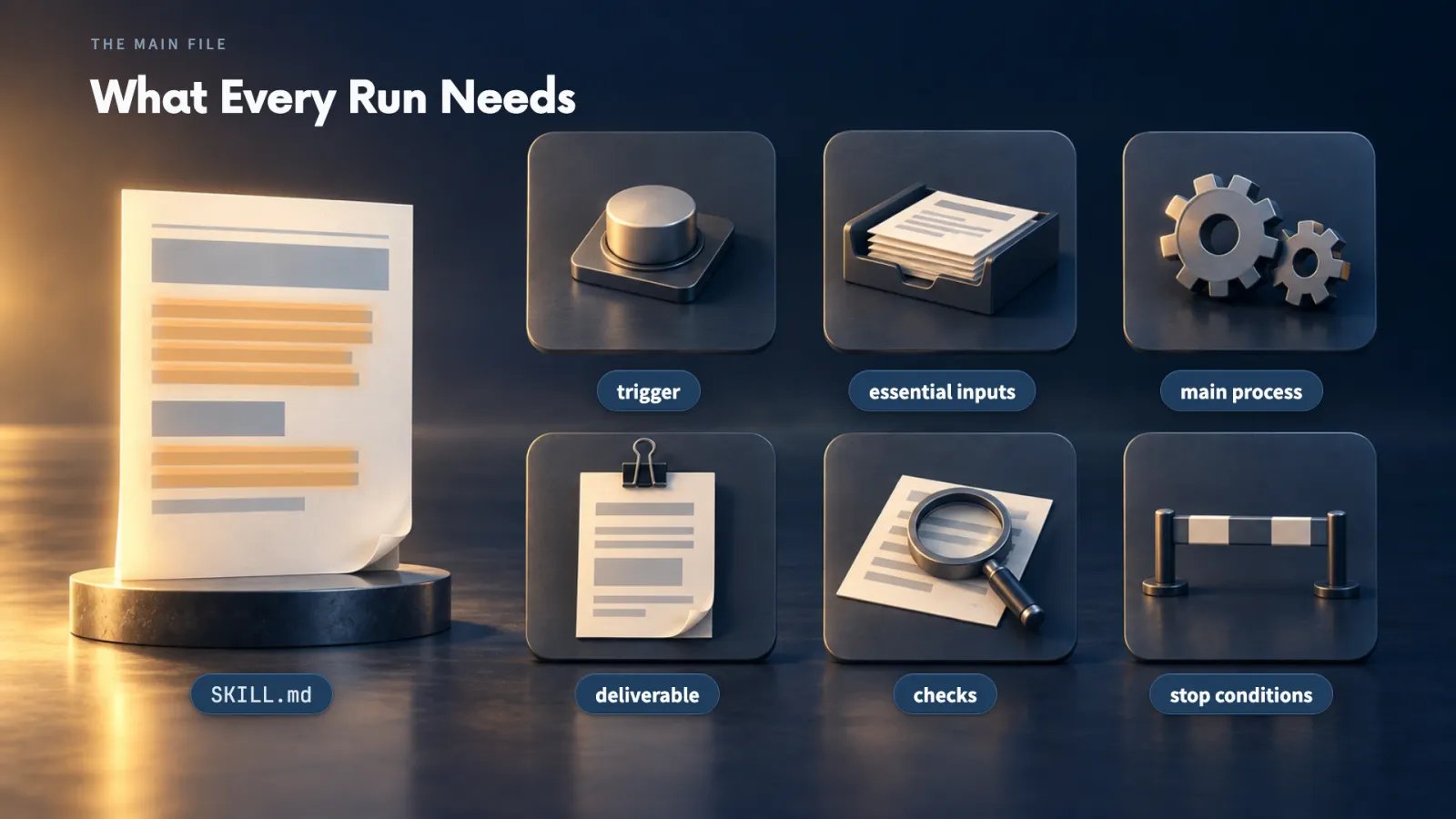
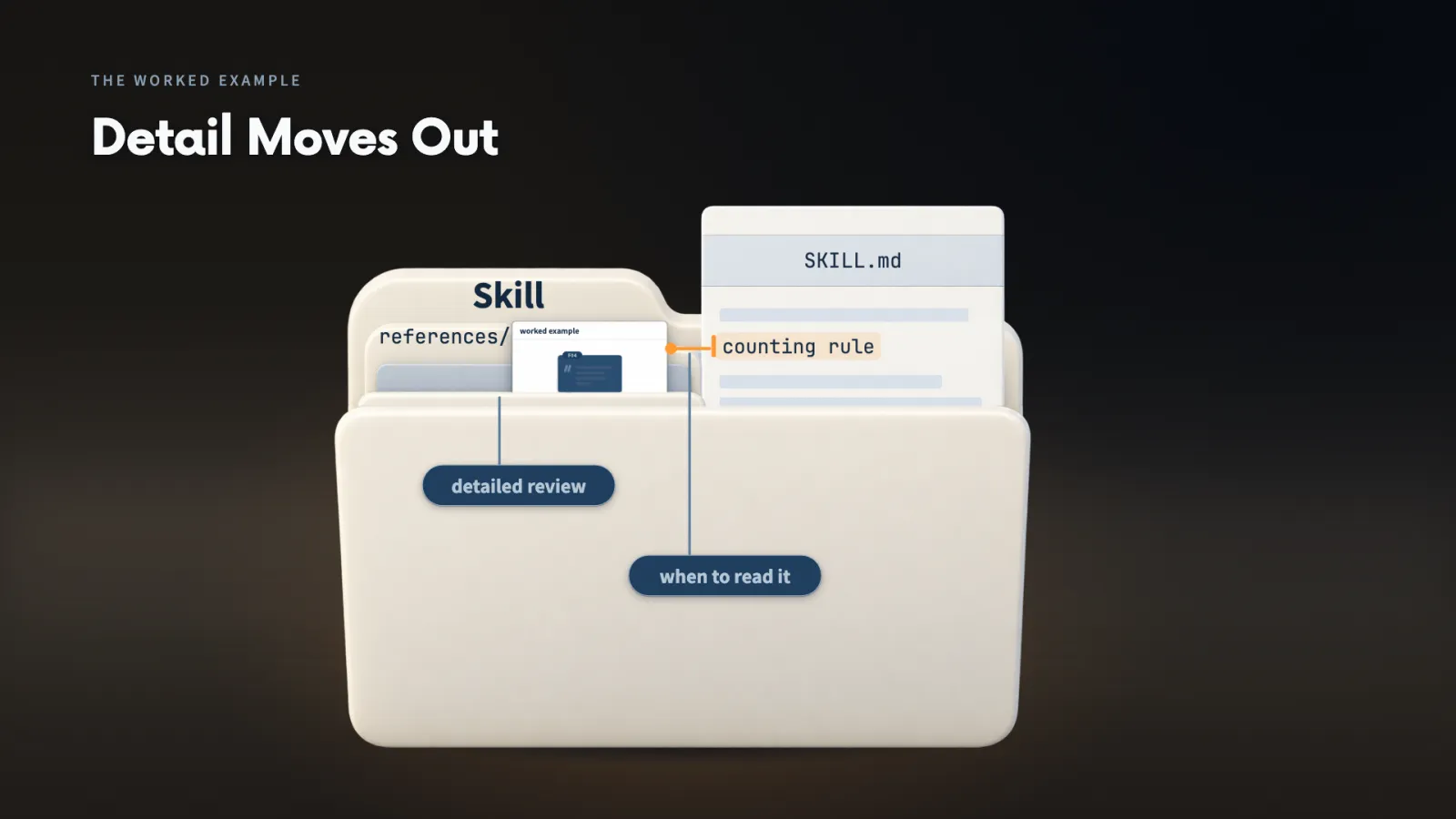
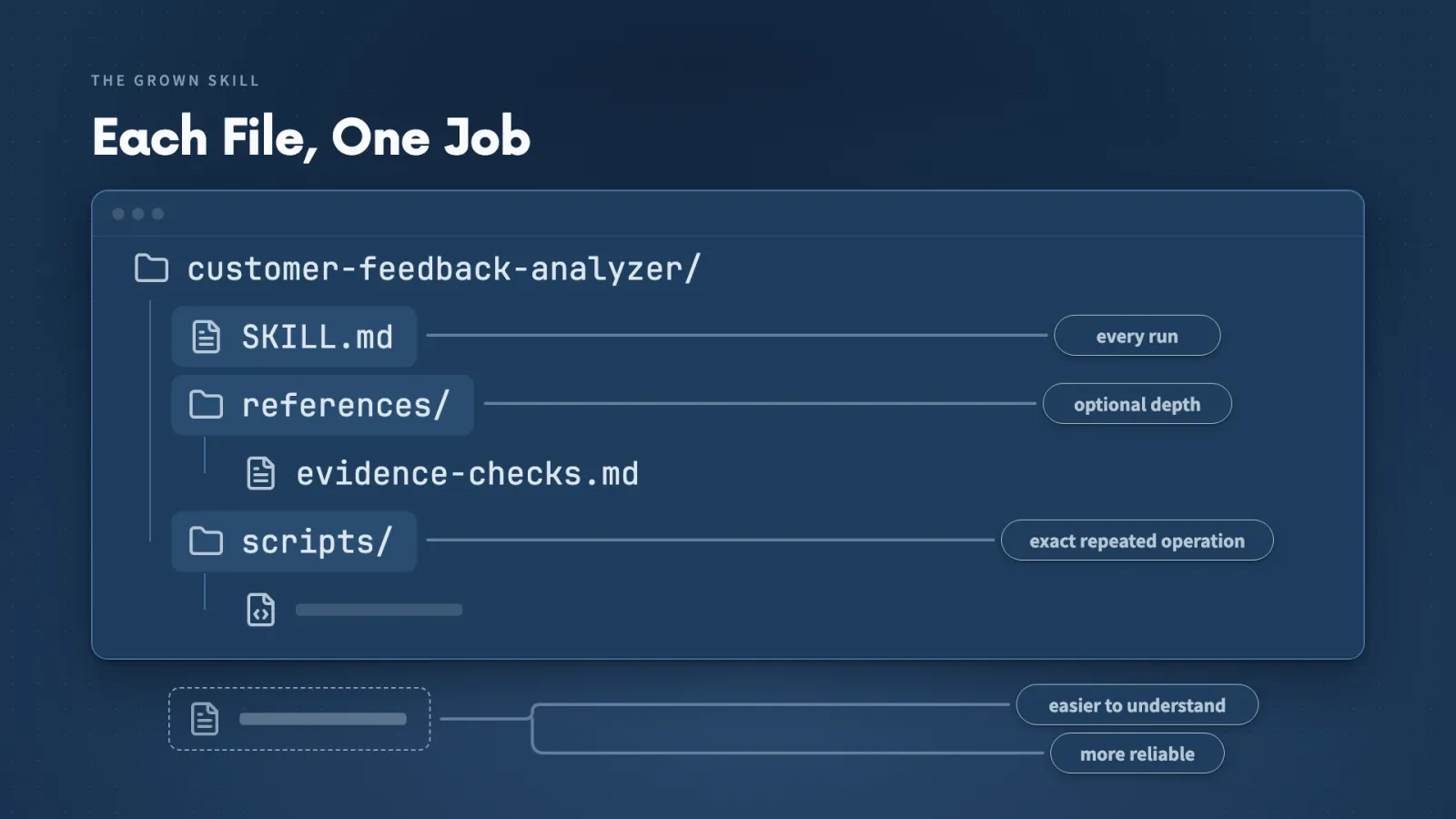
A Skill should stay easy to read. I keep what every run needs in the main file and move optional depth and exact repeated operations into their own files.
Key ideas
- 01Main file: The instructions Claude follows whenever the Skill runs, kept short enough to see at a glance.
- 02Reference file: A longer explanation Claude reads only for a detailed check. SKILL.md says when, using a path such as references/evidence-checks.md.
- 03Script: A file of computer instructions for an exact repeated step, such as comparing two ID lists. Running it means the computer carries them out.
- 04One job per file: I add another file only when it makes the main route easier to understand or an exact operation more reliable.
To add a reference file to the Skill that Skill Creator wrote, I did four things:
- Copied the supplied references folder beside SKILL.md in Finder, leaving Claude's main file in place.
- Opened evidence-checks.md to see its counts and the F04 worked example.
- Added a line comment on SKILL.md saying when to read that reference, so Claude could make the edit.
- Asked Claude to update the Skill from the comment, then tested it with a detailed evidence check.
Proof it read the file. The collapsed rows named the Skill but not the reference. Expanding the command showed the full path to evidence-checks.md, and I check that the first time, not on every later run.
Where a script fits. If a finished report lists F13 and the source ends at F12, a script comparing the two lists flags F13 every time. Grouping complaints still needs interpretation, so Claude does that and the script checks the IDs.
Before I approve a script to run, I inspect which files it reads or changes, and I test it with a known match and a deliberately wrong ID.
Make it yours
- Freelancer or consultant
- Your input
- A client Skill with a longer worked example
- Ask Claude
- Save the example in a references folder and add a line telling the Skill when to read it
- Check
- The expanded command, showing the path of the reference it read
- Small business owner
- Your input
- A report I always finish by checking its IDs against the source
- Ask Claude
- Write a script that compares the two ID lists and prints any ID missing from the source
- Check
- A known match and a deliberately wrong ID, both behaving correctly
- On a team at work
- Your input
- A Skill file that has grown long
- Ask Claude
- Which parts must stay in SKILL.md and which can move into references
- Check
- That every rule used on every run remains in the main file
Lecture 8.14
Why Did Your Skill Fail?
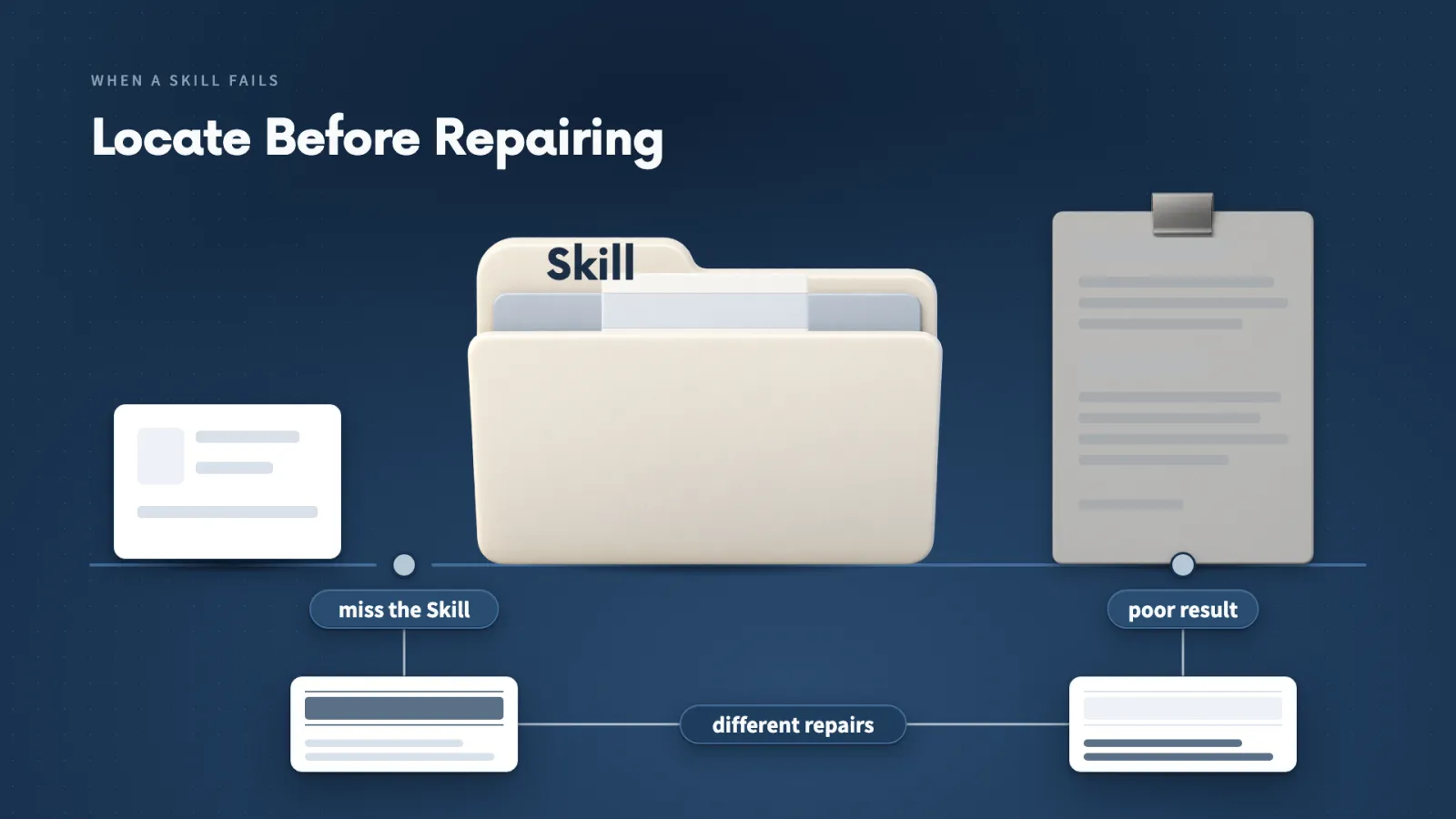
When a Skill seems to fail, I locate the failure before I change anything. Claude either missed the Skill or loaded it and produced a poor result, and each needs a different repair.
Key ideas
- 01Teaching copy: A copy of the Skill with one fault built in, so I can test a repair without touching my working version.
- 02One copy, one project: Each copy sits in its own practice project with a fresh conversation, so another Skill or earlier instructions cannot hide the problem.
- 03Weak description: A description that says to use it only for the 'Willow review digest routine' does not match an ordinary feedback request, so Claude read the file directly and no Skill ran.
- 04Clear description: Naming customer feedback and CSV analysis made 'Ran skill' appear for the same kind of request.
Missing check. The short Skill asked only for themes and three actions. The report had no exact quotations, no separate serious-issues section and no question beside each action.
I added five rules through a comment on SKILL.md. The next report quoted F04 exactly, set F09 apart and gave every action a question to answer.
Weak description. Claude read the CSV and gave a good answer without invoking the Skill. Another run could go less deep, and with twelve records I can see what it covered, but with 1,200 I could not.
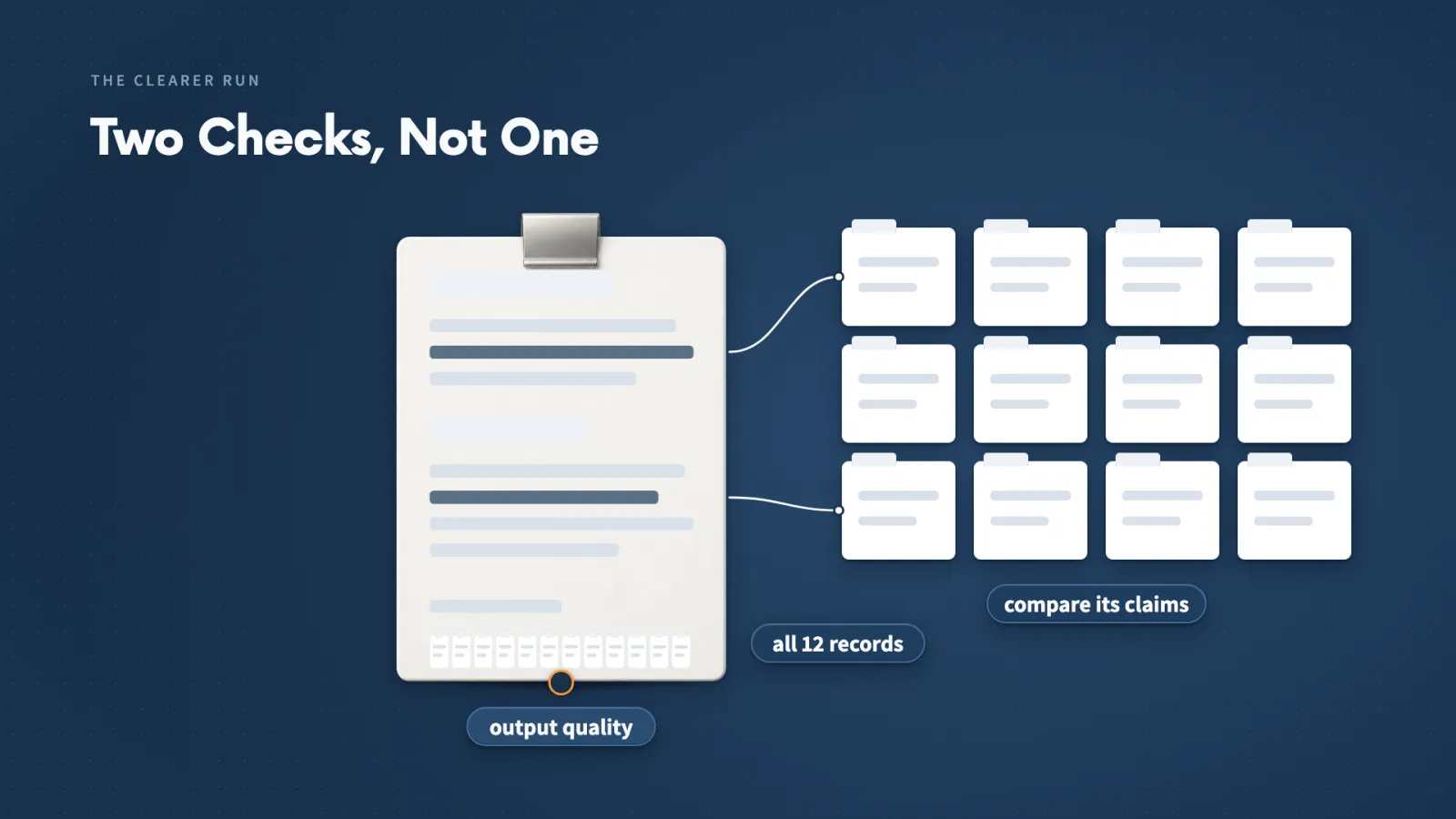

I keep two checks separate:
- Selection: did Claude choose the Skill?
- Output quality: what did the report contain once the Skill loaded, compared with the source?
Before I keep an edit, I also try a case the Skill handled well before, to see whether the improvement caused another problem.
Make it yours
- Freelancer or consultant
- Your input
- A Skill that gave a thin report
- Ask Claude
- Compare the Skill's instructions with the report and tell me what is missing
- Check
- Whether each missing item traces back to a missing line in SKILL.md
- Small business owner
- Your input
- An ordinary request that did not bring in my Skill
- Ask Claude
- Compare my request wording with the description and make the description name the real job
- Check
- 'Ran skill' appearing in a fresh chat
- On a team at work
- Your input
- A Skill copy and the same request, run in a separate project
- Ask Claude
- Tell me whether the Skill was missed or the output was poor
- Check
- A fresh conversation with only that version installed
Lecture 8.15
How Do You Improve a Skill Without Breaking It?
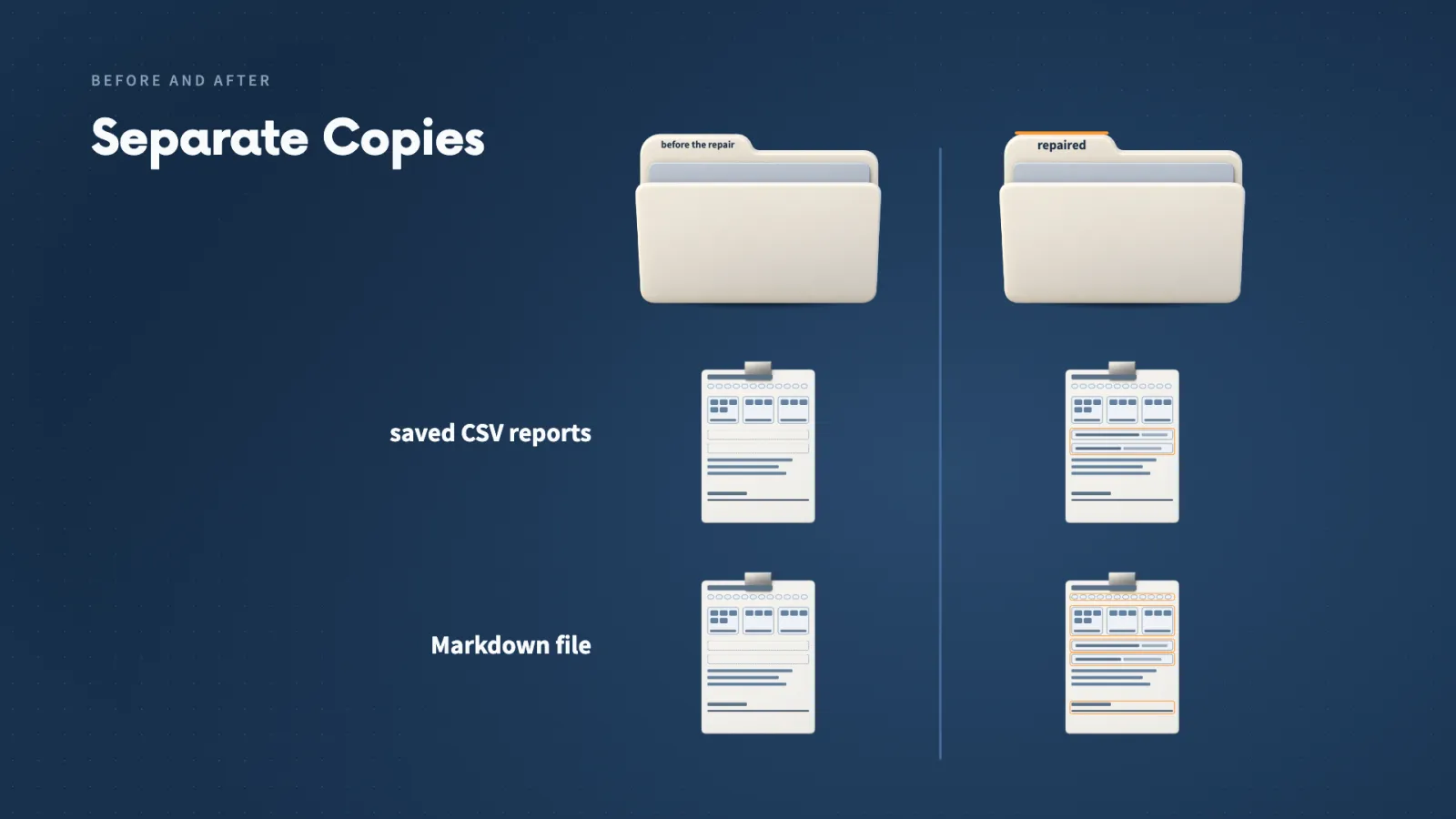
An edit that fixes one case can quietly damage another. After every change, I rerun a case the old Skill handled well and compare the two, so a repair does not cost me something that worked.
Key ideas
- 01Regression check: A rerun of something that worked before, to find out whether a change damaged it.
- 02Saved cases: A few known inputs and checks, so the next edit is tested against work the Skill already handled.
- 03Spot-check: Skill Creator compared four reports for me. I still check its claims against the comments and passages it cites.
- 04Remove old lines: A fixed filename could send Claude to yesterday's comments. I tell it to read the file supplied with the request, then rerun the saved cases.
For the Markdown case I compared four reports:
- the CSV report from before the repair
- the CSV report after it
- the Markdown report saved from the earlier Skill
- the new Markdown report from the repaired Skill
What the comparison showed. All twelve IDs were covered, with counts of five, three and three and F09 in its own serious section. Skill Creator named exact quotations the biggest improvement, said nothing on evidence was lost, and listed three gaps to close next: keep the decision with me, name quotation sources and suggest concrete fixes.


One run is not proof. Claude's output varies, so running both versions on both files several times gives firmer evidence.
Once the Skill works, I choose one of three paths:
- Keep it in Willow Desk and improve it when the feedback job changes.
- Share it by sending the whole customer-feedback-analyzer folder, including references/evidence-checks.md, with placement instructions, a fictional feedback file, the checks to expect and the source and licence of anything borrowed.
- Retire it by moving the folder out of .claude/skills/, keeping an archived copy, then confirming in a fresh conversation that it no longer appears. An installed plugin is disabled or uninstalled in the plugin manager.
Make it yours
- Freelancer or consultant
- Your input
- A Skill I have just repaired, and a saved report from before the change
- Ask Claude
- Run the repaired Skill on the same case and compare before and after
- Check
- Coverage, quotations and who makes the final decision
- Small business owner
- Your input
- A few known inputs and the checks each should pass
- Ask Claude
- Rerun them after every edit
- Check
- Both the improvement and the earlier working behaviour
- On a team at work
- Your input
- A Skill I want to share with a colleague
- Ask Claude
- List everything the recipient needs beyond SKILL.md
- Check
- That the whole folder, references included, goes with it
Quick reference
Where a Skill lives
| User location | A skills folder inside .claude in my home folder (~/.claude/skills/). A Skill there can be available across projects. |
|---|---|
| Project location | A skills folder inside the project's own .claude folder (.claude/skills/). It belongs to that project and can be shared with it. |
| Each Skill's folder | One folder per Skill, with the main instructions in a file named SKILL.md. |
| Desktop plugin install | Finder showed the files under my home .claude folder, in plugins, then marketplaces. The desktop Add did not ask for a scope. |
| Terminal plugin install | In /plugin, choose a plugin and pick user, project or local scope. Local means this project, only for me. |
| Feedback Skill we built | .claude/skills/customer-feedback-analyzer/SKILL.md inside Willow Desk, with references/evidence-checks.md added beside it. |
Installing and finding Skills
| Desktop plugins | Account menu, Settings, Customize, Plugins. The Yours tab shows installed plugins and search moves to Discover. |
|---|---|
| Add and warning | Adding Small Business opened a warning that a plugin may run code. I checked the publisher and install count before Continue. |
| Terminal marketplace | Type /plugin, open Marketplaces, choose claude-plugins-official, then Browse plugins or Update marketplace. |
| Slash menu | Type / and then a few letters. Hover over a Skill to read its description before selecting it, and press Tab to place it in the prompt. |
| Plus menu | Plugins in the plus menu groups Skills under their installed plugins, and Browse plugins is there too. |
| Where I looked for Skills | Claude's plugin website, GitHub, skills.sh and SkillsMP. |
The SKILL.md header
| Frontmatter | The block between two lines of three dashes at the top of SKILL.md, written in YAML. |
|---|---|
| name | The label and slash command. I keep it the same as the folder name. |
| description | What Claude reads to decide whether the Skill fits an ordinary request. About 1,500 characters at most. |
| allowed-tools | Pre-approves a named command while the Skill runs, for that turn only. Saved deny and ask rules still win. |
| paths | A pattern such as feedback/** describing which files bring the Skill in automatically. |
| context: fork | Runs the Skill's analysis in a subagent with its own working conversation. The assignment must name the file. |
The six decisions before writing
| 1. When | The kind of request that should bring the Skill in. |
|---|---|
| 2. Input | What I provide, including an ID and the original text for every comment. |
| 3. Process | What Claude does: read every record, group, keep IDs, quote, count each ID once and show overlaps. |
| 4. Deliverable | The report's parts, ending with the priority decision left to me. |
| 5. Checks | Each ID and quotation against the file, and the IDs behind each theme. |
| 6. Stop | A missing file, unclear comments, missing or duplicate IDs, an unclear destination, or a file that could be replaced. |
Words used in this section
| Skill | A reusable method saved in a folder that tells Claude how to do one kind of job. |
|---|---|
| Plugin / marketplace | A plugin is a package of one Skill or several that Claude Code installs. A marketplace is the catalogue it searches. |
| Repository | The project page or folder that holds a Skill's real source files. |
| Loading | Claude sees a short description first. Selecting a Skill adds its full instructions to the conversation. |
| Agent / subagent | A separate Claude assistant given one part of the work. A subagent works under the main assistant. |
| MCP | An authorised way for Claude to reach outside information or actions. |
| Hook | A rule that starts an action when an event happens, such as running a check whenever a report is saved. |
| Script | A file of computer instructions for an exact repeated step. |
| Regression check | Running an earlier successful case again to see whether a change damaged it. |
Use X when / Y when
| Project instructions / Skill | Instructions for facts and rules that apply across the project. A Skill for the process of one repeated job. |
|---|---|
| Agent / MCP / hook | An agent for delegated work. MCP for authorised outside access. A hook for an action tied to an event. |
| User / project / local scope | User for tools I want in every project. Project for a Skill that should travel with the project. Local for this project, only for me. |
| Direct run / ordinary request | A direct run to test that the Skill loads. An ordinary request to test whether the description matches my words. |
| Main file / reference / script | SKILL.md for what every run needs. A reference for optional depth. A script for an exact repeated operation. |
| Keep / share / retire | Keep and improve while the job continues. Share the whole folder with placement instructions. Retire by moving the folder out of .claude/skills/. |
When a Skill misbehaves
| 1. Found? | Is the Skill in the slash list? If not, check .claude, then skills, then the Skill's folder, then SKILL.md and its header, and reopen the project. |
|---|---|
| 2. Used? | Look for 'Ran skill' on an ordinary request. If missing, invoke it directly, then make the description name the real job. |
| 3. Right? | Compare the IDs, quotations and counts with the source. A missing check is repaired in SKILL.md, not in the description. |
| 4. Still working? | After an edit, rerun a case the Skill handled well before. |
Numbers from the recordings
| Willow Desk feedback | 12 fictional comments, F01 to F12. Setup 5, damage 3, colours 3, and F09 the tray-edge concern on its own. |
|---|---|
| Invoice practice | 8 invoices, reporting date September 21, 2026. INV-001 to INV-005 selected, remaining balances USD 4,065.00. |
| Social practice | One-week plan from the brief: three-piece set, $36 price, free shipping with two or more sets. |
| Skill Creator output | 89 lines added to SKILL.md, after an earlier blocked write. |
| Skill listing budget | About 10,000 tokens, 1% of a one-million-token window, on my own machine. |
| Skills I have built | About 366. Some run 4,000 or 5,000 lines. |
| Models and effort I used | Invoice check on Opus at low effort, or Sonnet at medium. Social drafts at medium, the Markdown rerun on Sonnet at medium, and the before and after comparison on Opus. |
More in this section
Keep going
Keep building
More from Aruntastic
Practical courses for people who want to build useful things with AI.

AI SEO Course 2026: From Zero to Page-One Results
Research search demand, structure useful pages, and work through technical and off-page SEO.
Open the course →
AEO, GEO, AI SEO: Get Cited by ChatGPT, Google, Perplexity
Study how AI search finds information, and make your pages clear enough to be cited.
Open the course →
Microsoft PowerPoint Presentation 2026 for Professionals
Learn visual hierarchy, slide composition, typography and animation through practical work.
Open the course →
AI Agents for Leaders Who Have No Time to Learn AI
If you can delegate to a person, you can delegate to an AI agent. You keep the judgment. For managers and founders.
Open the course →
Introduction to Agentic AI and AI Agents
Learn how to direct an AI agent at work, with agentic workflows, RAG and MCP explained from a real first run.
Open the course →Toolkits and programme
Go deeper

Toolkit
SEO Accelerator Toolkit
150+ copy-paste AI prompts for audience research, keywords, content, technical SEO and link building.

Toolkit
GEO Accelerator Toolkit
100 detailed AI prompts for GEO audits, entity building, content structure and client reporting.

Programme
GEO Authority Accelerator
A complete GEO programme on our learner platform: nine modules and a 30, 60, 90 day roadmap. The GEO Accelerator Toolkit is included.
Claude certification practice
Preparing for a Claude certification?
Practice exams written by Arun: 600 questions across 4 mock exams and 2 drill banks. Unofficial preparation, not affiliated with Anthropic.
 CCAR-F
 CCAO-F
 CCDV-F
 CCAR-P
See Where You Stand
This resource is one piece of a much bigger system.
Take the free Claude Code Readiness Quiz. It is 15 short situations, scored out of 100, and it tests how you handle a job rather than what you know about a tool, so you can take it without ever having opened Claude Code.
Take the Claude Code Readiness Quiz 15 situations · Scored out of 100 · Free