AI SEO Course · Google Analytics 4 · Notes
Google Analytics 4 (GA4) Notes: Setup, Tracking & SEO Goals
 Arun Nagarathanam · 10 Jul 2026 Notes · 40 of 54 in this course
 An exclusive resource for students of Arun's AI SEO Course.
In This Section, You Will Master:
- The core differences between the old Universal Analytics (UA) and the new Google Analytics 4 (GA4).
- Connecting a GA4 property to your website using a streamlined plugin method.
- Deciding between the two main tracking code implementations: Global Site Tag (gtag.js) and Google Tag Manager (GTM).
- The 6-step framework for setting meaningful SEO goals and KPIs that align with your business objectives.
How to Use These Notes:
- These notes are your efficient companion to the video lectures.
- Focus on the
Key Takeawaysto absorb the core concepts. - When you see
Actionable ItemsorApplied Learning, it's your cue to put theory into practice. - For conceptual lectures, use the
Food for Thoughtto think more deeply about the 'why'.
The Growth Payoff:
Mastering this section transforms abstract data into a clear, actionable roadmap for measurable business growth.
Google Analytics 4
Universal Analytics vs GA4
Key Takeaways
- 01Google Analytics 4 (GA4) is the new standard, completely replacing the older Universal Analytics (UA) as of July 2023.
- 02It's a free tool that shows you who is visiting your website/app, where they came from, and what they do during their visit.
- 03A major advantage of GA4 is its ability to track a single user's journey across multiple devices, like their phone and their computer.
- 04GA4 changes the vocabulary of measurement. We now focus on positive interactions instead of negative ones.
- Engagement Rate replaces Bounce Rate.
- Engagement Time replaces Time Spent on Site.
- 05A user is considered "engaged" if they do one of the following:
- Stay on your site for at least 10 seconds.
- Trigger a conversion event.
- View two or more pages.
Food for Thought
The shift from "Bounce Rate" to "Engagement Rate" is more than just a name change. It's a fundamental shift in perspective.
How does focusing on engagement instead of bounces change the way you might evaluate the success of a blog post or a landing page?
Where This Leads
Now that you understand the what and why behind GA4, the next lecture will walk you through the how, connecting this powerful tool to your own website.
Google Analytics 4
Connect Google Analytics to your site
Key Takeaways
- 01The Google Analytics structure has a clear hierarchy:
- Account: The top level, which can hold multiple properties. You only need one account for all your websites.
- Property: Represents a single website or app. This is where you'll find your reports.
- Data Stream: The source of data for your property (e.g., your website, an Android app, or an iOS app).
- 02Once you create a data stream for your website, Google gives you a Measurement ID. This ID is what enables the tracking.
- 03For WordPress users, the Site Kit by Google plugin is a simple and reliable way to connect GA4 without manually pasting any code.
Actionable Items: Connecting GA4 with a Plugin
- Create Your Account: In the Google Analytics Admin section, start by creating a new account and giving it a name.
- Create Your Property:
- Name your property (e.g., the name of your website).
- Set your correct reporting time zone and currency.
- Ensure you are creating a Google Analytics 4 property, not the old Universal Analytics one.
- Set Up Your Data Stream:
- Choose "Web" as the platform you want to collect data from.
- Enter your website's URL.
- Give the stream a name and ensure "Enhanced measurement" is on. This automatically tracks key actions like scrolls, site searches, and video engagement.
- Connect via WordPress Plugin:
- Log in to your WordPress website and navigate to Plugins > Add New.
- Search for, install, and activate the "Site Kit by Google" plugin.
- Follow the on-screen prompts to sign in with your Google account and grant the necessary permissions.
- When prompted, select the GA4 Account and Property you just created.
- Complete the setup. The plugin now handles all the code for you.
Tools & Resources Mentioned
- Plugin: Site Kit by Google
Where This Leads
Using a plugin is the simplest way to get started. The next lecture explores the underlying technology to help you decide on the best long-term implementation strategy for your specific needs.
Google Analytics 4
Global site tag vs tag manager
Key Takeaways
- 01To make GA4 work, a piece of tracking code needs to be on your website. There are two primary ways to manage this:
- Global Site Tag (gtag.js): A single JavaScript snippet that you add directly to your website's code. It is designed to work primarily with other Google products.
- Google Tag Manager (GTM): A more powerful management system that lets you add and manage GA4 tracking (and codes from other platforms like Facebook or LinkedIn) from a user-friendly web interface, without having to edit your site's code for every change.
- 02Crucially, you should only use one of these methods, not both. If you use GTM, you don't need to add the Global Site Tag separately, and vice-versa.
- 03Which should you choose?
- Choose Google Tag Manager if you want an easy-to-use interface to manage multiple tracking tags without touching code.
- Choose Global Site Tag only if you are experienced with JavaScript and prefer to hard-code tracking scripts directly onto your pages.
Food for Thought
Think about your future needs. Do you plan on using other marketing or analytics tools beyond Google's ecosystem (like Facebook Ads, LinkedIn Ads, or other analytics platforms)?
Answering this question is the key to deciding whether the simplicity of a direct Global Site Tag or the flexibility of Google Tag Manager is the right choice for you.
Google Analytics 4
Why to set the right goals and KPIs
Key Takeaways
- 01Without clear goals and Key Performance Indicators (KPIs), you're flying blind, like a chef cooking without a recipe.
- 02Your SEO goals should never exist in a vacuum. They must directly support your main business objectives (e.g., increasing sales or generating leads).
- 03Effective goals are specific and measurable. "Increase organic traffic by 25% in 6 months" is a real goal; "improve SEO" is just a wish.
- 04SEO takes time. Significant results often take 3-6 months or longer, so set realistic timeframes for your goals.
Analogy Spotlight
- 01The Café: Running a business without goals and KPIs is like opening a café and having no way to know if your food is good or if you're making a profit. You need clear criteria to measure success.
- 02The Garden: SEO is like nurturing a garden. It requires patience and consistent effort over time to see beautiful results. You can't expect a full harvest overnight.
Applied Learning
The 6-Step Goal-Setting Framework
This is your recipe for creating an SEO strategy that actually drives business results.
- Align with Business Objectives: First, ask "What does the business want to achieve?" (e.g., increase online revenue by 30%). Your SEO goal must directly help this happen (e.g., "Increase organic traffic to the online store by 50%").
- Make Goals Specific & Measurable: Turn vague wishes into concrete targets. Add a number and a date.
- Choose Relevant KPIs: Pick the specific metrics that tell you if you're on track. For an engagement goal, you'd track KPIs like
Engagement TimeandBounce Rate. For a sales goal, you'd trackConversion RateandRevenue from Organic Search. - Set a Realistic Timeframe: Be patient. Break down a big 12-month goal into smaller quarterly or monthly milestones to stay motivated.
- Monitor and Report Regularly: Set up a simple monthly report to track your progress towards your goals and see what's working.
- Adjust and Optimize: Use your reports to make smart decisions. If long-form blog posts are performing well, adjust your strategy to create more of them.
Tools & Resources Mentioned
- Google Analytics
- Google Search Console


Keep building
More from Aruntastic
Practical courses for people who want to build useful things with AI.

AI SEO Course 2026: From Zero to Page-One Results
Research search demand, structure useful pages, and work through technical and off-page SEO.
Open the course →
AEO, GEO, AI SEO: Get Cited by ChatGPT, Google, Perplexity
Study how AI search finds information, and make your pages clear enough to be cited.
Open the course →
Microsoft PowerPoint Presentation 2026 for Professionals
Learn visual hierarchy, slide composition, typography and animation through practical work.
Open the course →
AI Agents for Leaders Who Have No Time to Learn AI
If you can delegate to a person, you can delegate to an AI agent. You keep the judgment. For managers and founders.
Open the course →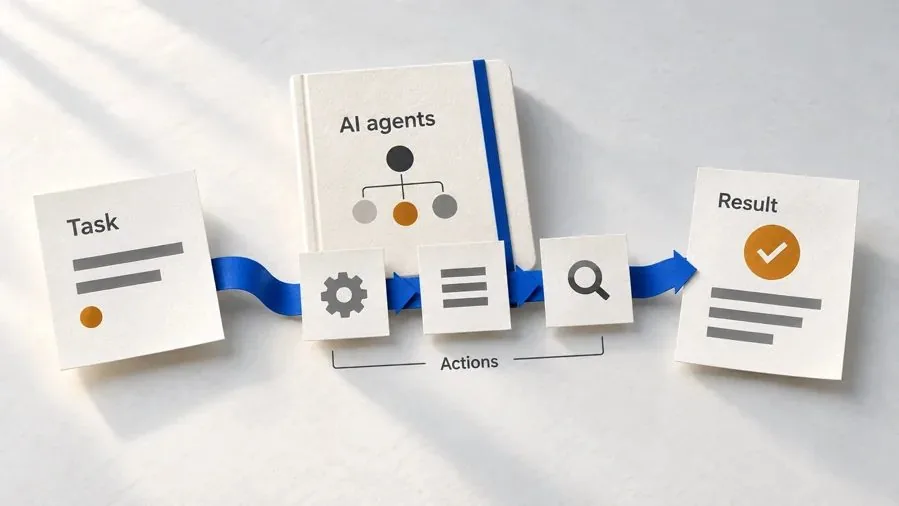
Introduction to Agentic AI and AI Agents
Learn how to direct an AI agent at work, with agentic workflows, RAG and MCP explained from a real first run.
Open the course →Toolkits and programme
Go deeper

Toolkit
SEO Accelerator Toolkit
150+ copy-paste AI prompts for audience research, keywords, content, technical SEO and link building.

Toolkit
GEO Accelerator Toolkit
100 detailed AI prompts for GEO audits, entity building, content structure and client reporting.

Programme
GEO Authority Accelerator
A complete GEO programme on our learner platform: nine modules and a 30, 60, 90 day roadmap. The GEO Accelerator Toolkit is included.
Claude certification practice
Preparing for a Claude certification?
Practice exams written by Arun: 600 questions across 4 mock exams and 2 drill banks. Unofficial preparation, not affiliated with Anthropic.
 CCAR-F
 CCAO-F
 CCDV-F
 CCAR-P
See Where You Stand
This resource is one piece of a much bigger system.
Take the free GEO Readiness Quiz to see exactly where your business stands with AI search engines today.
Take the GEO Readiness Quiz 60 seconds · Personalized report · Free