AI SEO Course · Course Reference · Guide
Adding a Free SSL/TLS Certificate to Your Website
 Arun Nagarathanam · 10 Jul 2026 Guide · 46 of 54 in this course
 An exclusive resource for students of Arun's AI SEO Course.
Cloudflare offers a fantastic way to secure your site with HTTPS (the padlock!), even if your hosting provider doesn't offer a free SSL certificate.
This guide will walk you through the process using Cloudflare's free "Origin Certificate." This will allow you to use the most secure "Full (Strict)" encryption mode.
AI SEO Course
A Critical Warning Before You Start
This is the most common mistake beginners make, and it can take your website offline. Read this carefully.
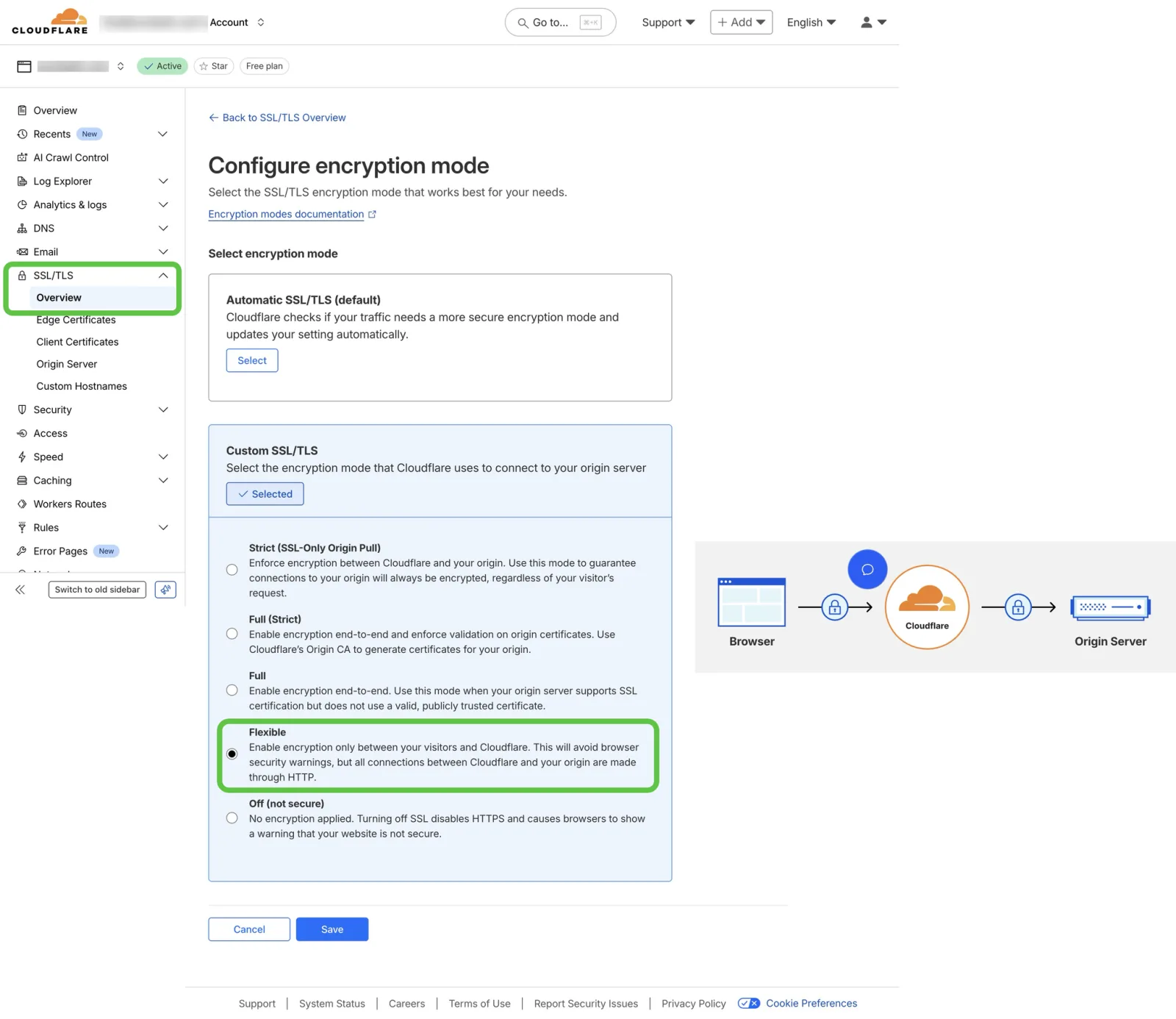
- NEVER set your SSL/TLS mode in Cloudflare to Full or Full (Strict) unless you have confirmed that a valid SSL certificate is active on your hosting server.
- If you are even slightly unsure, start with the Flexible mode. This encrypts traffic between the user and Cloudflare and will give your site the padlock icon while you get everything else configured. Proceeding without a server-side certificate on Full (Strict) mode will result in an error and make your site inaccessible.
AI SEO Course
How to Install a Free Cloudflare Origin Certificate
This process creates a free, long-lasting SSL certificate signed by Cloudflare that you install on your hosting server.
Step 1: Create the Certificate in Cloudflare
Follow along
- Log in to your Cloudflare dashboard and click on your domain from the main list of websites.
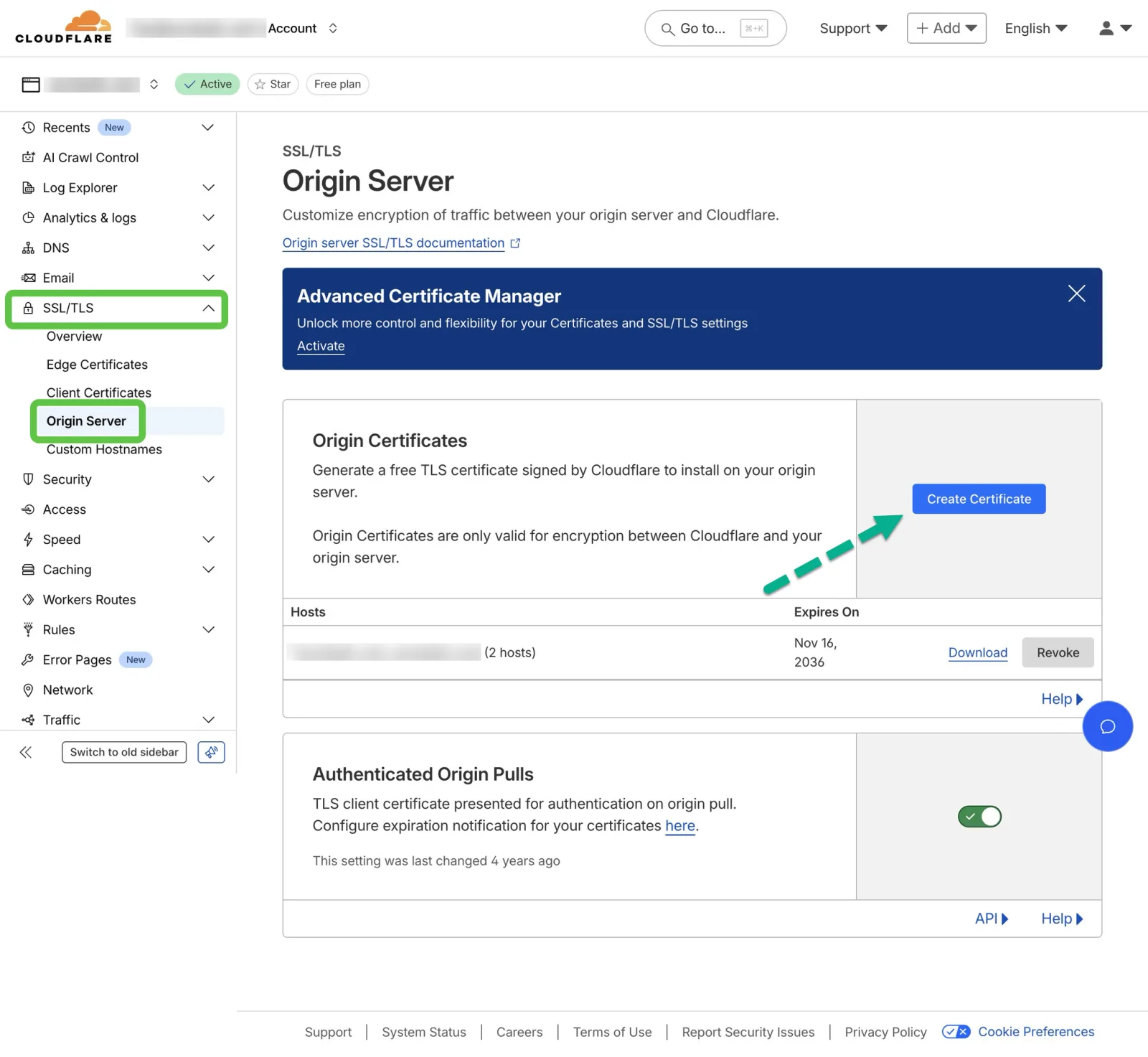
- In the left-hand menu for your site, navigate to SSL/TLS > Origin Server.
- Click the "Create Certificate" button.
Follow along
- Leave the default settings as they are ("Let Cloudflare generate a private key and a CSR"). The default Certificate Validity of 15 years is fine.
- Click "Create".
Step 2: Copy Your Certificate and Key
Cloudflare will now display two large blocks of text. This is your certificate.
- Origin Certificate
- Private Key
Do not close this browser window or navigate away. You must copy and paste both of these into your hosting control panel in the next step.
Step 3: Install the Certificate on Your Hosting Server (cPanel Example)
These instructions are for a standard cPanel hosting environment, which is very common. The steps may have slightly different names on other control panels like Plesk or DirectAdmin, but the principle is the same.
Follow along
- Log in to your hosting account's cPanel.
- Find the "Security" section and click on "SSL/TLS".
- Click on "Manage SSL sites" (this is usually under the "Install and Manage SSL for your site (HTTPS)" heading).
- In the "Install an SSL Website" section, select your domain from the dropdown menu.
-
Now, you will carefully paste the information from the Cloudflare window:
- Copy the entire Origin Certificate text block from Cloudflare, including the
----BEGIN CERTIFICATE-----and----END CERTIFICATE-----lines. Paste it into the "Certificate: (CRT)" box in cPanel. - Go back to the Cloudflare window. Copy the entire Private Key text block, including the
----BEGIN PRIVATE KEY-----and----END PRIVATE KEY-----lines. Paste it into the "Private Key (KEY)" box in cPanel.
- Copy the entire Origin Certificate text block from Cloudflare, including the
- The "Certificate Authority Bundle (CABUNDLE)" box can be left blank.
- Click the "Install Certificate" button at the bottom of the page.
You should receive a success message confirming the certificate is installed.
Step 4: Switch to "Full (Strict)" Mode in Cloudflare
This is the final and most important step to activate the full end-to-end encryption.
Follow along
- Go back to your Cloudflare dashboard for your domain.
- Navigate to SSL/TLS > Overview.
- Click Configure and choose Custom SSL.
- Change your SSL/TLS encryption mode to Full (Strict).
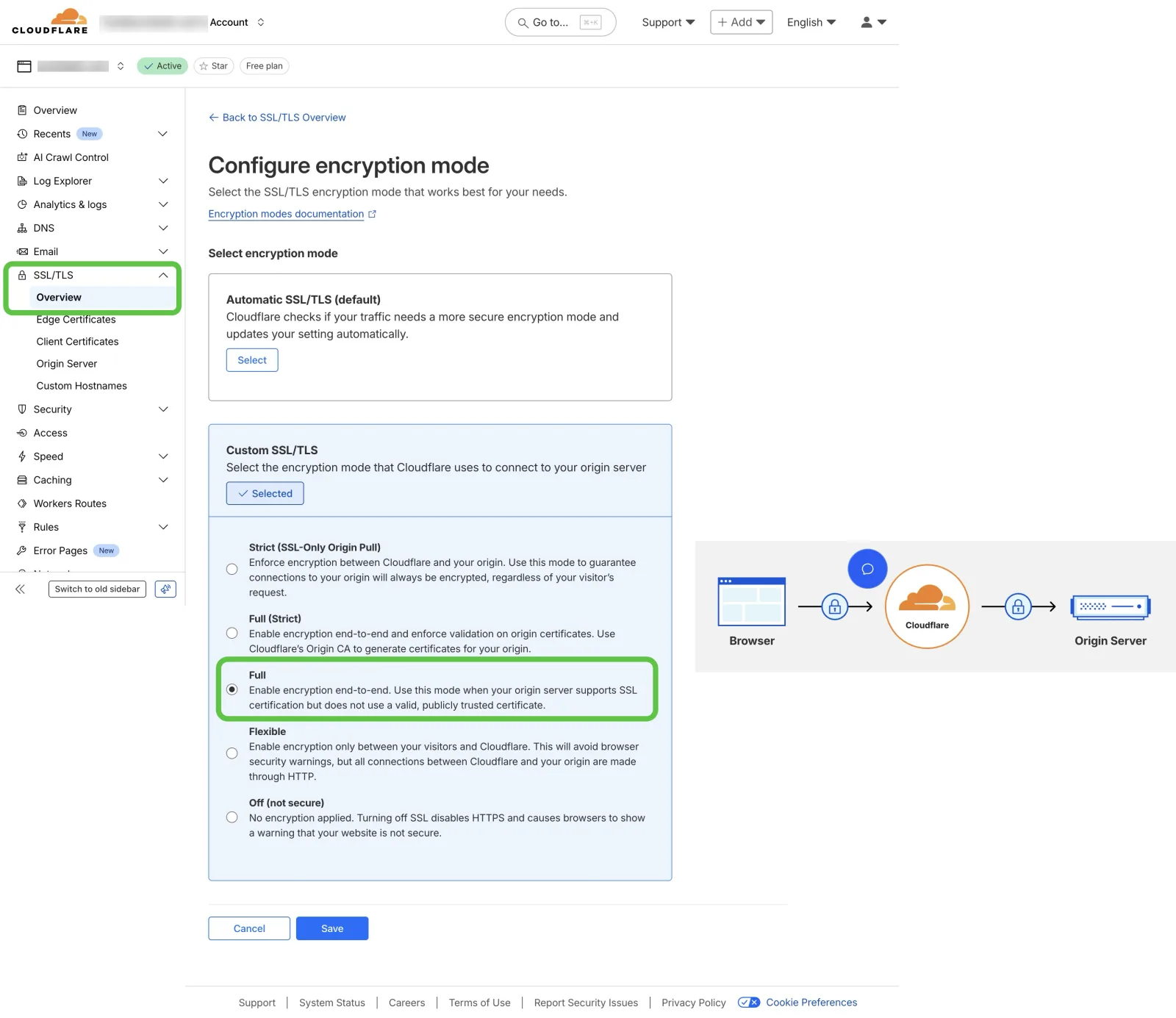
Your website is now fully encrypted from your visitor's browser all the way to your hosting server, providing the highest level of security and trust.
For detailed guide on creating / installing this TLS certificate on both cloudflare and your hosting server follow this official guide.
AI SEO Course
A Special Note for SiteGround Users
Note
If you use SiteGround hosting, you should first go into your Site Tools or cPanel and disable the basic Cloudflare integration that SiteGround offers by default. It is much better to manage your Cloudflare settings directly through the official Cloudflare website using the methods described in these lectures for full control and access to all features.


Keep building
More from Aruntastic
Practical courses for people who want to build useful things with AI.

AI SEO Course 2026: From Zero to Page-One Results
Research search demand, structure useful pages, and work through technical and off-page SEO.
Open the course →
AEO, GEO, AI SEO: Get Cited by ChatGPT, Google, Perplexity
Study how AI search finds information, and make your pages clear enough to be cited.
Open the course →
Microsoft PowerPoint Presentation 2026 for Professionals
Learn visual hierarchy, slide composition, typography and animation through practical work.
Open the course →
AI Agents for Leaders Who Have No Time to Learn AI
If you can delegate to a person, you can delegate to an AI agent. You keep the judgment. For managers and founders.
Open the course →
Introduction to Agentic AI and AI Agents
Learn how to direct an AI agent at work, with agentic workflows, RAG and MCP explained from a real first run.
Open the course →Toolkits and programme
Go deeper

Toolkit
SEO Accelerator Toolkit
150+ copy-paste AI prompts for audience research, keywords, content, technical SEO and link building.

Toolkit
GEO Accelerator Toolkit
100 detailed AI prompts for GEO audits, entity building, content structure and client reporting.

Programme
GEO Authority Accelerator
A complete GEO programme on our learner platform: nine modules and a 30, 60, 90 day roadmap. The GEO Accelerator Toolkit is included.
Claude certification practice
Preparing for a Claude certification?
Practice exams written by Arun: 600 questions across 4 mock exams and 2 drill banks. Unofficial preparation, not affiliated with Anthropic.
 CCAR-F
 CCAO-F
 CCDV-F
 CCAR-P
See Where You Stand
This resource is one piece of a much bigger system.
Take the free GEO Readiness Quiz to see exactly where your business stands with AI search engines today.
Take the GEO Readiness Quiz 60 seconds · Personalized report · Free