Free guide · Claude Code
Copy 3 morning routines and put them on a schedule
Emily Anne showed how three repeatable instructions can have email drafts ready to review by 7am. This guide gives you those three routines as prompts to copy, then shows how to schedule one in Claude Code, and is plain about what Claude Code can and cannot see.
 Arun Nagarathanam · 14 Oct 2026

The idea
What Emily Anne set up
In her Instagram reel (@emilyanne.ai), Emily Anne gave Microsoft 365 Copilot access to her inbox and calendar and set up three repeatable instructions, so that email drafts were ready for her to review by 7am. She used Copilot, not Claude. Scheduling there needs an eligible Microsoft 365 Copilot licence, and your organisation also has to allow it.
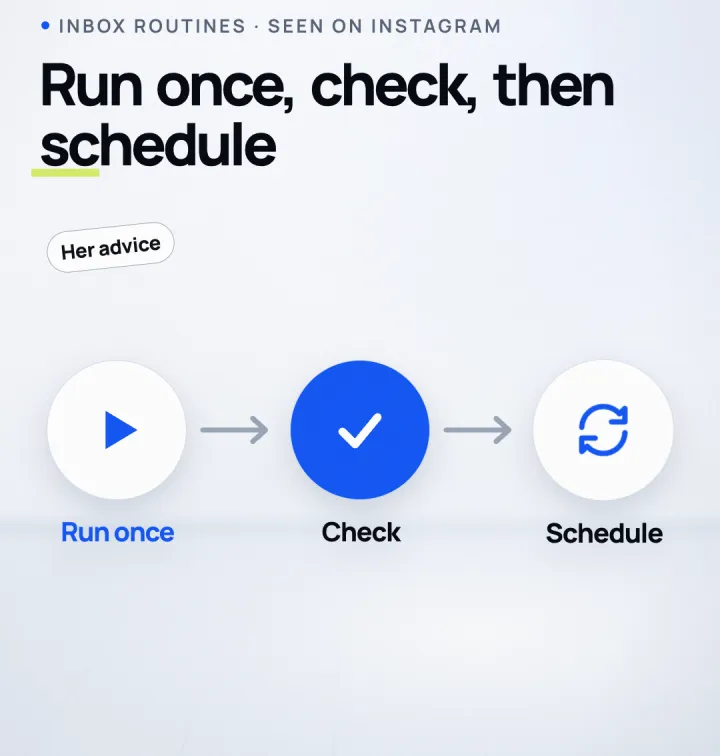
The useful part is the instruction itself, and you can write it for any AI. Her advice has three parts:
Emily Anne's advice
- 01Explain first: your role, your priorities and how you write.
- 02Run each instruction once and check the results before you schedule it to repeat.
- 03You review the suggested replies and decide what gets sent.
Copy and adapt
The three routines as copyable prompts
These are rewritten versions of her three routines, not her exact words. Swap each <placeholder> for your own details. Paste the About me block once at the start of a session, or at the top of each prompt.
About me (read this first, and keep it in mind for every task):
My role: <your role, for example "marketing manager at a small agency">
My priorities this quarter: <two or three priorities>
Who matters most: <names or groups whose messages should rank first>
How I write: <for example "short, friendly, no jargon, I sign off with Thanks">
Look at the messages in <the folder or file with my exported emails>.
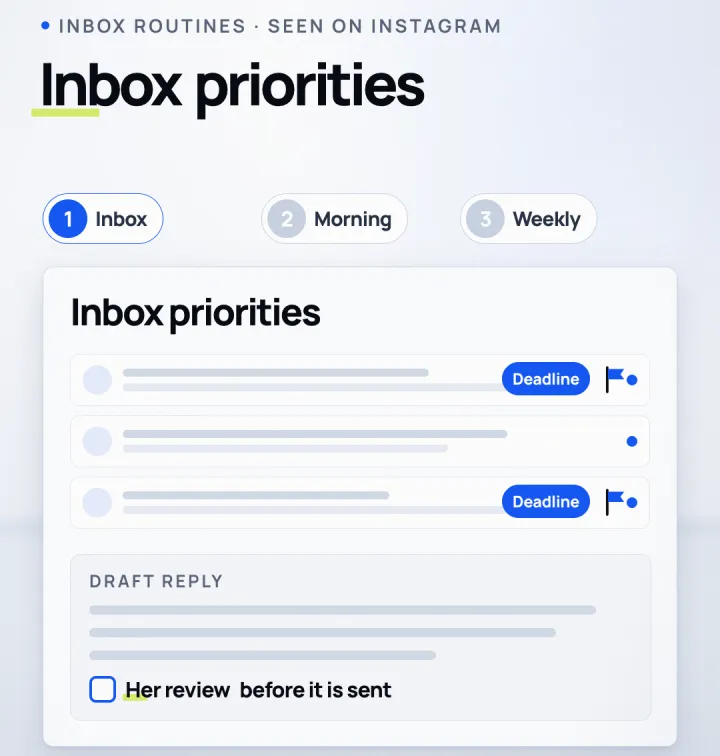
1. List the messages that need my attention today, most important first. Say why each one matters.
2. Flag any deadline you find, with the date.
3. For each message that needs a reply, write a suggested reply in my voice (see "How I write" above) and mark it DRAFT.
Do not send anything. I will read the drafts and decide what goes out.
If you are not sure about something, say so instead of guessing.
Look at <my calendar export or notes for today>.
Write one morning brief with:
1. Today's meetings in time order, with who is in each one.
2. What I should prepare for each meeting.
3. Anything I still owe someone, from <my notes or task list>.
Keep it to one page. Plain language. If a detail is missing, write "not found" instead of guessing.
Look at <my notes, sent items and calendar export for this week>.
Write a weekly update I can send to <my manager or team> with these headings:
Accomplishments, Key decisions, Blockers, Next steps.
Use my voice (see "How I write" above). Mark it DRAFT. Only use what is in the files. If a heading has nothing, write "nothing found".
Do it today
Put one on a schedule in Claude Code
The route a non-developer can follow is the desktop app's scheduled tasks. They run on your own computer and can read files in a folder you choose.
Seven steps
- Make a new folder called morning-routines. Put the files the routine will read into it (see the next section for what those can be).
- In the Claude desktop app, open the Code tab and click Routines in the sidebar (or in the sidebar's More menu). Desktop versions before 1.1.5368 do not have local scheduled tasks.
- Click New routine and choose Local (Cloud is the other choice, see below).
- Fill in Name, Description and Instructions. For Instructions, paste your About me block and one routine prompt, written the way you would write any message in the prompt box.
- Choose the working folder. A folder is required before you can save, and Desktop asks you to trust a new folder.
- Pick a Schedule preset: Manual, Hourly, Daily, Weekdays or Weekly. For anything else, such as the first of each month, ask Claude in any Desktop session to set it in plain language.
- Click Run now and read the result. If a permission prompt appears, answer it; choosing always allow means later runs will not ask again for that tool. Only then leave it on its schedule.
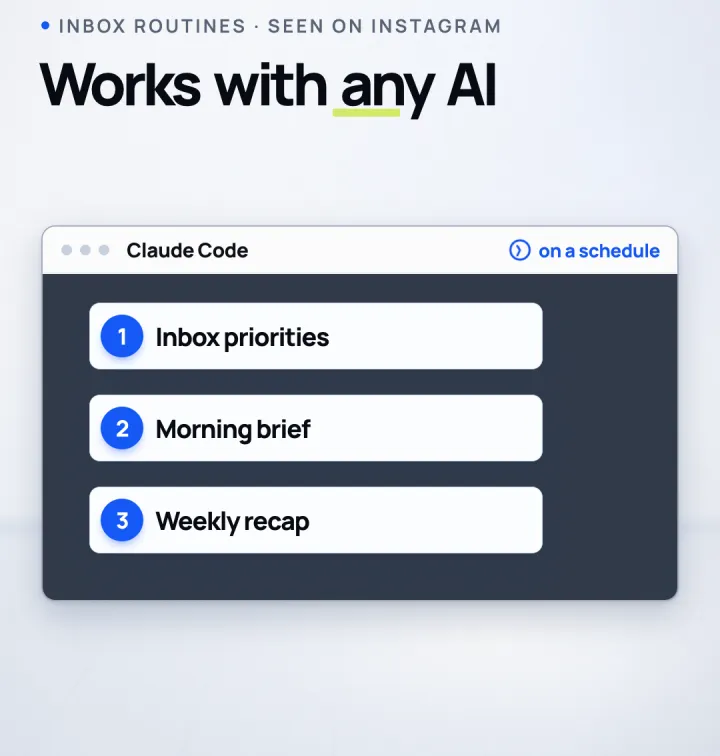
Set up a scheduled task that runs every weekday at 7:00. Name it morning-brief. The instructions are: <paste your morning brief prompt here>. Save the result as a file called brief-today.md in this folder.
Limits the docs state
- 01A local task only runs while the desktop app is running and your computer is awake. If the computer sleeps through the time, that run is skipped.
- 02To stop idle sleep, turn on Keep computer awake in Settings > This computer > System. Closing a laptop lid still puts it to sleep.
- 03If runs were missed, Desktop starts one catch-up run for the most recent missed time. A 7am task could run late in the evening, so add a line to your prompt such as: if it is after noon, skip the brief.
- 04Each task starts a few minutes after its set time. The Desktop minimum interval is one minute.
- 05In Manual permission mode a run waits for you to approve anything it is not yet allowed to do.
Cloud routines are the other option: they run even when your computer is off, but the minimum interval is one hour, they run without permission prompts, and they are built around code repositories and connectors. The docs also say Team and Enterprise Owners can disable routines for everyone. For a first morning routine on your own files, start with a local task.
Prefer the terminal? The docs also describe /loop, which repeats a prompt, but only while that session stays open, so it is not a morning job.
No surprises
Be honest about access
Claude Code does not see your inbox or calendar just because you run it. It can only read email or a calendar if it has a connector or tool for them. The docs name Microsoft 365, Gmail and Google Calendar as Anthropic-hosted connectors, which you connect at claude.ai/customize/connectors. The docs also say organisations can set controls on connector tools, including blocking them, and can turn off Claude Code in the desktop app. So whether this works for you depends on your account and your organisation.
Which tools a given connector offers, and whether they can read, draft or send, are not stated in the pages used for this guide, so check them in your own account. Where a routine uses a connector that can write, remember the docs warning for cloud routines: Claude can use every tool from an included connector, including writes, without asking permission. Remove connectors the routine does not need.
The safe version, no connector needed
- 01Export or copy today's emails and your calendar view into text or PDF files in your morning-routines folder, then run the prompts on those files.
- 02Or paste the text of the day's messages and meetings into the session yourself.
- 03Or ask your IT team whether a mail and calendar connector is allowed for you, and what it can do.
Nothing here sends email by itself. The prompts ask for drafts marked DRAFT, and you read them and decide what goes out.
Before you trust it
Check before you trust it
Open each scheduled run from the Scheduled section in the sidebar and read what Claude did. A finished run does not prove it found everything: the prompts above tell Claude to say "not found" rather than guess, so look for those lines. Pause a task from its detail page if you want to stop it without deleting it.
Files and links
- Official docs: scheduled tasks in the desktop apphttps://code.claude.com/docs/en/desktop-scheduled-tasks
- Official docs: routines (cloud)https://code.claude.com/docs/en/routines
- Official docs: run prompts on a schedule with /loophttps://code.claude.com/docs/en/scheduled-tasks
- Official docs: connect tools with MCP and connectorshttps://code.claude.com/docs/en/mcp
- Emily Anne's reel on Instagram (@emilyanne.ai)https://www.instagram.com/reel/DeJjKGyMKb4/
Keep building
More from Aruntastic
Practical courses for people who want to build useful things with AI.

AI SEO Course 2026: From Zero to Page-One Results
Research search demand, structure useful pages, and work through technical and off-page SEO.
Open the course →
AEO, GEO, AI SEO: Get Cited by ChatGPT, Google, Perplexity
Study how AI search finds information, and make your pages clear enough to be cited.
Open the course →
Microsoft PowerPoint Presentation 2026 for Professionals
Learn visual hierarchy, slide composition, typography and animation through practical work.
Open the course →
AI Agents for Leaders Who Have No Time to Learn AI
If you can delegate to a person, you can delegate to an AI agent. You keep the judgment. For managers and founders.
Open the course →
Introduction to Agentic AI and AI Agents
Learn how to direct an AI agent at work, with agentic workflows, RAG and MCP explained from a real first run.
Open the course →Toolkits and programme
Go deeper

Toolkit
SEO Accelerator Toolkit
150+ copy-paste AI prompts for audience research, keywords, content, technical SEO and link building.

Toolkit
GEO Accelerator Toolkit
100 detailed AI prompts for GEO audits, entity building, content structure and client reporting.

Programme
GEO Authority Accelerator
A complete GEO programme on our learner platform: nine modules and a 30, 60, 90 day roadmap. The GEO Accelerator Toolkit is included.
Claude certification practice
Preparing for a Claude certification?
Practice exams written by Arun: 600 questions across 4 mock exams and 2 drill banks. Unofficial preparation, not affiliated with Anthropic.
 CCAR-F
 CCAO-F
 CCDV-F
 CCAR-P
Free skills pack
Seven ready-made Claude Code skills, free.
The First Seven is a free pack of seven Claude Code skills for marketers, SEO consultants and presentation professionals. The Claude Code Without Coding course teaches you to build your own tools step by step.
Get The First Seven Free on GitHub · No email form