Claude Code Course
Notes: Take the Controls
 Arun Nagarathanam · 31 Aug 2026 Notes · 40 of 80 in this course
 An exclusive resource for students of Arun's Claude Code Course.
In This Section, You Will Master:
- Reading what a session costs you, on your own project, instead of guessing at it
- The five commands you reach for daily, and permission to leave the rest until you need them
- The five places Claude Code runs, and which one earns its place for which kind of work
- Reading a change before it reaches your files, rather than after
- Arranging the desktop app around the way you actually work
How to Use These Notes:
These notes are designed as quick-reference companions to your video learning.
- Use them to review key concepts after watching lectures
- Reference them when you need a quick reminder of frameworks and tools
🎯 Core Concepts= Essential terms and frameworks🚀 Actionable Items= Practical implementation steps
The Growth Payoff:
You started this section driving on settings you never chose, hoping the defaults were fine. By the end you know every instrument on the panel, which five of them you actually use, and where you want to sit while you work. The tool stops being something that happens to you.
Lecture: What does it take to actually drive this tool? (Your Cockpit Tour)
Two questions you could not answer before this section: what your work costs, and what the tool is allowed to do on its own.
🎯 Core Concepts:
- A single afternoon can cost 5 dollars or 500, and nothing on the screen warns you
- Learning the whole panel is what stops any single part of it surprising you later
- Everything here gets practised on the project you already shipped, not on examples that vanish when the lecture ends
- Your everyday work comes down to about five moves you make without thinking
Lecture: Which single command saves you the most money? (Your Control Panel)
The command that saves the most money is the plainest one in the tool. Everything starting with a slash is you operating the tool rather than talking to Claude.
🎯 Core Concepts:
/clearwipes the conversation so the next task starts with nothing behind it. Your files are saved on disk, so you lose only the expensive part- Carrying a finished task into an unrelated one means paying to carry it on every turn that follows
/helplists every command,/statusreports your setup, and/usageis the meter- Compact squeezes the conversation into a summary, clear lets it go. A summary quietly drops details you did not know you needed
/compactaccepts an instruction, so you can name what to keep instead of letting it guess
🚀 Actionable Items:
- Clear first, every time you are about to start something unrelated to what you just did
Lecture: Which commands will you actually use every day? (The Whole Shelf)
The rest of the shelf, with permission to let most of it sit there until you need it.
🎯 Core Concepts:
/contextshows how full the conversation is and what is taking the space. One careless search across a project can fill it in a single turn/model,/config,/memoryand/efforteach get their own time later in the course/btwasks a side question that never enters the history, and/exportsaves a conversation out as a file- Escape twice on an empty input line opens a rewind menu, a deliberate way to undo part of the conversation
- Your daily five are clear, usage, context, model, and the escape-twice rewind
Lecture: What did your own session actually cost? (Your First Cost Reading)
A short exercise on your own project, because these readings only teach you something when the numbers are yours.
🚀 Actionable Items:
- Run
/usageand write the number down. That is what building your first project cost - Run
/context,/modeland/memory, and record what each one tells you - Drop all four readings into your command cheat sheet and keep the page
Lecture: Do I have to live in the terminal? (All 5 Ways to Run Claude Code)
The terminal is one place Claude Code runs, not the tool itself.
🎯 Core Concepts:
- Five front doors: the terminal, the desktop app, the Visual Studio Code extension, the JetBrains plugin, and the browser
- Your setup travels with you. The instructions file, the permission rules, the skills and the connected tools all load the same way through every door
- The terminal is the only one that can do a single job and hand the answer straight to another program, and it is far lighter on your machine
- The app is where you read a change before it lands, and where conversations survive shutting the laptop
- A running session can be steered from a browser or a phone, but your own machine has to stay awake
Lecture: Can I see every change before it happens? (The Desktop App)
/desktop hands your terminal session over with the whole history intact. Nearly every new thing on that screen is an old thing that moved.
🎯 Core Concepts:
- Four choices sit around the prompt box: where Claude runs, the project folder, the model, and the permission mode
- Slash commands work exactly as before. The at sign completes filenames, and you can drag in a file or attach a screenshot or a PDF
- The ring beside the model picker holds two numbers, one for this conversation and one for your whole account across every door
- A change arrives as a count of lines added and removed. Open it and the old version sits beside the new one, with accept and reject on each change
- You can comment on a single line, and Claude reads what you wrote and comes back with a new version
Lecture: How do I set up the desktop app the way I work? (Panels and Rewind)
This window comes apart, and you put it back together the way you work.
🎯 Core Concepts:
- Every part of the window is a panel you can move, resize, open or close from the Views menu
- The browser panel puts your site, your documentation or a PDF beside the conversation, and Claude can see it too
- The transcript has four settings. Summary is the one that turns five minutes of scrolling into twenty seconds of reading
- Escape twice lists every prompt you sent as a point you can stand at again. Rewinding takes this conversation back, forking leaves it alone and starts a second one
- Rewind only tracks files Claude edited through its own tools, and it is not version control. Keep git for the permanent history
Lecture: Is it really the same tool in both places? (Terminal vs App)
Whether these are the same tool underneath, settled on screen rather than asserted.
🎯 Core Concepts:
- Anything that answers you with words works everywhere you go, and the app has usually left that answer sitting on screen already
- The few commands that open a panel have somewhere else in the app doing the same job, like
/configopening the settings screen /permissionsis not available in the app, and that points at something real. The rules were never inside the command, they live in a file- Nothing you learned by typing commands is wasted
Lecture: 4 moves and a sheet of paper (Commands, Cost and the Desktop App)
What actually changed across this section, and it is not the number of commands you can name.
🎯 Core Concepts:
- You stopped taking the tool's word for what it did, and read the change yourself before it reached your files
- A day comes down to four moves: open the folder you mean to work in, choose how far Claude may go, read the change before you keep it, and glance at the ring while you work
- The five commands on your own sheet are the ones you kept reaching for, out of a whole shelf
- You read a real cost figure off your own project. Bringing that figure down is a different skill, and it comes later


Keep building
More from Aruntastic
Practical courses for people who want to build useful things with AI.

AI SEO Course 2026: From Zero to Page-One Results
Research search demand, structure useful pages, and work through technical and off-page SEO.
Open the course →
AEO, GEO, AI SEO: Get Cited by ChatGPT, Google, Perplexity
Study how AI search finds information, and make your pages clear enough to be cited.
Open the course →
Microsoft PowerPoint Presentation 2026 for Professionals
Learn visual hierarchy, slide composition, typography and animation through practical work.
Open the course →
AI Agents for Leaders Who Have No Time to Learn AI
If you can delegate to a person, you can delegate to an AI agent. You keep the judgment. For managers and founders.
Open the course →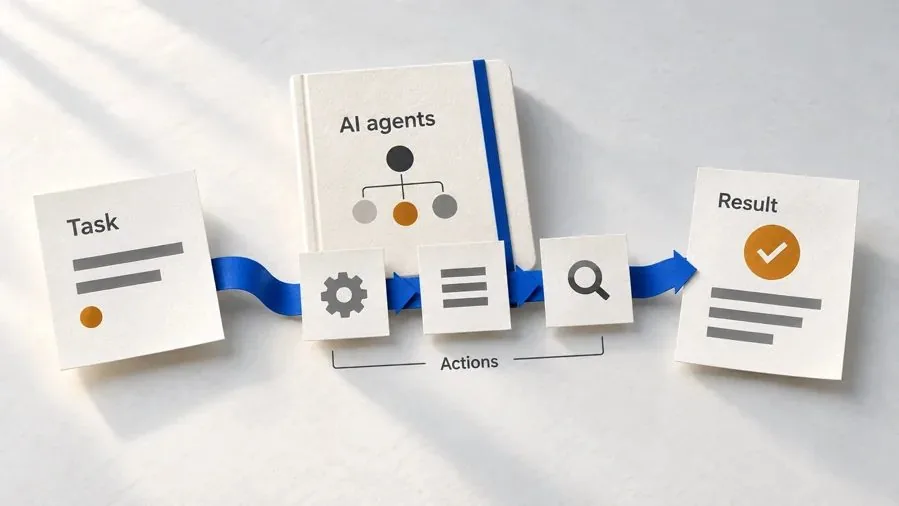
Introduction to Agentic AI and AI Agents
Learn how to direct an AI agent at work, with agentic workflows, RAG and MCP explained from a real first run.
Open the course →Toolkits and programme
Go deeper

Toolkit
SEO Accelerator Toolkit
150+ copy-paste AI prompts for audience research, keywords, content, technical SEO and link building.

Toolkit
GEO Accelerator Toolkit
100 detailed AI prompts for GEO audits, entity building, content structure and client reporting.

Programme
GEO Authority Accelerator
A complete GEO programme on our learner platform: nine modules and a 30, 60, 90 day roadmap. The GEO Accelerator Toolkit is included.
Claude certification practice
Preparing for a Claude certification?
Practice exams written by Arun: 600 questions across 4 mock exams and 2 drill banks. Unofficial preparation, not affiliated with Anthropic.
 CCAR-F
 CCAO-F
 CCDV-F
 CCAR-P
See Where You Stand
This resource is one piece of a much bigger system.
Take the free Claude Code Readiness Quiz. It is 15 short situations, scored out of 100, and it tests how you handle a job rather than what you know about a tool, so you can take it without ever having opened Claude Code.
Take the Claude Code Readiness Quiz 15 situations · Scored out of 100 · Free